VPN Connected but No Internet? 10 Fixes That Work on Windows, Mac, Android, and iPhone
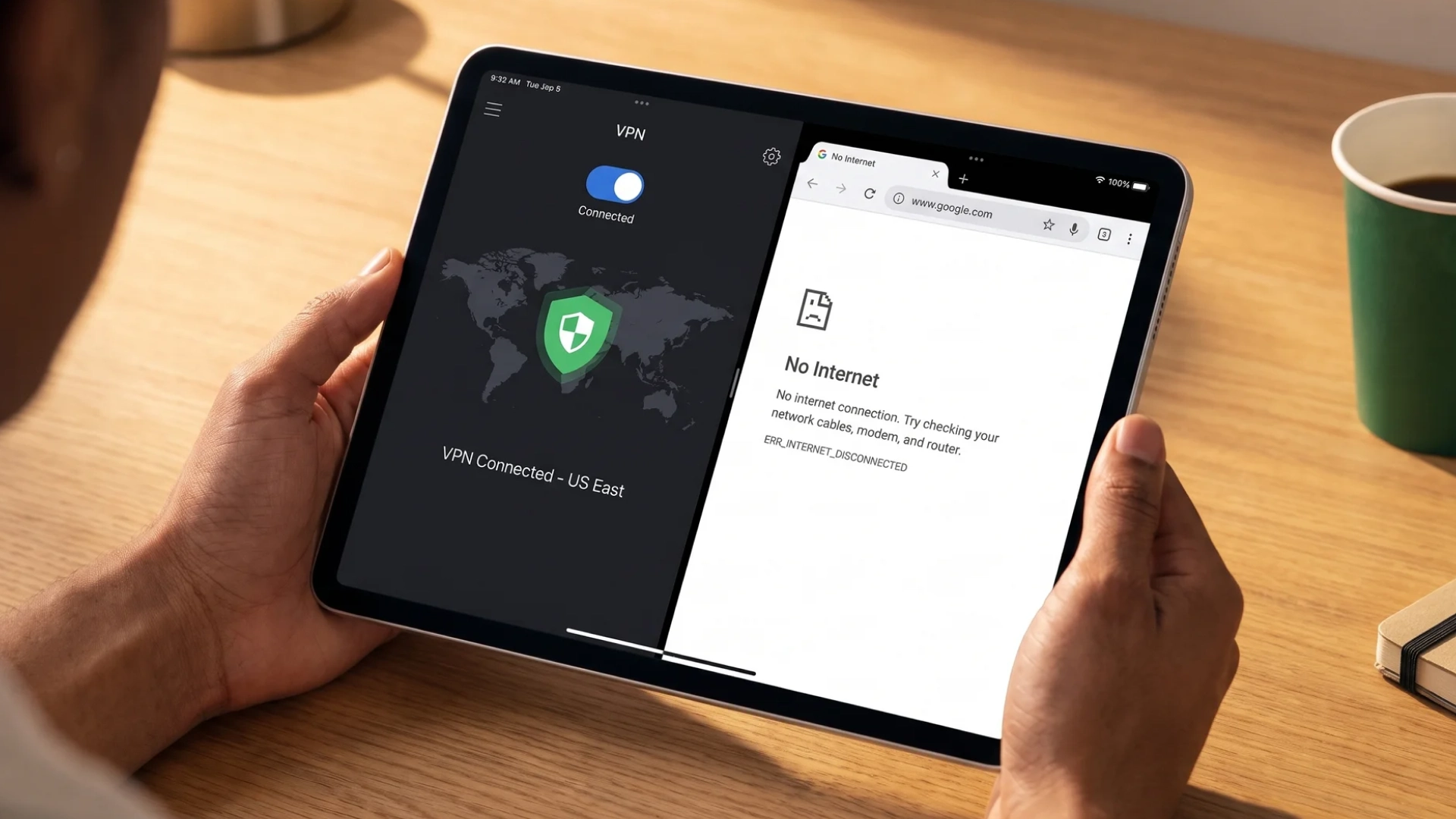
Your VPN app glows green, the status says “Connected,” and yet every page you open spins like it is waiting for a bus that never…
Protect your online privacy and security
Fast, private, and easy to use, get Hidzo on your device and browse freely with one tap.
Get HidzoVPN Your VPN app glows green, the status says “Connected,” and yet every page you open spins like it is waiting for a bus that never comes. That’s a secure tunnel that leads nowhere.
Here is the short version: “Connected” only means the tunnel opened, and a quick three-step test shows which part of the path broke. Once you know that, most cases of VPN connected but no internet take a few minutes to fix.
Table of Contents
Why Is My VPN Connected but There’s No Internet?
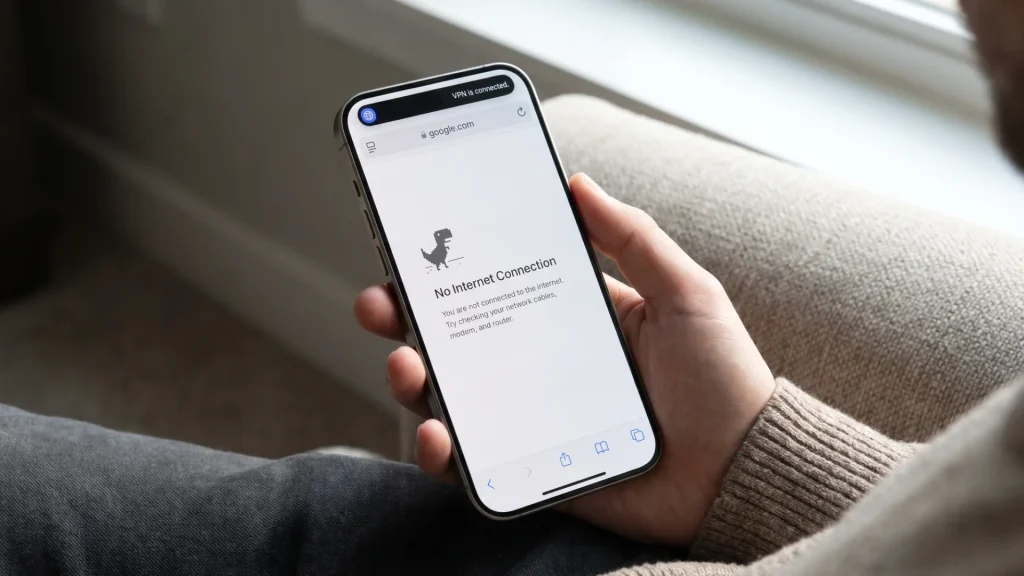
The green badge is a handshake receipt, nothing more. Your device and the VPN server agreed on keys and opened an encrypted tunnel. Whether traffic actually flows through that tunnel, and whether the server can reach the wider internet from its end, is a separate question the badge never answers.
That is why a VPN connected but internet not working situation almost always traces back to one of four layers:
- DNS: The tunnel works, but your device cannot turn names like google.com into addresses.
- Routing: Your device sends traffic down a path the tunnel cannot deliver, such as an IPv6 route or a stale one.
- The server exit: The server accepts your handshake but cannot pass your traffic onward because it is overloaded or blocked.
- Local conflicts: A proxy, a firewall, a second VPN, or a privacy feature is fighting the tunnel.
The 60-Second Triage Test
Before you change a single setting, run this test with the VPN connected:
- Open
https://1.1.1.1in your browser. This loads a page by IP address, so DNS plays no part. - Open any normal website by name, such as a news site.
- Switch to your phone hotspot (or mobile data, if you are on a phone) and repeat both steps with the VPN still on.
Then match what you saw to the table below. A VPN connected but websites not loading result is the classic DNS pattern, but the other rows matter just as much.
| What You See | Likely Layer | Start With |
|---|---|---|
| The IP page loads, but sites by name fail | DNS | Fixes 3 and 4 |
| Nothing loads, not even the IP page | Server, protocol, or routing | Fixes 1, 2, and 8 |
| Small pages load, large pages or images hang | Packet size (MTU) | Fix 7 |
| Only certain apps fail | Per-app rules or conflicts | Fixes 5 and 6 |
| Works on mobile data, fails on home Wi-Fi | Router or local network | Fixes 2, 8, and 9 |
| Everything loads except one site | That site blocks your VPN server | Fix 1 |
| Fails on public/hotel Wi-Fi before login screen opens | Captive Portal | Disconnect VPN, open [http://neverssl.com]to trigger login, then reconnect |
If your app never reaches the “Connected” state at all, that is a different problem, and our guide on what to do when your VPN won’t connect covers it.
How to Fix VPN Connected but No Internet
Work through these in order. The early fixes are quick and cover the most common causes, while the later ones are heavier tools. If you have ever seen internet not working with VPN only on one network, the middle fixes are usually where the answer hides.
1. Switch to a Different Server
A server can accept your connection and still fail to pass traffic along, a bit like a bouncer who lets you in and then locks the exit. Disconnect, then pick a server in a neighboring city or country rather than the one you used last.
If your app shows server load, choose a lighter one. Choosing a better server location also helps for another reason: a closer, quieter server rarely stalls. For example, if a Frankfurt server fails from Berlin, try Amsterdam.
2. Change the VPN Protocol
Some networks let the handshake through but drop the data that follows. Switching from WireGuard to OpenVPN, or the other way around, changes how your traffic looks and often fixes the problem on school, office, and hotel Wi-Fi. Understanding which VPN protocol suits each situation saves a lot of trial and error.
Some networks go further and use deep packet inspection to spot and throttle tunnel traffic. If your app offers a stealth or obfuscated mode, turn it on and test again.
If switching protocols fails, look for a sub-option to toggle from UDP to TCP (specifically using Port 443). UDP is optimized for speed but easily blocked; TCP over Port 443 blends in with normal HTTPS web traffic and slips past strict network firewalls.
3. Change DNS and Flush the Cache
If the IP page loaded in your triage test but sites by name did not, DNS is your culprit. Start by clearing the cache.
On Windows, open Command Prompt as administrator and run ipconfig /flushdns. On a Mac, open Terminal and run sudo dscacheutil -flushcache; sudo killall -HUP mDNSResponder.
If names still fail, open your VPN app’s settings and set a public DNS resolver such as 1.1.1.1 or 8.8.8.8. Many apps also have a “use VPN DNS” option, which is worth trying first.
Do not confuse this with a DNS leak, where your queries escape the tunnel. In this case, the queries simply never get answered.
4. Turn Off IPv6
Some VPNs tunnel only IPv4 traffic. If your router also hands out IPv6 addresses, your browser may try an IPv6 route that skips the tunnel and dead-ends.
First, look for an IPv6 leak protection switch in your VPN app and turn it on. If there is none, disable IPv6 on your network adapter instead. On Windows, open your adapter’s properties and untick “Internet Protocol Version 6.” Then run your triage test again.
5. Check Proxy Settings and Conflicting Software
A leftover proxy setting is the sneakiest cause on this list. On Windows, go to Settings, then Network & internet, then Proxy, and make sure “Use a proxy server” is off. On a Mac, open System Settings, then Network, pick your connection, and check the Proxies tab.
Next, hunt for rivals. A second VPN, an antivirus with a web shield, or iCloud Private Relay on an Apple device can all grab the same traffic. Two tunnels at once are like two GPS voices giving opposite directions, and your data ends up circling the block.
Turn off one tool at a time and retest. If the internet returns, you have found the troublemaker.
Don’t forget your VPN’s own safety features. A built-in VPN Kill Switch (or Network Lock) is designed to cut your internet if the tunnel drops. If the feature glitches, it will keep holding your connection hostage even after the app claims the tunnel is back up. Toggle the Kill Switch off in your app’s settings to test if traffic resumes.
6. Review Split Tunneling and Per-App Rules
If only certain apps fail, check your VPN’s app list. An app set to bypass the tunnel uses your regular connection, while an app forced through the tunnel depends entirely on the tunnel working.
Say Chrome fails while Spotify plays fine. Remove Chrome from the list, or switch split tunneling off completely as a test. If everything loads afterward, rebuild the list one app at a time.
7. Lower the MTU
This fix matches a very specific symptom: small pages and plain text load, but large pages, images, or uploads hang. Every network has a maximum packet size, called the MTU, and packets that are too big get dropped without any error message.
A VPN wraps your data in extra encryption, which makes each packet bigger. Open your app’s advanced settings and lower the MTU from 1500 to 1400. If pages still hang, try 1350, and keep stepping down until large pages load.
8. Renew Your IP Address and Restart the Router
A stale lease or a confused router can break the path before your traffic ever reaches the tunnel. On Windows, run ipconfig /release followed by ipconfig /renew. On a Mac, open System Settings, then Network, then your connection’s Details, and choose Renew DHCP Lease under TCP/IP.
Then unplug your router for 30 seconds and plug it back in. If your VPN works on a phone hotspot but not on your home Wi-Fi, the router becomes the prime suspect, and your ISP support can help.
9. Reset the Network Stack and Virtual Adapter
When your system keeps broken routes from an earlier VPN session, a reset clears the slate. On Windows, run netsh winsock reset and netsh int ip reset in an administrator Command Prompt, then restart. You can also use the built-in Network reset option, which Microsoft recommends as a last step.
Expect to re-enter your Wi-Fi passwords afterward. If the problem keeps coming back, open Device Manager, remove your VPN’s virtual adapter, and restart the app so it installs a fresh one.
10. Update or Reinstall the App
Update both your VPN app and your operating system, since many “it worked yesterday” cases begin right after an update. If that changes nothing, uninstall the app, restart the device, and install it again. On Mac and iPhone, delete the old VPN profile first so no stale configuration survives.
If nothing works, you should call an IT guy or contact your provider’s support with your device, OS version, app version, protocol, server, and the result of your triage test. That information saves several rounds of back and forth.
VPN Connected but No Internet on Different Devices
Every platform has its own favorite way to break. Here is what to check once the general fixes have not worked.
Windows 10 and Windows 11
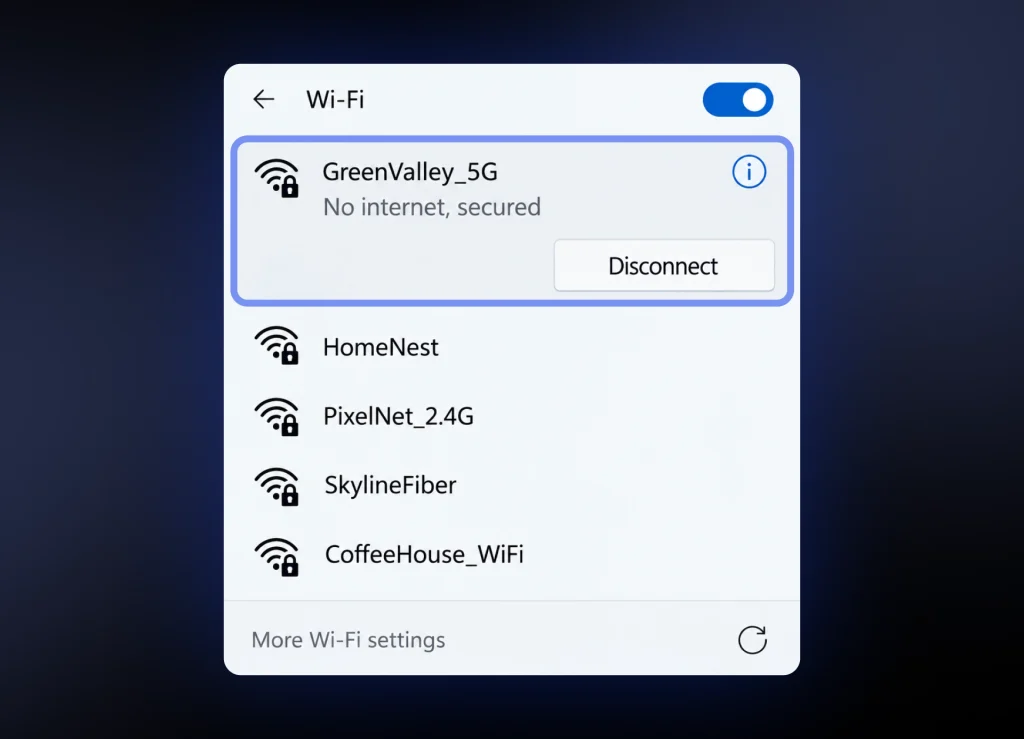
VPN connected but no internet on Windows 11 and Windows 10 often starts with a harmless liar: the taskbar icon. Windows can show “No Internet, secured” when its own connectivity check fails inside the tunnel, even while pages load perfectly. Trust a real page load over the icon.
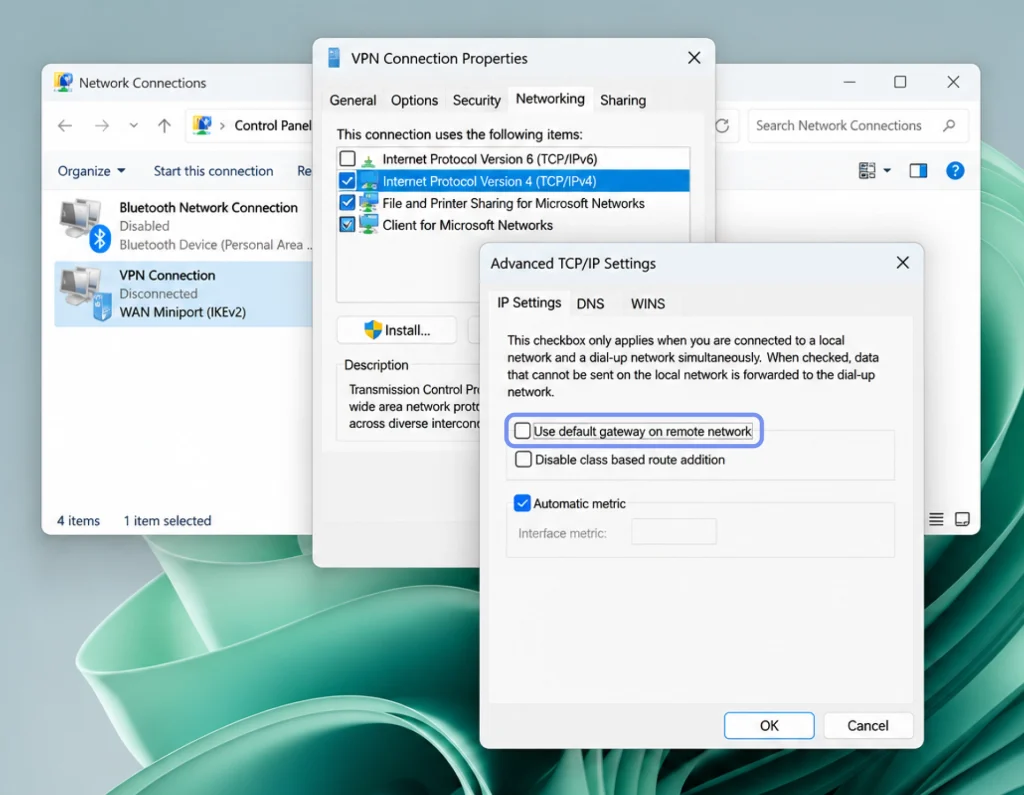
If you use the built-in Windows VPN or a work profile, look at the “Use default gateway on remote network” setting in the VPN adapter’s IPv4 advanced properties. When it is on, all your traffic heads to the remote network, which may not offer internet at all. Turning it off lets normal browsing continue, though you should check with your IT team first if your company requires a full tunnel.
Mac
On a Mac, VPN connected but no internet frequently means macOS quietly refused something. Open System Settings, go to Privacy & Security, and scroll down to look for a blocked system extension or network extension notice. Click Allow and enter your password.
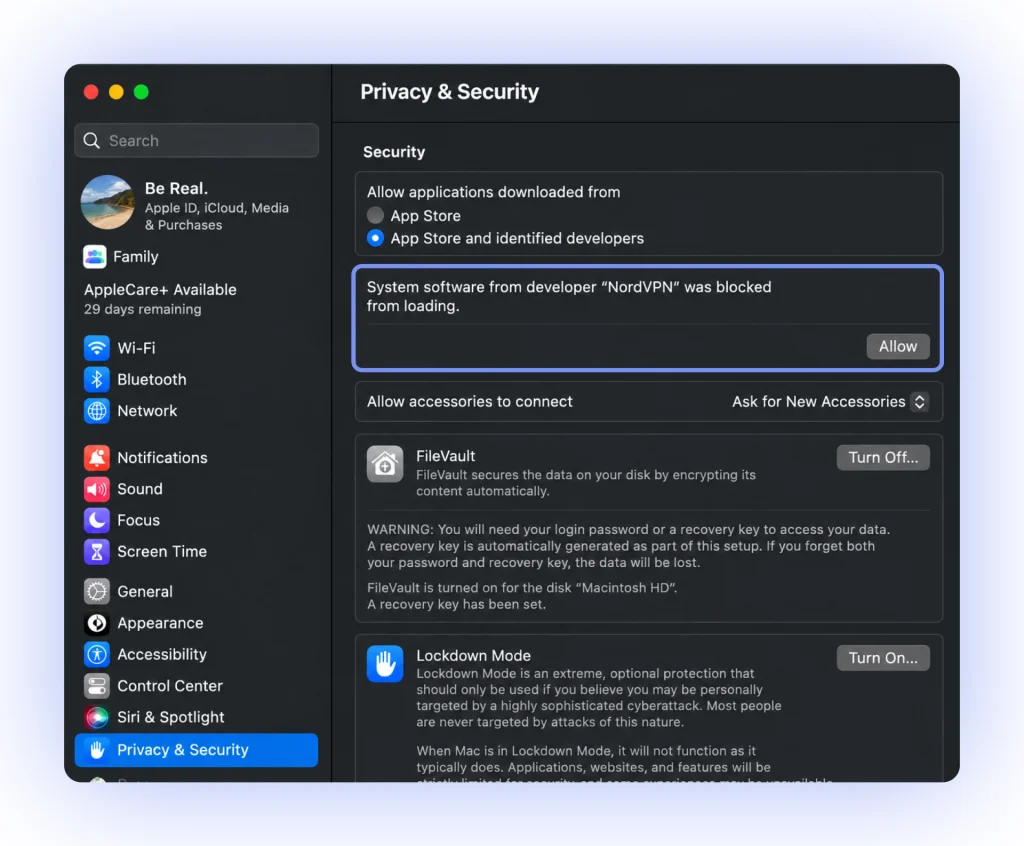
Then open the Network pane and remove old VPN entries left behind by apps you uninstalled. Those leftovers can jump the queue and hijack your traffic order. Repeat the DNS flush from fix 3 afterward.
Android
VPN connected but no internet on Android has a famous culprit: the system’s own lockdown. Go to Settings, then Network & internet, then VPN, and tap the gear next to your VPN. If “Block connections without VPN” is on, Android cuts off everything whenever the tunnel stumbles, so switch it off to test.
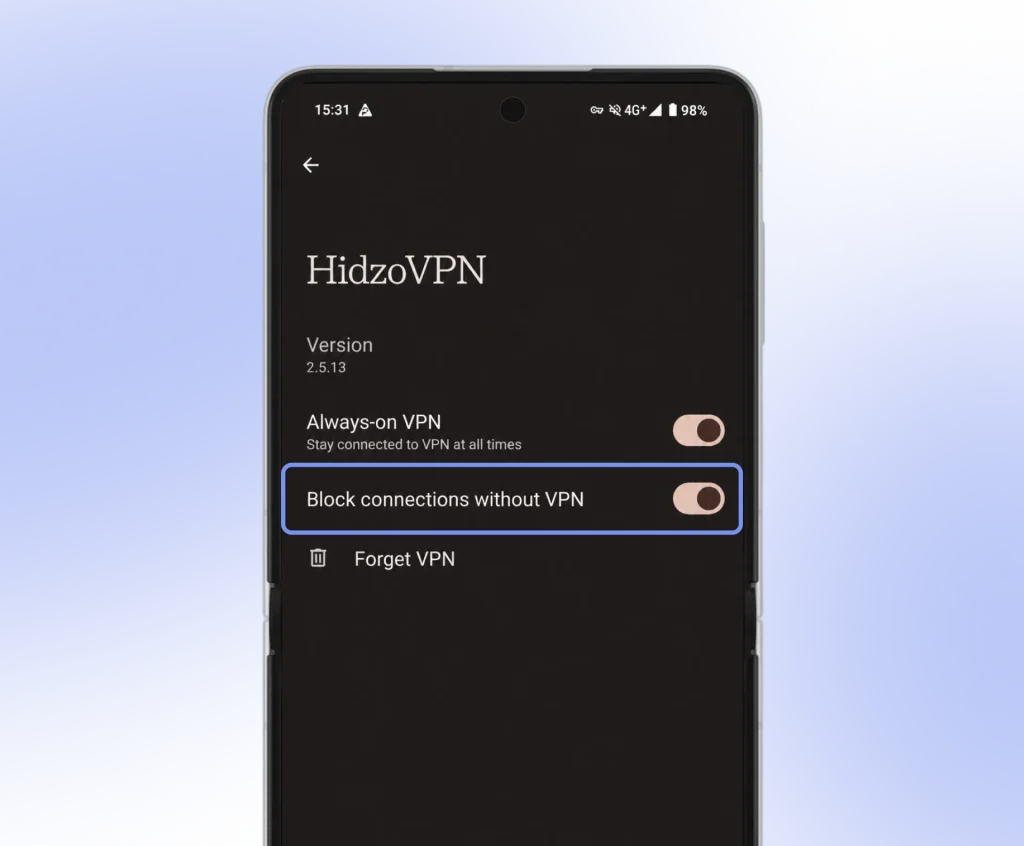
While you are there, check Private DNS in your network settings. A custom hostname that the tunnel cannot reach breaks every name lookup, so set it to Automatic or Off and try again.
iPhone
VPN connected but no internet on iPhone usually involves one of three features. Turn off iCloud Private Relay under Settings, then your name, then iCloud, and turn off Wi-Fi Assist near the bottom of the Cellular settings. Both can reroute traffic in ways a VPN does not expect.
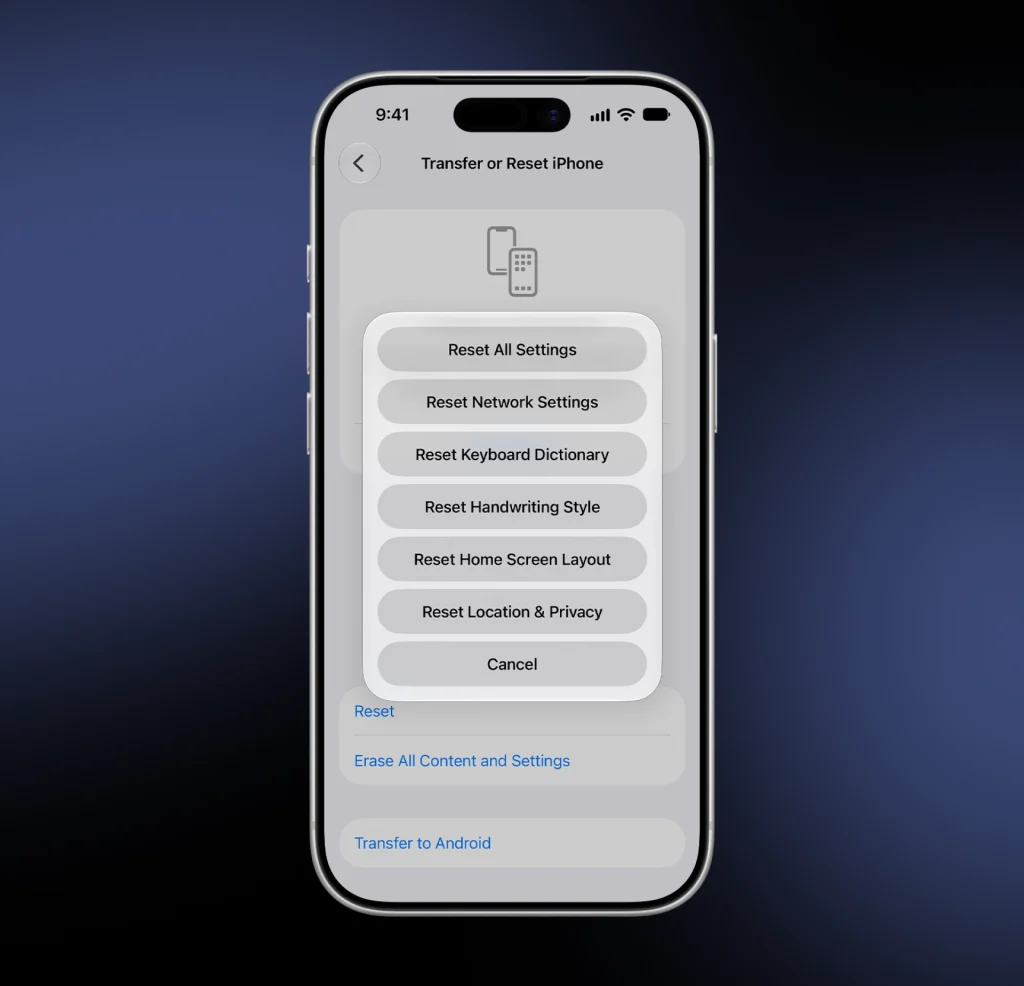
If the problem persists, go to Settings, General, then VPN & Device Management, delete the VPN profile, and reinstall the app. As a final step, use Reset Network Settings under Transfer or Reset iPhone, which also clears saved Wi-Fi passwords.
How to Prevent VPN Internet Connection Problems
A few habits stop most repeat visits to this problem. Keep your VPN app and your operating system updated, run only one VPN at a time, and avoid stacking it with other privacy layers that reroute traffic.
Write down the server and protocol that last worked well, so you can return to a known good setup in seconds. Run the 60-second triage test after major OS updates rather than waiting for a bad moment, like five minutes before a video call.
It also helps to use a VPN app that makes some of these choices for you. HidzoVPN, for example, picks a working connection method automatically and offers split tunneling, so you spend less time inside settings menus.
A Quick Checklist to Keep Handy
- Run the triage test: IP page, name page, and phone hotspot.
- Switch servers, then switch protocols.
- Fix DNS, then turn off IPv6.
- Remove proxies and rival tools, such as a second VPN or Private Relay.
- Lower the MTU if large pages hang.
- Renew your IP, restart the router, and reset the network stack.
- Update or reinstall the app, then contact support with your triage results.
FAQ
The status only confirms that the encrypted tunnel opened. It does not confirm that DNS works, that traffic routes correctly, or that the server can reach the internet from its end.
Your Wi-Fi network or router is probably blocking or mishandling the VPN traffic. Try a different protocol, renew your IP, and restart the router.
Yes. Security software with a web shield or firewall rules can block the VPN’s virtual adapter. Turn the shield off briefly to test, then add your VPN app to the allowed list.
Sometimes. If your VPN tunnels only IPv4 traffic, an IPv6 route can bypass the tunnel and fail, so disabling IPv6 or turning on leak protection often restores browsing.
If only one site fails, it likely blocks your VPN server’s IP address, and a new server usually fixes it. If large pages fail while small ones load, lower your MTU instead.
Turn the VPN off and test your connection, then test the VPN on a phone hotspot. If the connection works without the VPN but fails with it on both networks, the VPN is the cause.
Either works well for this purpose. Pick one, apply it in your VPN app, and test, then try the other if page loading is still unreliable.
Article by
-
 Sam Clarke
Sam is a cybersecurity and online privacy writer dedicated to making complex network protection accessible, practical, and engaging.





Share your thoughts
Add a comment