Best VPN for CapCut: Unlock All Features Without Restrictions
Few things are more frustrating than sitting down to edit a video, loaded with creative genius, only to have CapCut hit you with a “No…
Protect your online privacy and security
Fast, private, and easy to use, get Hidzo on your device and browse freely with one tap.
Get HidzoVPNTable of Contents
Few things are more frustrating than sitting down to edit a video, loaded with creative genius, only to have CapCut hit you with a “No Internet Connection” error or hide the viral templates you need. If you are struggling with regional bans, school network blocks, or missing features, the quick fix is using a high-quality VPN like NordVPN or Surfshark to mask your location; just remember to force-close the app and clear your cache before turning it on.
While a quick server switch can get you back to editing in seconds, choosing the wrong VPN can severely throttle your rendering speed or fail to bypass CapCut’s strict geographical blocks altogether. Stick around as we break down the absolute best tools for the job.
Best VPNs for CapCut Users
Choosing the right VPN for video editing is not just about finding any app that hides your location; it is about maintaining high speeds so your timeline does not stutter when you load heavy transitions, stickers, or filters.
If your VPN is too slow, you will spend more time watching the buffering wheel than actually polishing your transitions. Here are the top six VPNs that keep your connection fast and stable while editing on CapCut.
1. Surfshark: Best Overall Value for Creators
Surfshark operates over 3,200 high-speed 10Gbps servers across 100+ countries, utilizing the fast WireGuard protocol to deliver maximum bandwidth. It allows unlimited simultaneous device connections under a single account, making it ideal for creators who switch between desktop, tablet, and mobile platforms. Its built-in CleanWeb feature also blocks intrusive ads and trackers while you browse for editing assets online.
- Pros: High-speed 10Gbps server network, unlimited simultaneous device connections, and robust SmartDNS capabilities.
- Cons: Connection speeds can occasionally fluctuate when connecting to distant, long-haul international servers.
- What Makes It Excellent for CapCut: Keeps high-resolution timeline previews smooth on desktop while simultaneously letting you search for trending TikTok audio on your phone without logging you out.
2. Private Internet Access (PIA): The Customization Champion
Private Internet Access (PIA) features a massive global server footprint operating on 10Gbps network infrastructure, giving creators extensive regional IP options. It offers deep protocol customization, letting you toggle between WireGuard for raw speed and OpenVPN for restrictive networks. The software also includes advanced split tunneling, allowing you to route CapCut traffic through the VPN while keeping local applications on your direct connection.
- Pros: Highly configurable security protocols, built-in app-based split tunneling, and an audited zero-logs policy.
- Cons: Desktop interface contains dense technical settings that can feel overwhelming for beginner creators.
- What Makes It Excellent for CapCut: Split tunneling lets you route heavy cloud asset transfers through a US server while preserving low-latency local internet access for your other desktop software.
3. HidzoVPN: The Ultimate Budget Choice for Mobile Creators
HidzoVPN is engineered specifically as a lightweight, low-latency solution for content creators on both mobile and desktop. This VPN app avoids memory-heavy background processes, ensuring minimal battery consumption while maintaining a rock-solid connection to key media hubs like the US, UK, Japan, and Singapore. Furthermore, it offers flexible monthly pricing without requiring multi-year commitments, making it accessible for emerging social media editors.
- Pros: Extremely low battery consumption, instant single-tap server connections, and competitive monthly pricing without long contracts.
- Cons: Smaller overall server fleet compared to legacy desktop VPN providers.
- What Makes It Excellent for CapCut: Built specifically to prevent “Network Busy” crashes on mobile CapCut during high-bandwidth cloud syncs and direct TikTok exports.
4. IPVanish: Consistent Speeds for Desktop Editors
IPVanish owns and operates its entire server infrastructure rather than renting third-party servers, providing high connection stability and reliable uptime. The app features real-time server diagnostics, including active ping rates and server load percentages, so desktop editors can choose the least congested node before loading media. It supports unmetered connections and features automatic connection startup triggers.
- Pros: Independently managed network hardware, live server ping and load diagnostics, and unmetered device connections.
- Cons: The visual interface relies on a dark, technical dashboard layout that lacks modern visual design flair.
- What Makes It Excellent for CapCut: Live ping tracking lets desktop editors pinpoint low-latency servers instantly, eliminating timeline stutter during heavy asset caching.
5. CyberGhost: Smart Profiles for Effortless Connections
CyberGhost features a network of over 10,000 RAM-only servers across 100 countries, ensuring high privacy standards as all server data is wiped automatically upon reboot. Its user interface is organized around dedicated task profiles, making server selection effortless for non-technical creators. It also backs long-term plans with a generous 45-day money-back guarantee.
- Pros: Massive RAM-only server fleet, beginner-friendly application layout, and a 45-day refund policy.
- Cons: Lacks granular connection customization options for advanced power users.
- What Makes It Excellent for CapCut: Specialized high-bandwidth streaming profiles allow non-technical creators to bypass regional template locks with a single click.
6. PrivateVPN: Simple and Highly Secure
PrivateVPN focuses on high-grade security and stealth capabilities designed to bypass strict network firewalls and deep packet inspection. It features a streamlined “Simple Mode” interface that removes complex menus, allowing users to secure their connection in seconds. Despite a smaller server network, it delivers high-capacity bandwidth with AES-256 encryption across major global creator hubs.
- Pros: Exceptional ability to bypass strict firewalls, lightweight app footprint, and an ultra-simple toggle interface.
- Cons: Smaller geographic distribution of server locations compared to larger competitors.
- What Makes It Excellent for CapCut: Bypasses strict campus and corporate network firewalls that specifically block ByteDance and CapCut cloud servers.
Comparison Table for Best CapCut VPNs
To help you decide which tool fits your editing style and budget, here is a quick breakdown of how these six VPNs compare:
| VPN Provider | Best For | Top Advantage |
| Surfshark | Multi-device creators | Unlimited device connections |
| PIA | Advanced PC editors | Massive server network, high customization |
| HidzoVPN | Mobile-only, on-the-go editing | Lightweight, steady, no long-term commitment |
| IPVanish | Consistent desktop performance | Self-owned server infrastructure |
| CyberGhost | VPN beginners | Dedicated high-speed profiles |
| PrivateVPN | Bypassing strict firewalls | Extremely secure, simple interface |
How to Use a VPN With CapCut
Setting up a VPN for your editing workflow is incredibly straightforward, but doing it in the wrong order can result in the dreaded connection error screen. Here is the foolproof way to do it:
- Close CapCut Completely: Do not just minimize the app; swipe it away and force-close it so it stops running in the background.
- Clear the App Cache (Mobile): Go to your phone’s settings, find CapCut, and clear the cache. This erases any saved location data from your last session (make sure you clear the cache, not the data, or you might lose local projects!).
- Fire Up Your VPN: Open your chosen VPN app and connect to a creator-friendly server, such as the United States. Wait for the “Connected” confirmation.
- Launch CapCut: Open the app. It will now read your new IP address and load the corresponding region’s templates, audio, and tools without throwing up a roadblock.
CapCut Region vs. VPN Location vs. Account Region
If you have ever connected to a VPN only to find that CapCut is still hiding viral templates or throwing errors, it is because bypassing location restrictions requires managing three distinct location parameters. CapCut checks multiple layers of data to determine where you are located. Understanding how these three regions interact is the key to fixing location errors for good.
1. Your VPN Location (Virtual IP Address)
Your VPN location represents the temporary digital address assigned to your device by your VPN service. When you connect to a server in a specific country, such as the United States or the United Kingdom, your real IP address is hidden, and all incoming and outgoing internet traffic is routed through that server.
CapCut uses your IP address to fetch region-specific asset libraries, cloud-sync servers, and trending local audio. Changing your VPN location is the primary step toward unblocking the app on restricted networks and expanding your creative asset catalog.
2. Your App Store Account Region (Apple ID or Google Play)
Your account region is determined by the country settings tied to your Apple ID or Google Play Store profile. If CapCut is officially banned or unavailable in your country’s storefront, simply turning on a VPN will not allow you to download or update the app because your store profile remains anchored to your home country.
To download CapCut in restricted areas, you must update your store account’s region settings or create a dedicated secondary Apple ID or Google account registered in a permitted region like the US or UK.
3. The CapCut App Region (SIM Card and System Settings)
On mobile devices, CapCut does not rely solely on your IP address; it also checks hardware-level indicators such as your SIM card’s mobile country code (MCC), system language, and device location settings. If your VPN is connected to a US server but your phone contains an active SIM card from a country where CapCut is restricted, the app will detect the discrepancy and block features or show a “No Internet Connection” error.
To resolve this mismatch, creators frequently use workarounds such as temporarily removing the SIM card, enabling Airplane Mode with Wi-Fi turned on, or manually setting their device region to match their VPN server location.
4. How These Three Regions Combine to Control Content Availability
Your actual feature set inside CapCut is determined by how these three regional factors interact simultaneously.
CapCut relies on your Account Region to allow or block app downloads, your Device/SIM Settings to establish hardware defaults, and your VPN IP Address to fetch real-time server media. If there is a conflict (for instance, an active local SIM card contradicting a remote VPN IP), CapCut defaults to the most restrictive parameter and locks down features.
Achieving complete access to hidden asset catalogs requires ensuring your active VPN connection isn’t being overridden by stored app cache or hardware location indicators.
Which VPN Location Is Best for CapCut?
Not all servers are created equal when it comes to video editing. The “best” location depends entirely on what you are trying to achieve with your timeline.
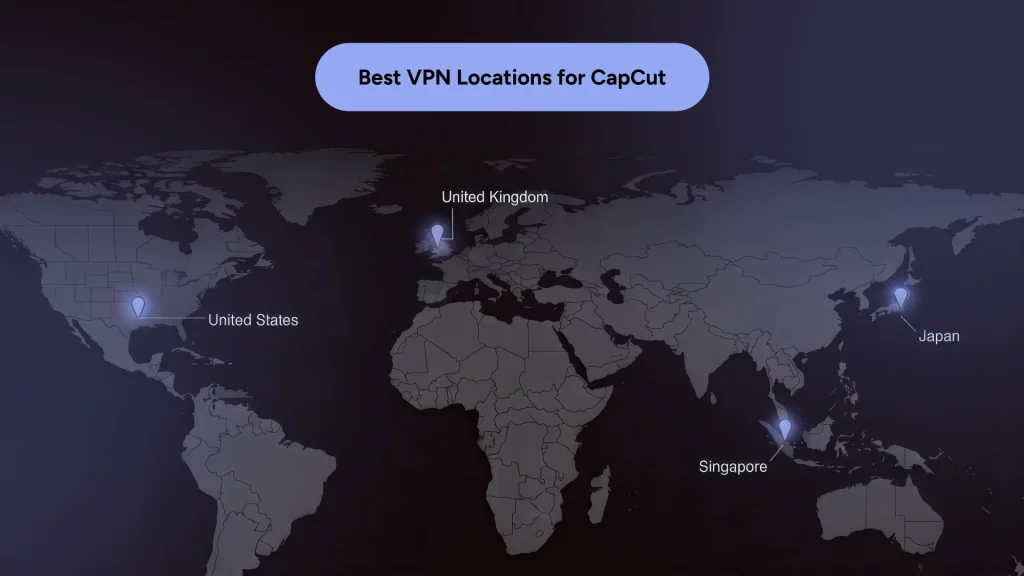
- The United States: This is the undisputed goldmine for creators. Connecting to a US server gives you the earliest access to new AI features, the most comprehensive commercial music library, and the largest pool of trending TikTok templates.
- The United Kingdom: An excellent backup if US servers are experiencing heavy traffic. The UK gets almost identical feature rollouts and provides highly stable connections for European creators who want low-latency cloud syncing.
- Singapore or Japan: If you edit primarily Asian-centric trends, anime transitions, or want access to specific regional aesthetics, these servers are incredibly fast and offer a completely different catalog of viral assets that you won’t find on Western servers.
How a VPN Shields Your Editing Workflow
While a VPN cannot stop an app from accessing files you voluntarily upload to the timeline, it acts as a highly effective digital shield in two major ways:
- Masking Your Physical Footprint: A VPN hides your true IP address and encrypts your location data, preventing CapCut from building a detailed profile of where you live, work, and travel.
- Securing Your Cloud Assets: When you back up your raw video drafts or sync your project files to the CapCut cloud space over a public network, a VPN encrypts that data transfer, protecting your proprietary footage from local hackers or network snoops.
If you are a casual hobbyist editing videos of your dog in a country where the app is legally permitted, running CapCut without a VPN is relatively low-risk.
However, if you are a professional creator handling sensitive client footage, or if you simply prefer keeping your digital footprint as light as possible, keeping your VPN turned on is a smart, standard precaution.
7 Reasons Why Creators Need a VPN for CapCut
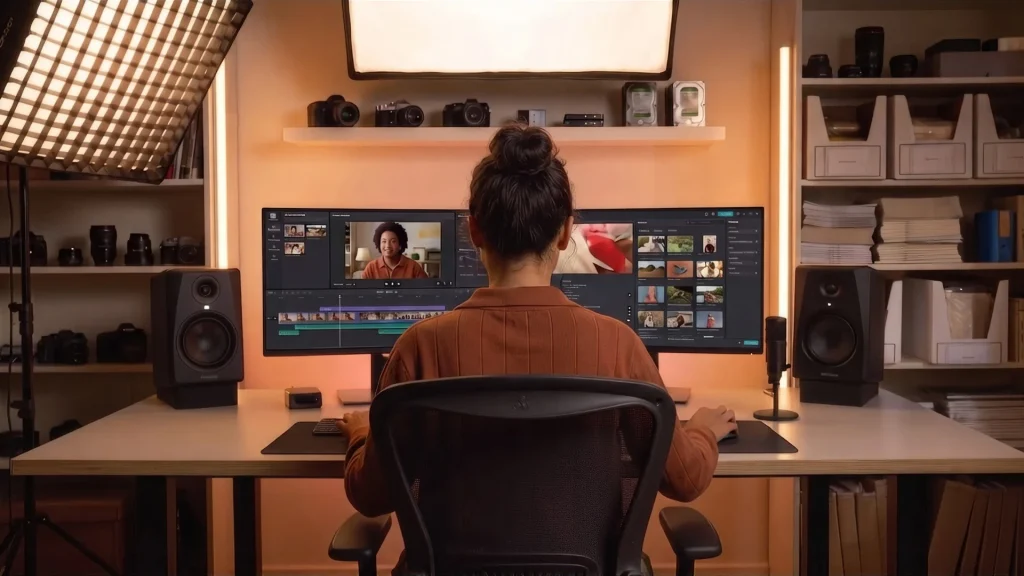
For a long time, video editing software was straightforward; you bought the program, installed it on your hard drive, and edited your videos completely offline. Modern tools like CapCut changed the game by putting the most exciting features online, meaning your app constantly talks to remote servers to fetch trending TikTok templates, process AI voiceovers, and handle cloud syncing.
This online dependency is exactly why a VPN has transitioned from a nerdy privacy tool into an absolute necessity for creators, and here is why.
1. Navigating Geopolitical Bans and Regional App Blocks
Depending on where you live or travel, CapCut might be subject to strict regional restrictions or outright nationwide bans. For instance, India permanently blocked ByteDance apps due to regulatory tensions, while other regions face recurring legislative threats that restrict app availability.
If you live in or travel through a location with an active ban, a VPN routes your traffic through an unrestricted server, allowing you to bypass local network blocks, access web-based editing portals, and maintain active cloud connections.
2. Unlocking Hidden Templates and Visual Asset Libraries
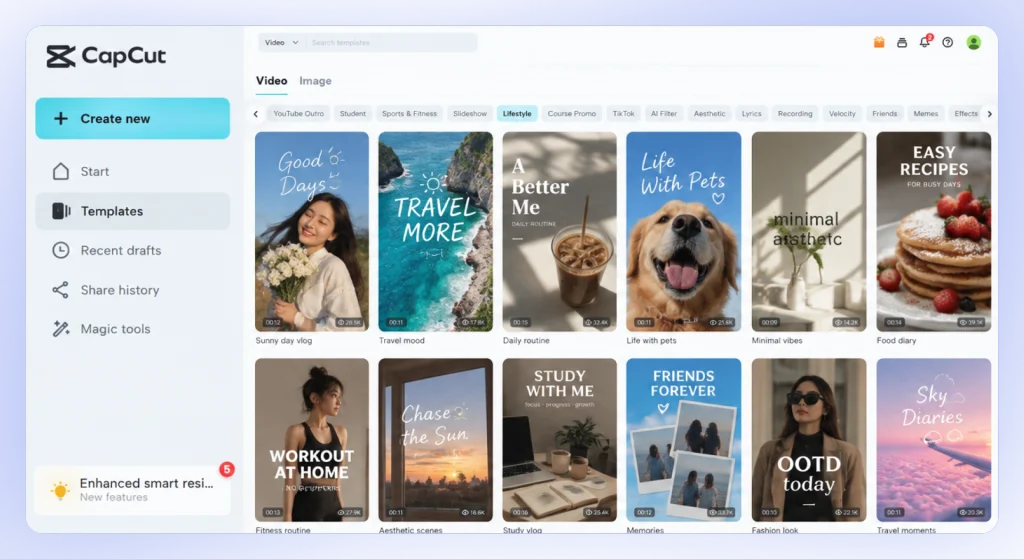
Have you ever encountered a blank screen or a regional restriction error when trying to open the template page? CapCut categorizes its visual asset libraries by region. The trending stickers, localized text effects, dynamic overlays, and viral video templates made available to creators in one part of the world are often hidden from users in another.
3. Unlocking Restricted Commercial Music Libraries
Music licensing laws are notoriously fragmented across different global territories. A viral audio track or royalty-free background song that is fully accessible in one market might be muted, grayed out, or missing entirely from CapCut’s audio library in another.
Because the app checks your detected IP address to determine audio copyright permissions, connecting through a VPN refreshes the sound catalog, allowing you to edit with the full commercial music library without worrying about region-locked audio mutes.
4. Accessing Next-Gen AI Features and Regional Voiceovers
CapCut routinely conducts phased rollouts for its newest AI capabilities, such as automated script-to-video tools, AI voice generators, localized auto-captioning dialects, and AI body filters. Creators outside these initial testing pools often have to wait months for access. A VPN allows you to virtually relocate to active feature testing zones, letting you leverage cutting-edge AI tools and stay ahead of competing editors in your niche.
5. Bypassing Regional Blocks on CapCut Pro Subscriptions
Upgrading to CapCut Pro isn’t equally seamless everywhere. In certain regions, local payment processing blocks or regional app restrictions prevent creators from purchasing or renewing a Pro membership.
Furthermore, ByteDance occasionally adjusts tier availability and subscription pricing depending on regional market conditions. A VPN helps bypass localized payment roadblocks so you can unlock Pro capabilities, expand cloud storage capacity, and manage your account without regional interference.
6. Evading Strict Work and School Wi-Fi Filters
If you are a student editing a class project or a creator trying to polish a quick social clip during a lunch break, local network firewalls can bring your workflow to a halt. School and corporate Wi-Fi networks frequently block ByteDance servers to conserve bandwidth or enforce productivity rules. A quality VPN solves this by wrapping your internet connection in secure encryption, making your traffic invisible to local network routers so you can edit freely on restricted networks.
7. Protecting Your Hard Work on Public Wi-Fi
As a creator, your office is often a local coffee shop, an airport lounge, or a hotel lobby. Editing on the go means connecting to public networks that are hotbeds for security vulnerabilities. Since CapCut constantly syncs your active project media to its cloud space, an unsecured connection puts your proprietary footage, raw files, and personal account details at risk. A VPN for public Wi-Fi shields this transfer, ensuring no one on the same network can intercept your files.
Solving CapCut Connection Errors
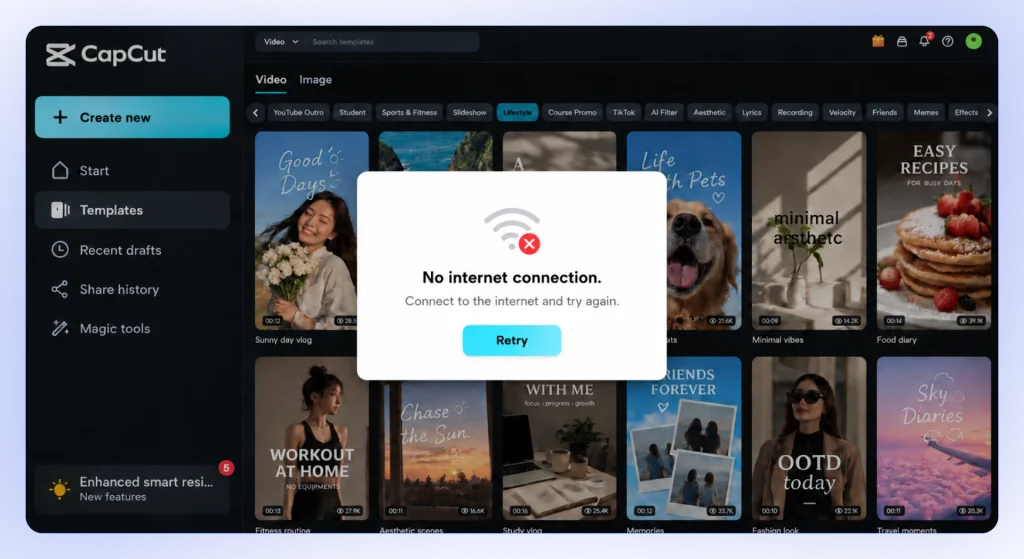
We have all been there; you pay for a premium VPN, connect to a server in the United States, launch CapCut, and… absolutely nothing happens. The screen still stares back at you with that dreaded “No Internet Connection” message.
Before you throw your editing rig out the window or leave an angry review for your VPN provider, you need to understand that CapCut is incredibly stubborn. It does not just look at your current IP address; it also uses hidden device files, local storage, and language settings to figure out where you actually are.
If you are facing errors even with an active VPN, try these four insider developer fixes to get your timeline moving again.
Fix 1: The CapCut “Language Refresh” Trick
CapCut often matches its server communication with the language your app is set to. If your app interface is set to a regional language where CapCut is restricted, it might block server features regardless of your VPN location.
How to trigger a language force-refresh:
1. Open CapCut and head to “Settings” (the gear icon).
2. Find the “Language” menu.
3. Switch the language to English (or toggle it to another language and back to English if it is already selected).
4. Save, close the app completely, and relaunch. This simple toggle forces CapCut to refresh its regional connection parameters.
Fix 2: Clearing Local Cache vs. Deleting Projects
If you opened CapCut before turning on your VPN, the app immediately cached your blocked location. Simply turning the VPN on afterward will not work because CapCut keeps reading that cached block. You need to clear the cache, but you must do it carefully so you do not delete your offline drafts.
- On Mobile (iOS & Android): Do not clear “App Data” in your phone’s main system settings, as doing so can permanently delete your local projects. Instead, open CapCut, tap the gear icon in the top right, select Clear Cache, and hit confirm. After that, force-close the app, turn on your VPN, and open CapCut again.
- On PC/Mac Desktop: Fully close the CapCut application. Open your system Task Manager (or Activity Monitor on Mac) and terminate any lingering CapCut background processes. Turn on your VPN, and only then restart the software.
Fix 3: Switching to Cloudflare DNS
Sometimes your local Internet Service Provider (ISP) blocks CapCut’s backend servers at the domain name level. Even when your VPN is running, these local restrictions can cause a conflict. Setting your device to use Cloudflare’s free, ultra-fast DNS can bypass this hurdle entirely.
| Device Type | How to Apply the DNS Fix |
| PC (Windows) | Go to Network Settings > Change Adapter Options > Right-click your connection > Properties > IPv4 > Set Preferred DNS to 1.1.1.1 and Alternate to 1.0.0.1. |
| Mac | Go to System Settings > Network > select your Wi-Fi > Details > DNS > Click the “+” button and add 1.1.1.1. |
| Mobile | The easiest way is to download the free “1.1.1.1: Faster Internet” app by Cloudflare from the App Store or Google Play, which configures it for you with one tap. |
Fix 4: Disabling Hardware Acceleration
If your VPN is connected and your internet is fast, but CapCut Desktop freezes, crashes, or shows black screens when loading online transitions, the culprit is likely a hardware clash. CapCut’s background rendering engine can sometimes conflict with your graphics card while processing encrypted VPN data packages.
To fix this, click Settings in the top-right of CapCut Desktop, navigate to the Performance tab, and toggle OFF both hardware-accelerated encoding and decoding. Save the settings and restart the app; your computer will rely more on raw CPU processing, stabilizing the connection.
Wrapping Up: Your Next Creative Step
Finding the right VPN for CapCut comes down to how you create. If you are a heavy, multi-device video editor who needs premium speeds across several screens, Surfshark is an absolute powerhouse that will keep your timeline smooth and uninterrupted.
For mobile-first creators who just want a steady, reliable connection on the go without being locked into a pricey, multi-year contract, HidzoVPN is a fantastic, pocket-friendly alternative at just $2.99 a month. Whichever path you choose, just remember to clear your app cache and connect to your server before you start editing, and you will never have to worry about missing templates or loading errors again.
FAQs
Yes, using a VPN is entirely legal in most countries, though bypassing a regional block technically goes against CapCut’s user agreement. You will not face legal trouble, but CapCut might temporarily block your connection if it detects a leak.
Connecting to servers in the United States or Singapore works best. These regions act as primary creative hubs, giving you instant access to the newest trending templates, AI tools, and music assets.
You can, but most free VPNs throttle your speed and limit your data, which makes editing heavy video files incredibly frustrating. If you must go free, use a reputable freemium service like Proton VPN that offers unlimited data.
This happens because CapCut cached your real location when you opened the app before turning on the VPN. To fix it, fully close the app, turn on your VPN, clear CapCut’s cache in the settings menu, and relaunch.
NordVPN and Surfshark are the fastest choices for creators, delivering the high bandwidth needed for 4K editing and cloud syncing. Their WireGuard protocols ensure your video previews load instantly without buffering.
No, a VPN only changes your virtual location and bypasses network blocks. To access premium stickers, fonts, and advanced AI tools, you still need to buy a legitimate CapCut Pro subscription.
On mobile, connect your VPN to the US and create a new App Store or Google Play account to download it. On PC or Mac, simply turn on your VPN and download the installer directly from CapCut’s official website.
Article by
-
 Sam Clarke
Sam is a cybersecurity and online privacy writer dedicated to making complex network protection accessible, practical, and engaging.





Share your thoughts
Add a comment