Counter-Strike 2 Lag Fix: The Ultimate CS2 VPN and Routing Guide
You peek middle on Mirage, line up a clean headshot, and suddenly snap backward into a wall because your connection dropped three packets in a…
Protect your online privacy and security
Fast, private, and easy to use, get Hidzo on your device and browse freely with one tap.
Get HidzoVPNTable of Contents
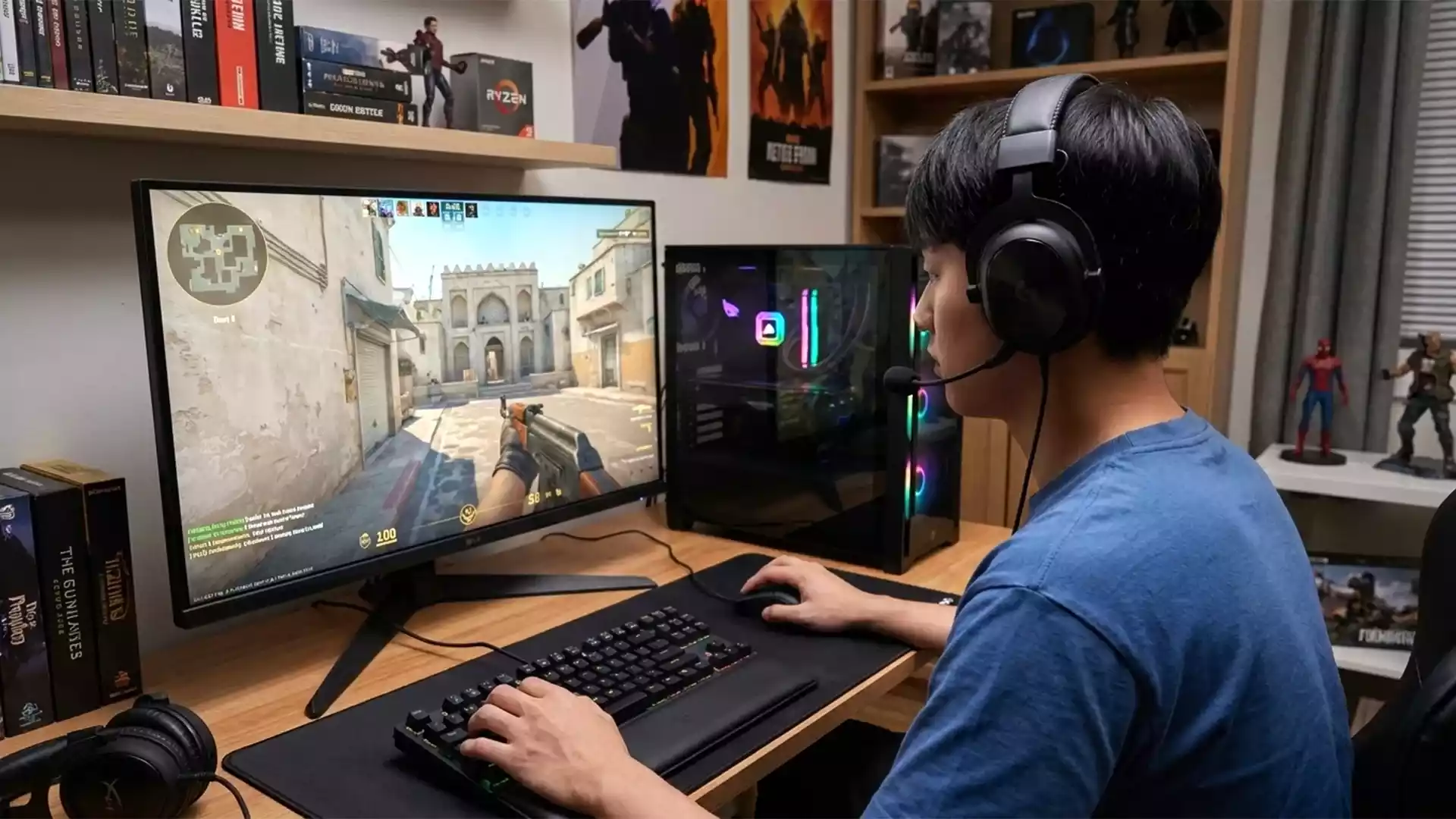
You peek middle on Mirage, line up a clean headshot, and suddenly snap backward into a wall because your connection dropped three packets in a row. CS2’s sub-tick engine makes bad ISP routing and jitter feel ten times worse than CS: GO ever did.
The quick fix? A VPN for Counter-Strike 2 can reroute your internet traffic directly through clean network paths to Valve’s servers, fixing broken ISP nodes and smoothing out packet loss instantly.
However, grabbing a heavy corporate app built for streaming foreign movies will actually tank your frame rates and latency faster than a bad teammate. The rest of this guide reveals why your network stutters, how Valve handles your packets, and which lean VPNs deliver rock-solid stability when the match is on the line.
CS2 Lag vs. Packet Loss: Identifying Your Connection Issues
Before throwing money at quick network fixes, you need to know exactly what is choking your connection. CS2 treats network spikes brutally because its sub-tick system demands continuous, instant updates between your PC and Valve’s servers.
- High Ping: Your packets take too long to make the round trip. Everything feels slightly delayed, but moving around still feels smooth.
- Jitter: Your latency bounces wildly from 20ms to 120ms within seconds. Guns feel inconsistent, and sprays turn into pure gambling.
- Packet Loss: Information gets lost in transit. You take two steps forward, teleport backward, and get shot long after taking cover.
You can track these drops directly in CS2 by opening your game settings, navigating to Game > Telemetry, and setting Display Network Information to “Always”.
To figure out if your home hardware or your provider is at fault, run a web search for a quick “Bufferbloat Test” while someone streams a video on your home network. If your latency spikes through the roof during the test, your local router is struggling to handle simultaneous household traffic.
A Counter-Strike 2 VPN works wonders when your ISP sends your traffic on an inefficient, bad route across unnecessary regional hubs. It creates a direct detour straight to the nearest gaming server. However, if your high ping comes from queueing on European servers while sitting in South America, basic physics wins, and no software can fix that raw distance.
5 Gaming-Optimized VPNs for Counter-Strike 2
When choosing a CS2 gaming VPN, big marketing budgets matter far less than lean software and server placement. You need to know how a service impacts your framerates, whether it supports split-tunneling for cs2.exe, and if servers sit close to Valve matchmakers.
1. Surfshark (Best Value for Fixing ISP Throttling)
Surfshark excels if your ISP intentionally throttles UDP traffic or routes your connection through overloaded regional hubs. Using the high-speed WireGuard VPN protocol, it delivers consistently low latency drops while hiding your game traffic from greedy service providers.
- CS2 Server Reach: 3,200+ servers across 100 countries, making it simple to find an exit node near any Valve SDR server.
- Key Gaming Feature: The Bypasser feature allows granular application routing, keeping video streams off the VPN line.
- Pricing & Risk: Starts at $2.49 per month on long-term plans, backed by a 30-day money-back guarantee.
2. StrongVPN (Best Simple WireGuard Connection)
StrongVPN skips flashy UI features to deliver a lightweight client with zero unnecessary background processes competing with CS2. It runs directly on WireGuard architecture to offer exceptionally fast handshake times and reliable route stability across North America and Europe.
- CS2 Server Reach: 950+ servers in key gaming regions, focused heavily on clean routing across major Internet Exchange points.
- Key Gaming Feature: Clean interface with zero bloatware running in the tray to ensure maximum system performance.
- Pricing & Risk: Long-term plans average around $3.97 per month with a 30-day refund policy.
3. HidzoVPN (Best Low-Overhead Pick for CS2)
HidzoVPN is built specifically for low resource usage, meaning the background client will not hog your CPU or drop your frame rate during intense firefights. Its proprietary smart UDP routing prioritizes real-time game packets, helping eliminate sudden latency spikes and rubberbanding.
- CS2 Server Reach: Direct routes to major matchmaking clusters including Frankfurt, Chicago, and Singapore.
- Key Gaming Feature: Built-in split-tunneling to isolate cs2.exe while leaving Discord on your local ISP.
- Pricing & Risk: Competitive VPN plans with a 7-day free trial, allowing you to test network routes without spending a dime. HidzoVPN also provides a free ad-supported tier.
4. PureVPN (Best for Dedicated IPs and Server Access)
PureVPN operates a massive network that lets you choose exact city locations right next to Valve data centers. It also offers dedicated static IPs, which prevents Steam from triggering suspicious login security alerts when you change servers frequently.
- CS2 Server Reach: 6,500+ servers worldwide, offering tight proximity to niche server hubs.
- Key Gaming Feature: Port forwarding and optional dedicated static IPs to avoid shared IP blacklists on competitive platforms.
- Pricing & Risk: Starts around $2.14 per month with a 31-day money-back guarantee.
5. IPVanish (Best for Network Backbone Stability)
IPVanish owns and operates much of its physical server infrastructure rather than renting third-party space. Owning the hardware allows them to maintain strict control over routing quality, keeping packet loss to a minimum when gaming across regions.
- CS2 Server Reach: 2,400+ self-owned servers with high-bandwidth pipes optimized for low ping.
- Key Gaming Feature: Unmetered connections and rapid connection speeds for fast CS2 updates and lag-free play.
- Pricing & Risk: Frequently discounted to around $2.75 per month with a 30-day money-back guarantee.
CS2 VPN Performance Comparison
Choosing the right tool comes down to what your connection needs most. The comparison below breaks down how these five options handle competitive match traffic.
| VPN Provider | Primary Strengths for CS2 | Best Protocol for Ping |
|---|---|---|
| Surfshark | Fast WireGuard network, fixes ISP bandwidth throttling | WireGuard |
| StrongVPN | No background bloat, reliable WireGuard mesh routing | WireGuard |
| HidzoVPN | Ultra-lightweight footprint, smart routing, fixes jitter | Xray protocols |
| PureVPN | Dedicated IPs available, servers near Valve centers | WireGuard / OpenUDP |
| IPVanish | Self-owned server infrastructure, unmetered bandwidth | WireGuard |
Gamers Private Networks: The ExitLag Alternative
While standard VPNs encrypt your entire internet connection to bypass ISP throttling, Gamers Private Networks like ExitLag work differently. They focus entirely on optimizing game traffic rather than concealing your personal IP address.
ExitLag uses multi-path routing, sending your cs2.exe data packets across several network routes at the same time. If one path experiences jitter or packet loss, another path delivers the data instantly to Valve’s servers.
Choose a CS2 gaming VPN like HidzoVPN or Surfshark if your main goal is fixing bad ISP routing, stopping bandwidth throttling, or masking your location. Choose a GPN like ExitLag if you only want real-time packet rerouting and do not care about online privacy.
Step-by-Step: Best VPN Settings for CS2 Connection Optimization
Hitting quick connect and hoping for the best usually ends in disaster. To get peak performance out of your software, configure your client using the best VPN settings for CS2 right after installation.
Step 1: Pick the Nearest Valve Server Location
Always pick a VPN server location in the exact city or closest geographic hub to your desired Valve matchmaker. If you want to play on Frankfurt servers, picking a best server for CS2 VPN exit node in Frankfurt ensures your traffic hits Valve’s backbone immediately.
Step 2: Enforce WireGuard or UDP Protocols
Open your application settings and manually lock your connection protocol to WireGuard or lightweight UDP. Never use OpenVPN TCP for gaming; its heavy error-checking protocol stalls your data traffic, turning minor drops into rubber banding nightmares.
Step 3: Configure Split-Tunneling
Enable split-tunneling inside your client and add cs2.exe to the prioritized routing list. This forces game data through the optimized network path while leaving Discord, Chrome, and background streams on your regular home connection.
Step 4: Safely Change Matchmaking Regions
Using a VPN to change CS2 region queues lets you play with friends across the globe, but launch your VPN before booting Steam. Avoid purchasing items in the Steam Store while connected to a foreign node, as switching store regions can flag your account. Using a CS2 VPN for matchmaking only routes game servers, keeping your Steam account safe.
In-Game and Network Tweak Playbook for CS2
A fast VPN handles public internet routing, but in-game settings and router tweaks keep your local setup locked down. Combining software adjustments with local tweaks delivers an immediate CS2 high ping fix without requiring expensive hardware upgrades.
- Cap Matchmaking Latency: Open your CS2 settings menu, click Game, and set Max Acceptable Matchmaking Ping to 50ms. This simple tweak prevents Valve from tossing you onto distant regional servers when local lobbies take a few extra seconds to populate.
- Enable Packet Buffering: Navigate to Game settings and locate Buffering to Smooth Over Packet Loss. Setting this to 1 Packet creates a tiny safety cushion that absorbs minor drops, providing a quick CS2 packet loss fix during jittery matches.
- Ditch Wi-Fi for Ethernet: Radio signals hate concrete walls, microwave ovens, and your neighbor’s router. Running a basic Ethernet cable directly to your PC eliminates local jitter before your game data even reaches your ISP.
- Configure Router Quality of Service: Access your home router dashboard and turn on QoS or Smart Queue Management. Prioritizing your gaming PC’s IP address stops background phone downloads from ruinous latency spikes while you clutch a round.
Executing these quick adjustments alongside proper routing completes your overall CS2 connection optimization, keeping latency low and shots landing reliably.
Final Network Checklist for CS2
Fixing sub-tick connection issues requires a combination of smart software choices and solid home network setup. Before jumping into your next premier match, run through this quick checklist to ensure your connection remains bulletproof:
- Verify Your Local Line: Plug in an Ethernet cable and test your router for local bufferbloat spikes.
- Choose a Lean Client: Use a budget-friendly option like HidzoVPN that avoids hogging your CPU during matches.
- Lock Down Protocol Settings: Force your VPN client to use WireGuard or UDP for fast data transport.
- Enable In-Game Buffering: Set CS2 packet buffering to 1 Packet to absorb minor network jitter.
- Target the Closest Server: Connect to a VPN server node located in the same city as the Valve matchmaker.
Addressing bad ISP routing at the source ensures clean packet delivery, smooth movement, and reliable shot registration when every round counts.
FAQs
No, using a VPN to play CS2 will not trigger VAC bans or violate Valve’s terms of service. However, you should avoid using a VPN to manipulate Steam Store currency regions, as buying games under false locations can flag your account.
Using a free VPN for Counter-Strike 2 is generally not recommended because free services limit bandwidth and lack low-latency server routes. Most free options cause severe packet loss and higher ping, making affordable options like HidzoVPN a far better choice for competitive play.
A VPN reduces ping only when your regular internet provider routes your connection through inefficient, bloated regional pathways. By forcing your game traffic onto a shorter path directly to Valve SDR servers, your connection becomes noticeably faster and more stable.
You should always choose WireGuard or lightweight UDP protocols inside your VPN client settings for maximum real-time performance. Heavy protocols like OpenVPN TCP add extra security checks that slow down packet delivery and trigger unexpected in-game rubberbanding.
The best server location is the VPN exit node located geographically closest to the target Valve matchmaking server. Matching your VPN location with the game server city minimizes intermediate network hops and creates a direct, fast connection pipeline.
If rerouting traffic does not work, switch from Wi-Fi to a direct Ethernet cable connection and adjust your router settings for QoS prioritization. You can also increase the in-game packet buffering setting to smooth out small connection drops before they interrupt your gameplay.
Article by
-
 Sam Clarke
Sam is a cybersecurity and online privacy writer dedicated to making complex network protection accessible, practical, and engaging.





Share your thoughts
Add a comment