How to Fix High Ping in PUBG: 12 Proven Ways to Reduce Lag and Improve Gameplay
Picture this: You’ve got the perfect flank, your crosshairs are locked on an unsuspecting enemy, you pull the trigger… and suddenly you teleport backward into…

Protect your online privacy and security
Fast, private, and easy to use, get Hidzo on your device and browse freely with one tap.
Get HidzoVPNTable of Contents
Picture this: You’ve got the perfect flank, your crosshairs are locked on an unsuspecting enemy, you pull the trigger… and suddenly you teleport backward into a brick wall, instantly dead, while your PUBG ping flashes a demonic, glowing crimson 999ms.
If you’re tired of your character doing an involuntary moonwalk mid-combat, the quick fix usually boils down to three immediate steps: force-closing bandwidth-hogging background apps, switching your router connection from a crowded 2.4GHz channel to a cleaner 5GHz band, and turning off your Bluetooth earbuds to prevent antenna interference.
But don’t run off to the lobby just yet; mobile network lag is a sneaky beast, and there are several hidden smartphone quirks and settings secretly sabotaging your connection behind your back.
Behind the Lag: What Actually Causes High Ping?
Before we can fix the monster, we need to understand what makes it tick. In plain English, ping is simply a timer. It measures how many milliseconds (ms) it takes for a piece of data to travel from your smartphone to the PUBG Mobile servers and back again.
Think of it as a digital game of catch: low ping means you and the server are throwing the ball back and forth instantly. High ping means the server took a coffee break before throwing the ball back to you.
When your ping spikes into the red, it is usually caused by one of these four digital troublemakers:
- The Long Distance Relationship: The physical distance between your couch and the actual game server is too wide. If you live in Europe and try to play on the Asian server, your data has to travel across continents and oceans. Even at the speed of light, that takes time.
- Digital Traffic Jams: This happens when your internet connection is overwhelmed. If your router is busy juggling your game data, your sibling’s Netflix stream, and your mom’s video call all at once, your PUBG data packets get stuck waiting in line.
- Background Sabotage: Sometimes, the enemy is inside the house or rather, inside your phone. Apps running in the background, like cloud backups or social media feeds constantly refreshing, will secretly steal your internet bandwidth while you are trying to survive Pochinki.
- Wireless Invisible Walls: Physical obstacles like thick concrete walls can degrade your Wi-Fi signal. Even worse, internal smartphone hardware conflicts, like your Bluetooth antenna aggressively arguing with your 2.4GHz Wi-Fi antenna, can cause sudden, unpredictable ping spikes.
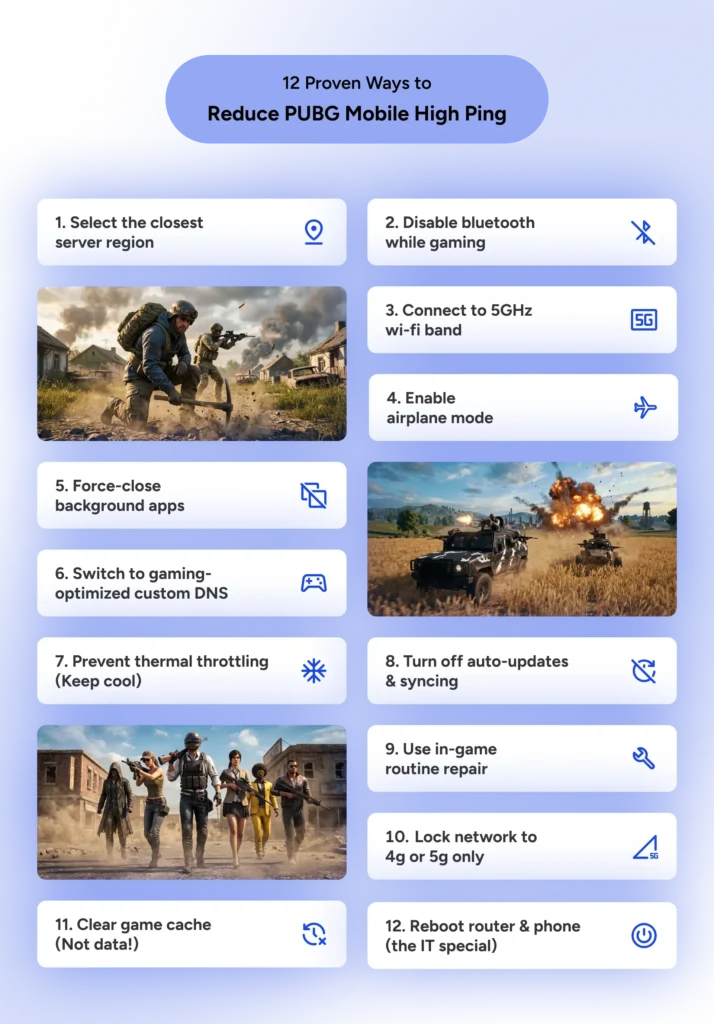
Step-by-Step Fixes: The 12 Proven Methods
Now that we know why your connection is acting like a stubborn mule, it’s time to roll up our sleeves and fix it. You don’t need a degree in network engineering or an expensive “gaming” phone to get this done. Let’s walk through these 12 practical, field-tested tweaks to whip your connection back into shape.
1. Choose the Closest Server Region (Stop Playing Across Oceans)
It is incredibly tempting to jump onto a different regional server because you heard the matchmaking is easier or your long-distance gaming buddy invited you to a squad. But if you are physically sitting in Berlin or Mumbai and you select the North American server, you are signing up for an absolute nightmare.
Every single tap, shot, and step you take has to travel thousands of miles across actual underwater fiber-optic cables, chat with the server, and sprint all the way back to your device. Unless you have mastered the laws of physics and time travel, your data simply cannot make that global round-trip in 20 milliseconds.
Open up your lobby settings, check the ping numbers next to the regions, and always pick the server physically closest to your actual coordinates. Your rank will thank you, and your character will finally stop teleporting into oncoming vehicles.
2. The Bluetooth Sabotage: Turn It Off or Swap Wi-Fi Bands
If you play with wireless Bluetooth earbuds connected to your phone while using standard 2.4GHz Wi-Fi, you are accidentally sabotaging your own game.
Most smartphones use a single, shared internal antenna for both Bluetooth and 2.4GHz Wi-Fi signals. When both are running, they fight like angry siblings over a single toy, causing instant data packet loss and nasty ping spikes.
The fix? Switch to wired headphones, use your phone’s built-in speakers, or migrate your Wi-Fi connection over to a cleaner 5GHz band to give your data its own lane.
3. Ditch 2.4GHz Wi-Fi for 5GHz (The Express Lane)
Most modern home routers blast out two completely different Wi-Fi signals: 2.4GHz and 5GHz. If you just click on your home network name without checking, you are likely sitting on the sluggish 2.4GHz band.
The 2.4GHz channel is basically the digital equivalent of a bumper-to-bumper morning traffic jam. It is incredibly crowded because almost every wireless gadget on earth uses it.
Your neighbor’s Wi-Fi, your family’s smart TV, baby monitors, and even your kitchen microwave all blast signals on this exact same frequency. Every time someone heats up last night’s pizza, your PUBG connection suffers.
Switching your phone to the 5GHz network connection changes the game entirely. Think of it as a wide, empty express highway built specifically for speed and low latency.
While 5GHz signals don’t travel quite as far through thick concrete walls, they offer much faster data delivery and zero interference. Just sit relatively close to your router, hop on the 5GHz band, and enjoy the smooth ride.
4. Temporarily Disable Your Secondary SIM Card (Or Use Airplane Mode)
If you are rocking a dual-SIM smartphone, you might be carrying a secret lag monster in your pocket. Dual-SIM functionality is great for keeping your work life and gaming life separate, but it can wreak absolute havoc on your connection.
When you have two SIM cards active, your phone’s internal modem is constantly multitasking. It repeatedly scans the background to find the strongest cell towers for both networks at the same time.
Every time it does this background hunt, it steals priority from your active gaming connection. This results in annoying, rhythmic ping spikes that seem to happen every few minutes for no apparent reason. If you have a dual-SIM setup, go into your network settings and temporarily disable the secondary SIM card while you play.
But what if your phone only has a single SIM card slot? Don’t worry, you are safe from this specific dual-tower scanning issue. However, sudden incoming text messages or random spam calls can still hijack your data stream and spike your ping into oblivion right when you’re aiming.
The ultimate hack for both single-SIM and dual-SIM players is simple: Turn on Airplane Mode. This instantly kills all cellular background chatter.
Once Airplane Mode is active, manually turn your Wi-Fi back on and connect to your router. You will be completely unreachable to the outside world, which is honestly a beautiful bonus when you are trying to clutch a 1v4 situation.
5. Exterminate Background Bandwidth Hogs
Just because you minimized an app and went back to your home screen doesn’t mean it stopped working. Apps like TikTok, Instagram, YouTube, and WhatsApp love to stay awake in the background, secretly downloading high-definition videos or constantly refreshing feeds.
This hidden data hogging steals your precious internet bandwidth, turning a perfectly stable line into a stuttering mess with instant ping spikes. But the damage doesn’t stop with your internet connection.
These background apps also throw an absolute party inside your phone’s internal hardware. They aggressively gobble up your device’s RAM and force your CPU to multitask when it should be entirely focused on rendering the battlegrounds.
When your RAM is clogged up with half-loaded social media feeds, PUBG Mobile is starved for resources. This triggers sudden frame drops, severe device overheating, and frustrating input lag where your buttons don’t react fast enough.
Make it a strict habit to force-close every single application before you launch the game. Clear your “Recent Apps” menu entirely, or use your smartphone’s built-in “Game Mode” or system optimizer to instantly freeze background activity and dedicate 100% of your phone’s brainpower to your match.
6. Switch to a Gaming-Optimized Custom DNS
To fix your ping, you sometimes need to give your phone a better map. That is where DNS comes in. DNS stands for Domain Name System, and it is essentially the internet’s phone book.
When your phone tries to connect to a PUBG Mobile server, it doesn’t naturally know where it is. It has to look up the server’s numerical digital address first.
By default, your phone uses whatever automatic DNS server your Internet Service Provider (ISP) gives you. The problem? Most local ISP DNS servers are slower than a turtle walking backward.
Every time your game client tries to talk to the matchmaking or gameplay servers, your phone has to wait for your clunky ISP to translate the address. This causes minor lag spikes, sluggish responsiveness, and slow lobby loading times.
By switching to a custom, free public DNS provider, you completely bypass your ISP’s clunky system. These premium networks keep your data on the fastest possible path to the game servers, dropping your response times instantly.
Here are the best, ultra-fast DNS servers for PUBG Mobile:
| DNS Provider | Primary DNS | Secondary DNS |
| Cloudflare | 1.1.1.1 | 1.0.0.1 |
| Google Public DNS | 8.8.8.8 | 8.8.4.4 |
| Control D | 76.76.2.1 | 76.76.10.1 |
| Quad9 | 9.9.9.9 | 149.112.112.112 |
To change this, just head into your phone’s network settings, look for Private DNS, change it from automatic to manual, and type in one of the primary addresses above.
7. Defeat Thermal Throttling (Keep the Phone Cool)
When your phone gets so hot it feels like a freshly baked potato, your gaming experience is about to melt. Most players know that heat causes low frame rates, but it also directly destroys your ping.
When the internal temperature spikes, your phone enters a hardware panic mode called thermal throttling. To prevent itself from melting its own brains, the device intentionally slows down everything, including your internal network modem.
Thankfully, you don’t need to pack your bags for Antarctica or sit inside your kitchen freezer next to a bag of frozen peas just to finish a match. Simple changes make a massive difference.
Start by peeling off that thick, trendy plastic phone case that is currently acting like a heavy winter coat for your device. Also, avoid the ultimate sin of playing PUBG while fast-charging your battery, which creates immense heat.
Instead, sit directly in front of an AC vent or a standard desk fan. Keeping the back of your phone cool keeps the internal modem running at maximum speed, preventing those sudden, sweaty, mid-game ping spikes.
8. Turn Off Automatic Store Updates and Syncing
There is nothing quite like losing a critical tier-promotion match because your phone suddenly decided that right now is the absolute perfect moment to update a random calculator app you haven’t opened since 2022.
When your phone triggers a sneaky background update or starts syncing your entire photo gallery to the cloud mid-game, it aggressively hijacks your internet line. Your ping will instantly skyrocket into the red as gigabytes of data flood your device.
To prevent your phone from betraying you at the worst possible moment, you need to manually lock down these automatic background processes.
For Android Users:
Open the Google Play Store, tap your profile icon in the top right, and go to Settings > Network preferences. Tap Auto-update apps and set it to Don’t auto-update apps.
Additionally, you can head to your phone’s main Settings > Accounts > [Your Account] and temporarily disable account syncing before you launch into the lobby.
For iOS Users:
Open your iPhone’s main Settings app, scroll down, and tap on App Store. Under the Automatic Downloads section, toggle off the switch next to App Updates.
To stop heavy cloud syncing from choking your connection, go to Settings > [Your Name] > iCloud > iCloud Photos (or iCloud Drive) and turn off cellular/data syncing so it only backs up when you are safely asleep.
By taking control of these settings, you ensure that your internet connection is exclusively dedicated to securing chicken dinners, not fetching app patches.
9. Use the In-Game “Routine Repair” Option
Sometimes, the lag isn’t caused by your router, your phone’s hardware, or a sneaky background app. Instead, the game client itself might just be having a digital existential crisis.
Every time PUBG Mobile drops a new mini-patch or a major seasonal update, old files can get tangled up with new ones. This digital clutter causes corruption in your local game cache, making your phone take twice as long to communicate with the matchmaking server.
When your game data is bloated with old, useless digital debris, your ping will steadily creep upward. Fortunately, the developers anticipated this and built a giant “reset” button directly into the software.
To use it, go to your in-game Settings, stay on the basic tab, and tap Log Out. Once you are kicked back to the main title screen, look over at the right-hand menu and tap the Repair button.
Make sure only the Routine Repair box is checked, and hit OK. Do not select the other options unless you want to wipe out your custom control maps and custom sensitivity layouts, which is a tragedy nobody wants to experience.
The game will perform a quick digital housecleaning and ask you to restart the app. Log back into your account, and you will notice that your lobby screens load significantly faster and your in-game response times feel crisp again.
10. Lock Your Network to 4G/5G Only
If you play PUBG Mobile using your cellular data instead of home Wi-Fi, you have probably experienced a sudden, devastating ping spike right in the middle of a firefight.
This usually happens because your smartphone is overthinking things. If your cell signal drops by just one tiny bar, your phone tries to be helpful by jumping down to an older, slower network type like 3G or H+.
In the fast-paced world of mobile gaming, dropping to 3G feels like traveling back to 1999 to use dial-up internet. That exact microsecond where your phone switches protocols causes a massive, game-ruining ping spike.
To stop your phone from playing hide-and-seek with different network types, you can manually lock it to high-speed mode.
For Android Users:
Go to your main Settings > Network & internet > Mobile network and look for Preferred network type. Change this from automatic to “5G Only” or “LTE/4G Only” depending on what your local carrier supports.
For iOS Users:
Head to Settings > Cellular > Cellular Data Options > Voice & Data. Instead of leaving it on “5G Auto,” select 5G On or LTE.
This forces your iPhone to stick to the high-speed lane rather than constantly flip-flopping between signals mid-combat.
11. Clear the Game Cache (Not Data!)
Over weeks of intense gaming, PUBG Mobile builds up a mountain of temporary files known as a cache. This cache is supposed to help the game load faster, but when it gets too bloated, it does the exact opposite.
An oversized cache slows down your device’s ability to process real-time packet information. This leads to artificial lag and sudden, unexplained spikes in your ping time.
Cleaning out this digital junk drawer is a quick way to restore responsiveness. However, you must be careful: make sure you click Clear Cache, and absolutely do not click Clear Data (or Clear Storage).
If you accidentally wipe your data, the game will treat you like a complete stranger. You will be forced to redownload over 15 gigabytes of resource packs, maps, and skins all over again—a true tragedy.
For Android Users:
Long-press the PUBG Mobile app icon on your home screen and tap the App Info (i) icon. Go to Storage & cache, and tap the Clear Cache button.
For iOS Users:
Apple handles things a bit differently since there isn’t a direct “Clear Cache” button. Instead, open your Settings > General > iPhone Storage, scroll down, and select PUBG Mobile.
Tap Offload App. This safely flushes out the app’s bloated temporary system files while keeping your personal settings and login credentials completely intact. Once it is done, just tap Reinstall to get back to a fresher, leaner game client.
12. The Classic Router & Phone Reboot (The IT Special)
It is the oldest cliché in tech history: “Have you tried turning it off and on again?” But there is a very good reason IT professionals across the globe repeat this phrase like a sacred chant (it actually works).
Your home internet router is essentially a tiny, specialized computer. It has its own processor, its own memory, and it spends 24 hours a day, 7 days a week, processing massive streams of data without a single break.
Over time, your router accumulates digital junk in its internal memory. It gets overwhelmed trying to manage your gaming traffic, your family’s downloads, and your neighbor’s smart devices.
When a router gets digitally exhausted, its processing efficiency drops, causing data packets to lag behind. This shows up directly on your screen as a frustratingly high ping.
To fix this, walk over to your router, pull the power cord straight out of the back, and wait for 30 seconds. Don’t just immediately plug it back in; those 30 seconds allow the internal capacitors to drain completely, flushing out the bloated system cache.
While you wait, give your smartphone a fresh restart too. Plug the router back in, wait for the lights to blink back to life, and reconnect. You will have a clean, optimized connection to your ISP.
Do you also play Valorant? Here’s how you can reduce ping in Valorant.
Can a VPN Reduce Ping in PUBG?
If you spend any time scrolling through gaming forums or watching gaming creators, you have probably seen someone claim that a VPN is a magical cure for high ping. But before you download one hoping for a miracle, we need to clear the air with some honest, unvarnished truth.
Ninety percent of the time, using a VPN will actually increase your ping, not lower it. To understand why, imagine you are sending a letter to a friend across town. If you send it directly, it gets there quickly.
If you use a VPN, you are essentially forcing the mail carrier to drive to a secure warehouse three cities over, unpack the letter, seal it in a different envelope, and then deliver it to your friend. That extra stop adds distance, and extra distance always equals higher ping.
When VPN Actually Reduces PUBG Ping
However, there is a legendary 10% exception to this rule where a VPN can actually save the day. This happens if your internet provider is secretly throttling your gaming data or using absolute garbage routing.
Sometimes, an ISP sends your game data on a ridiculously clumsy path through five different states before it finally reaches the PUBG server. It’s like driving from New York to Washington D.C. by going through Texas first.
When you turn on a high-quality VPN and connect to a server physically located close to the PUBG data center, you force your data onto a secure, optimized path. The VPN bypasses your ISP’s clunky network detours and takes a straight digital highway.
So, if your ping is already decent (around 40ms to 70ms), a VPN will only make it worse. But if your connection is plagued by severe routing issues, constant packet loss, or intentional provider throttling, a premium VPN can act as a shortcut to bring your ping back down to earth.
The Effortless Shortcut: HidzoVPN
If you do happen to be in that unlucky 10% dealing with awful provider routing, you don’t want a heavy, bloated app turning your phone into an actual space heater. That is where a streamlined option like HidzoVPN fits perfectly into your mobile setup.
It is built to be incredibly lightweight and battery-friendly, humming silently in the background while its smart optimization protocols automatically scout out the cleanest, lowest-latency path to your gaming server.
Instead of trapping you in an expensive, multi-year contract just to get a decent rate, HidzoVPN Premium keeps things refreshingly simple with a highly competitive monthly plan at just $2.99. You get instant access to a high-performance network of fast global servers specifically tuned to handle data-heavy streaming and mobile gaming.
It gives your connection an immediate express pass right past your ISP’s clunky road detours, helping you secure that chicken dinner without draining your wallet or your phone’s battery.

Can a DDoS Attack Ruin Your Game?
A DDoS (Distributed Denial of Service) attack is basically the radioactive final boss of high ping. It doesn’t just gently push your latency up a bit; it violently rockets your indicators straight into the demonic 999ms red zone before kicking you back to the login screen.
In plain English, a DDoS attack happens when a bad actor uses a massive swarm of thousands of hijacked computers to flood a specific network target with useless junk data all at the exact same millisecond.
The server gets so busy trying to sort through the artificial chaos that it takes forever to reply to your phone. The result? Instant, severe rubber-banding, frozen teammates, and a rapid disconnect.
Using a high-quality VPN for DDoS protection ensures your actual home network stays completely invisible to these digital party-crashers. Instead of your personal router taking the brutal hit and crying for mercy, the malicious data traffic gets absorbed by a massive, hardened server network, allowing you to keep looting in peace while your angry opponent wonders why their petty trick didn’t work.
Conclusion
At the end of the day, conquering high ping in PUBG Mobile isn’t about buying a NASA-grade supercomputer; it’s just a quick process of elimination. Start with the easiest fixes, like ruthlessly closing your background apps, turning off your Bluetooth earbuds, or kicking your phone over to that clean 5GHz Wi-Fi band, and see what gives you the biggest drop in latency.
Now that your connection is as sharp and steady as a fully kitted AWM sniper shot, it’s time to hop back into the lobby and rejoin your squad. Go claim your well-deserved chicken dinner, leave the rubber-banding behind, and let your enemies be the ones lagging out for a change!
FAQs
20ms–50ms: Excellent. Your actions are instant, and you have a clear competitive edge.
50ms–90ms: Good. Perfectly playable with no noticeable delay.
90ms–150ms: Sluggish. You will experience minor lag and weird hit registration.
150ms+: Unplayable. Severe rubber-banding; you will likely die before seeing the enemy.
Speed tests measure bandwidth (how much data your line can carry at once), while ping measures latency (how fast a single data packet completes a round-trip). You can have a massive internet highway for streaming 4K videos, but if your internet provider uses a long, clunky routing path to reach the PUBG servers, your ping will still be terrible.
No. These tools cannot alter external network routing, so they won’t fix your ping. Even worse, modifying game files violates PUBG’s terms of service, meaning these apps are a one-way ticket to a permanent ban by the anti-cheat system.
When an enemy squad rushes you, the server instantly floods your device with a massive surge of real-time data (their positions, custom skins, and vehicle physics). If your phone or connection is already struggling, this sudden data traffic jam chokes your network modem right when you need it most.
Yes. Fast-charging generates severe internal heat, triggering “thermal throttling.” To prevent itself from overheating, your phone intentionally slows down its internal hardware, including the Wi-Fi and cellular modems, resulting in sudden lag spikes.
Yes, especially on weaker connections. Live voice chat forces your phone to continuously upload your audio while downloading your teammates’ audio simultaneously. This extra data strain can easily overwhelm a crowded Wi-Fi band or low cellular signal.
Yes. If game files are corrupted, your phone stutters trying to sync your local visual assets with the server’s real-time coordinate data. This internal communication bottleneck slows down packet processing, making it look like a network ping spike.
Article by
-
 Sam Clarke
Sam is a cybersecurity and online privacy writer dedicated to making complex network protection accessible, practical, and engaging.





Share your thoughts
Add a comment