VPN Keeps Disconnecting? 12 Fixes That Work on Any Device
You are halfway through a video call, a stream, or a bank transfer when the VPN icon quietly flips to “disconnected” and your real IP…
Protect your online privacy and security
Fast, private, and easy to use, get Hidzo on your device and browse freely with one tap.
Get HidzoVPN You are halfway through a video call, a stream, or a bank transfer when the VPN icon quietly flips to “disconnected” and your real IP address strolls back into view. When your VPN keeps disconnecting, it is more than a nuisance, because it undoes the one job you installed the app to do.
The good news is that the culprit is almost always one of three things: a shaky network, a struggling server or protocol, or a device that puts apps to sleep to save battery. This guide helps you work out which one you are dealing with, walks you through 12 fixes, and covers device-specific settings so the drops stop for good.
Table of Contents
Why Does My VPN Keep Disconnecting?
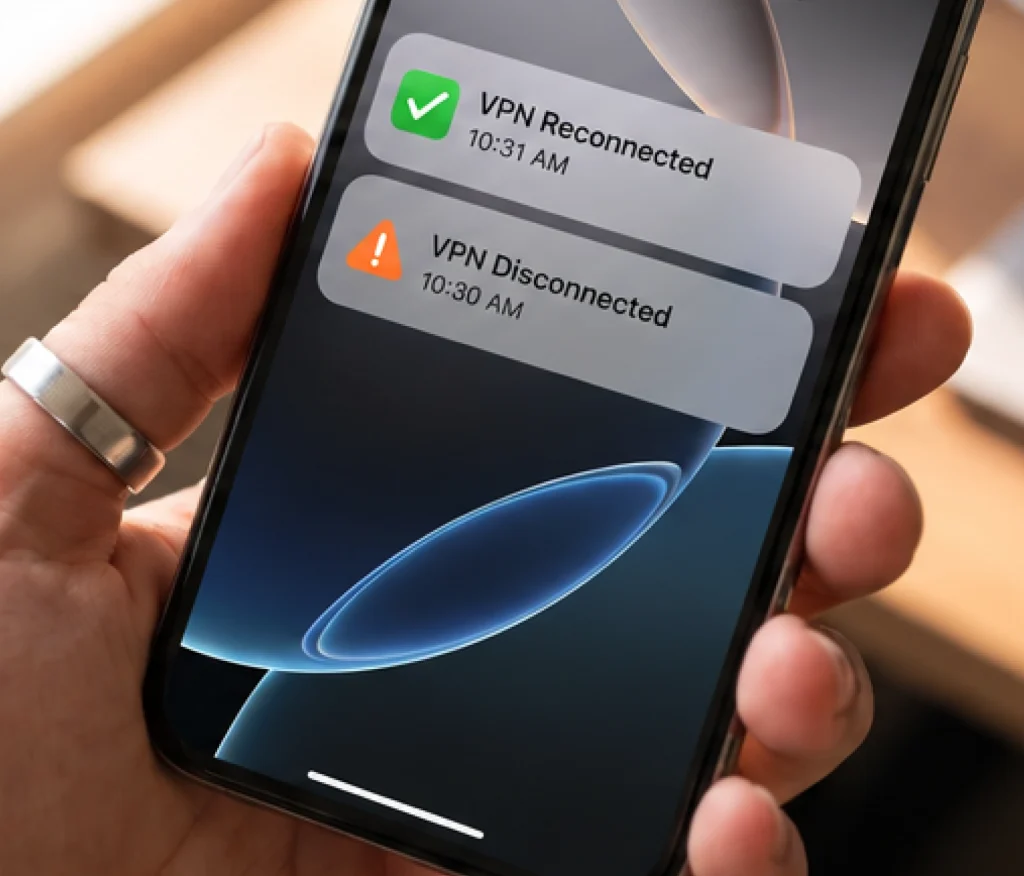
The connection (tunnel) between your device and the VPN server is like a phone call. Your device and the server keep trading tiny check-in messages, and when several go unanswered, the app assumes the line is dead and hangs up. That is also why your VPN keeps disconnecting and reconnecting in a loop, since the app hangs up and redials straight away.
Anything that delays those check-ins can break the call. Packet loss, the share of data packets that never arrive, is the classic offender on weak Wi-Fi, crowded mobile towers, and long routes to distant servers. A server running near capacity causes the same trouble, because it answers too late.
The protocol matters too. OpenVPN over TCP can stall on a lossy connection while it waits for missing data, while lighter VPN protocols like WireGuard bounce back faster.
Still asking yourself, why does my VPN keep turning off when your Wi-Fi looks perfect? Let’s look at it from your device angle. Phones and laptops freeze background apps to save power, and firewalls or antivirus tools sometimes cut VPN traffic they do not recognize.
When a VPN disconnects frequently, the timing is your best clue, so match what you see against the table below.
| Cause | What You Notice | Usual Pattern |
|---|---|---|
| Weak Wi-Fi or mobile data | Calls freeze, then the VPN drops | Random, worse far from the router |
| Overloaded server | Slowdowns right before a drop | Evenings and peak hours |
| Protocol clash | Constant reconnect loops | Only on one network or one protocol |
| Firewall or antivirus | Drops within seconds or minutes | Starts after a security update |
| Power saving | Drops when the screen locks | After idle time |
| Network blocking | Drops on school, hotel, or office Wi-Fi | Only on that network |
| Device limit | Another device kicks you off | When a second device connects |
Is It Your VPN, Your Device, or Your Network?
Spend two minutes on these tests before you change any settings:
- Switch to another network, such as your phone’s hotspot.
- Try the VPN on a different device.
- Connect to a different server.
Whichever test makes the drops disappear points straight at the cause. Also note the pattern, because drops every few minutes, only after sleep, or only on one network each suggest a different cause.
If the app will not connect in the first place, that is a separate problem, and our guide on VPN not connecting covers it.
How to Fix a VPN That Keeps Disconnecting
Work through these in order, since the first four solve most cases. Every fix targets drops that happen after the connection is made.
Start With the Quick Fixes
1. Restart your router and device. Power cycling clears stuck network states and gives your router a fresh link to your ISP. Unplug the router for 30 seconds, then restart your device too.
2. Switch to a closer, less crowded server. A server at 90% load answers check-ins late, which can trigger a drop. A server 250 miles away at 18% load usually beats one 15 miles away at 92%, and our guide to the best VPN location shows how to weigh distance against load.
If you are using a Multi-hop or Double VPN feature, turn it off. Routing your traffic through two separate servers doubles the latency and doubles the chance of a dropped packet killing your session.
3. Change the protocol. If your app offers WireGuard, IKEv2, and OpenVPN, try them one at a time. OpenVPN over TCP, for example, can slip through networks that block UDP traffic.
4. Update or reinstall the app. Old builds can carry reconnection bugs. Update first, and if the drops continue, uninstall, restart your device, and reinstall to clear corrupted settings.
Fix Network Problems
5. Test a different connection. Move from 2.4 GHz to 5 GHz Wi-Fi, sit closer to the router, or plug in an Ethernet cable. If the VPN holds steady on your phone hotspot but not on home Wi-Fi, your router or ISP is the real problem.
6. Change your DNS server. Failing DNS lookups can look exactly like a dead tunnel. Use your VPN app’s own DNS setting if it has one, or switch to a reliable public resolver in your network settings if it does not.
7. Turn on obfuscation or stealth mode. Some school, hotel, and office networks cut connections that look like a VPN, which causes regular drops. Obfuscation disguises your traffic as ordinary web traffic, and it counters deep packet inspection, the technique those networks rely on.
Fix Software and Account Problems
8. Allow the VPN through your firewall and antivirus. Add the app to the allowed list in Windows Security, the macOS firewall, or your antivirus. Drops that begin right after a security update are a strong hint.
9. Remove conflicting VPNs and proxies. Two VPN apps fighting over the same network adapter will break tunnels. Uninstall extra VPN software, disable proxy extensions in your browser, and turn off system proxies.
10. Check your device limit and data cap. Many plans cap simultaneous connections. If your phone stays connected while your laptop quietly drops, you may be over the cap, so log out of any device you no longer use.
If you are using a free VPN tier, check your bandwidth allowance as well; hitting a daily or monthly data cap will terminate an active tunnel without warning.
11. Match the drops to a timer. Drops at exact intervals, such as every 10 or 30 minutes, usually point to a session timeout or key renewal. Switching protocols or server resets that clock.
Also verify your device’s date and time. VPN protocols rely on cryptographic certificates that require strict timestamp matching; if your system clock is off by even a few minutes, the handshake will repeatedly expire and drop.
12. Contact support with details. Send your device, operating system version, protocol, server, and the times of the last few drops. With that, support can check server logs for the exact moment your session ended.
VPN Keeps Disconnecting on Different Devices
The general fixes help everywhere, but each operating system has its own power quirks. These are the settings that matter most.
Windows 11 and Windows 10
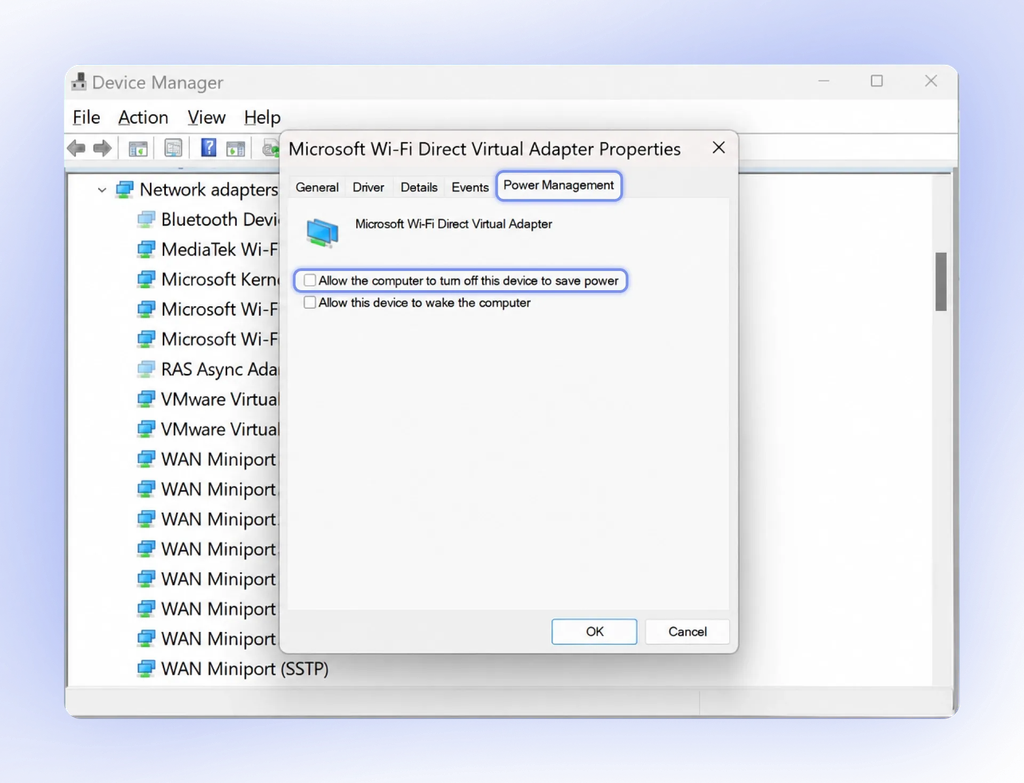
A VPN that keeps disconnecting on Windows 11 usually points to power management. Open Device Manager, right-click your Wi-Fi adapter, choose Properties, and under Power Management, untick the option that lets the computer turn off the device to save power. Then switch off Fast Startup in Power Options, because it can leave network drivers half awake.
The same steps apply if your VPN keeps disconnecting on Windows 10. Also confirm the VPN app is allowed to run in the background.
Mac
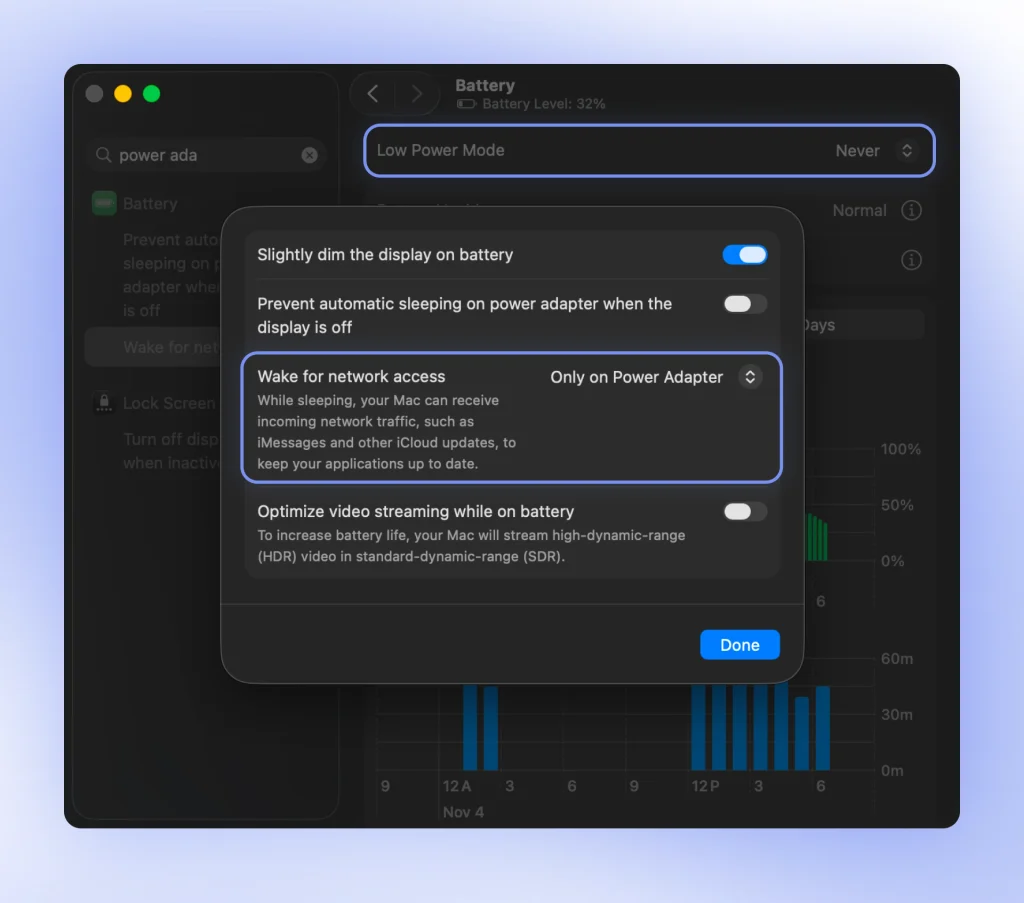
If your VPN keeps disconnecting on Mac, open Privacy & Security and confirm the VPN’s network extension is approved. Then check Battery settings, where Low Power Mode and the Wake for network access option can both affect how the Wi-Fi behaves during sleep. Make sure the macOS firewall is not blocking the app either.
iPhone
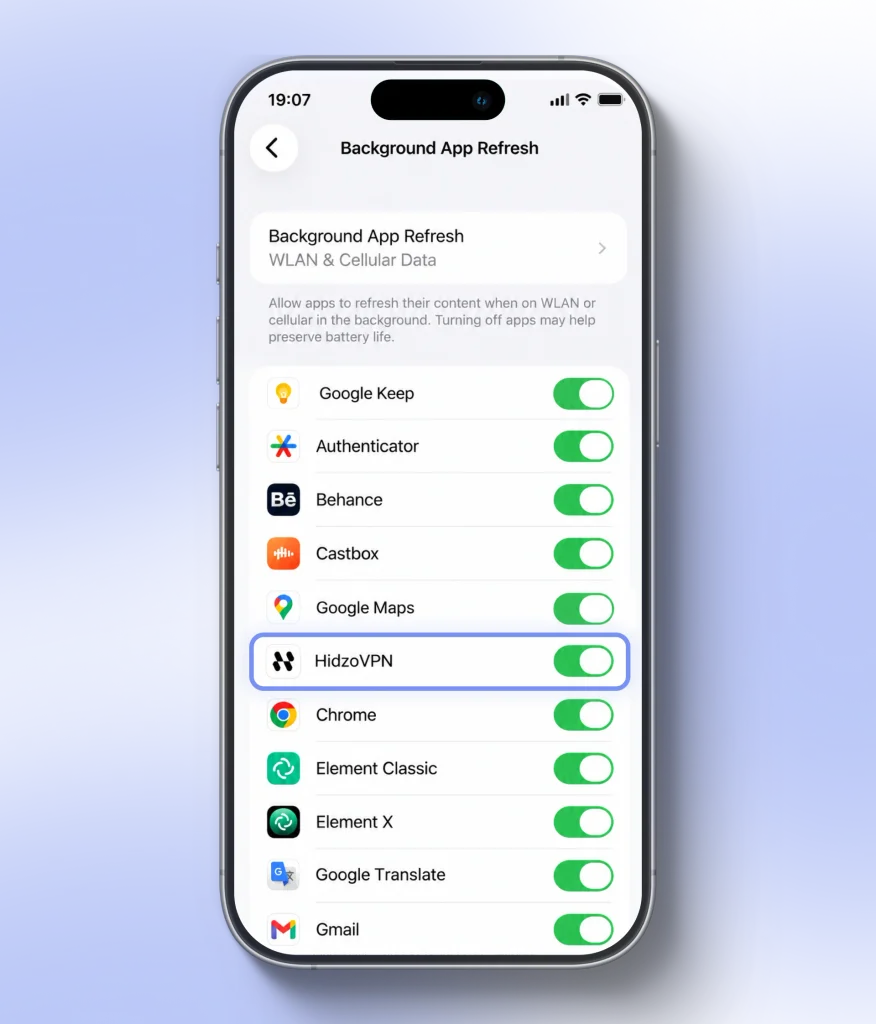
When a VPN keeps disconnecting on iPhone, Low Power Mode is a frequent suspect, since it pauses background activity. Turn it off under Settings and Battery, and make sure Background App Refresh is on for your VPN app. Also, enabling the auto-connect option inside the app helps after screen locks.
Android
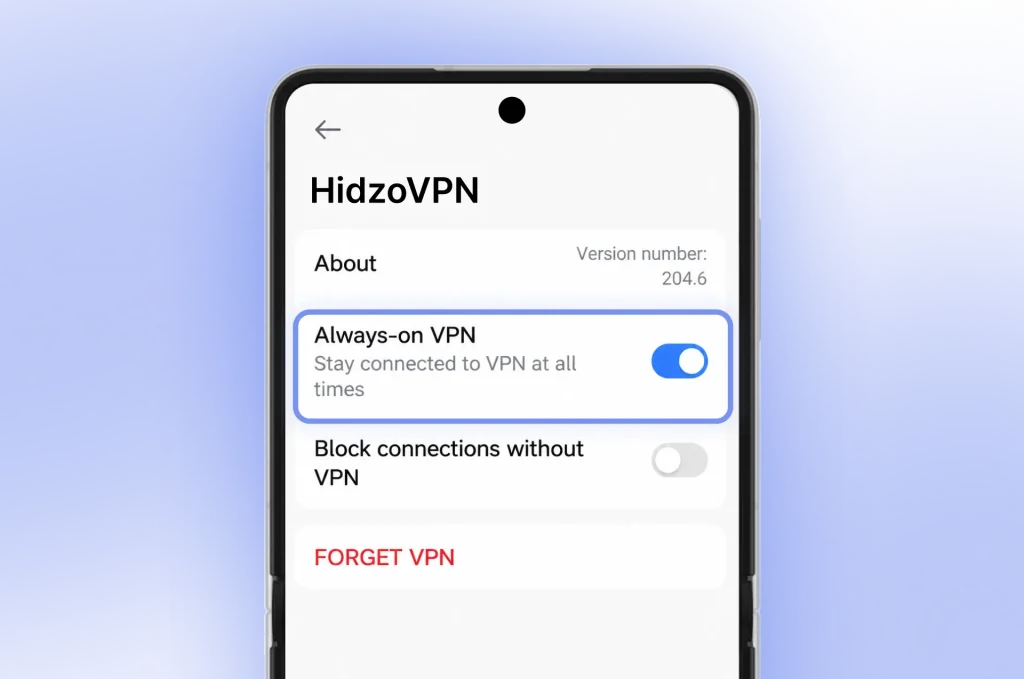
If your VPN keeps disconnecting on Android, battery optimization is the usual cause. Android’s Doze and App Standby features restrict background apps, and some phone makers add extra limits on top. Set the VPN app to unrestricted battery use, then turn on Always-on VPN under your VPN settings.
Why Your VPN Disconnects When Switching Networks
Walking from home Wi-Fi onto mobile data changes your IP address and route, so the old tunnel dies, and the app has to build a new one. That gap is why your VPN disconnects when switching networks, even when each network works fine on its own.
For a few seconds, apps can send traffic outside the tunnel, which is how a DNS leak happens. Picture leaving a cafe while a messaging app keeps syncing in the background. A VPN with fast auto-reconnect minimizes the risk, and a kill switch covers whatever is left.
How to Keep Your VPN Connected
If you want to know how to stop VPN from disconnecting for good, think prevention rather than repair. A few habits keep the tunnel steady:
- Turn on auto-reconnect or Always-on VPN in your app.
- Pick a stable protocol as your default instead of “automatic.”
- Choose a nearby server with a low load number.
- Keep both the app and your operating system updated.
- Exempt the VPN app from battery restrictions.
The most important safety net is a VPN kill switch, which blocks all internet traffic the moment the tunnel falls so your real IP never leaks. Without one, a cafe Wi-Fi hiccup in the middle of a download leaves your device happily carrying on over the open connection.
Apps built around stability handle much of this for you. HidzoVPN, for instance, includes a built-in kill switch and a Fastest Server option that picks a low-load node automatically, so you spend less time hunting for a good one.
If your current tool keeps dropping no matter what you try, a fresh VPN app is worth testing on the same network and device. That quickly shows you whether the problem is the app or your connection.
Conclusion
Most disconnects trace back to the network, the server or protocol, or your device’s power settings, and the fix is usually a single toggle. When in doubt, work through this checklist in order:
- Test another network and another device to find the culprit.
- Switch server and protocol.
- Allow the app through your firewall and remove conflicting VPNs.
- Free the app from battery restrictions.
- Turn on the kill switch and auto-reconnect.
Do those five things, and you will spend a lot less time watching that little lock icon.
FAQs
An occasional drop on weak Wi-Fi or during a network change is normal. Repeated drops within minutes mean something needs fixing, such as the server, protocol, or a power setting.
Yes, unless a kill switch is on. Without one, your device falls back to your normal connection and your real IP becomes visible until the tunnel returns.
Regular intervals usually mean a session timeout, a protocol clash, or a firewall interfering. Try a different protocol or server first, because that often resets the timer.
Your phone is probably freezing the app to save battery. Turn off Low Power Mode on iPhone, set the app to unrestricted battery use on Android, and enable auto-connect.
WireGuard and IKEv2 tend to reconnect quickly, which makes them good defaults on mobile. OpenVPN over TCP can help on networks that block UDP.
Yes. Some ISPs throttle or interrupt VPN traffic, which shows up as drops on one network only. Obfuscation or a different protocol often gets around it.
Check for updates monthly, or turn on automatic updates. Newer builds fix reconnection bugs and keep up with operating system changes.
Article by
-
 Sam Clarke
Sam is a cybersecurity and online privacy writer dedicated to making complex network protection accessible, practical, and engaging.





Share your thoughts
Add a comment