How to Use a VPN: A Beginner’s Guide to More Private Browsing
Ever wondered why the ads and offers on your browser are suspiciously related to your shopping wish list? No, they’re not reading your mind, and…

Protect your online privacy and security
Fast, private, and easy to use, get Hidzo on your device and browse freely with one tap.
Get HidzoVPNTable of Contents
Ever wondered why the ads and offers on your browser are suspiciously related to your shopping wish list? No, they’re not reading your mind, and it’s not random either. It’s just the internet isn’t as private as you might hope, and it’s your job to keep trackers out of your online spaces.
You’ve probably heard how VPNs can protect your online privacy, but how do you choose the best VPN for your needs, and what’s the best setup for maximum protection and practicality? This guide gets you through how to use a VPN, so not a single byte of your data gets leaked.
What Is a VPN, Really?
At its core, a VPN (Virtual Private Network) is like a secret tunnel for your internet traffic. Instead of your data traveling openly across the web, where your ISP, advertisers, or nosy neighbors on public Wi-Fi can easily spy on it, a VPN encrypts everything and masks your real IP address.
In simple terms, it makes your browsing look like it’s coming from the VPN server instead of your actual location. If you’re curious about this privacy protector piece of tech, our guide to What Is a VPN gives you more details.
Choosing a VPN: What Matters
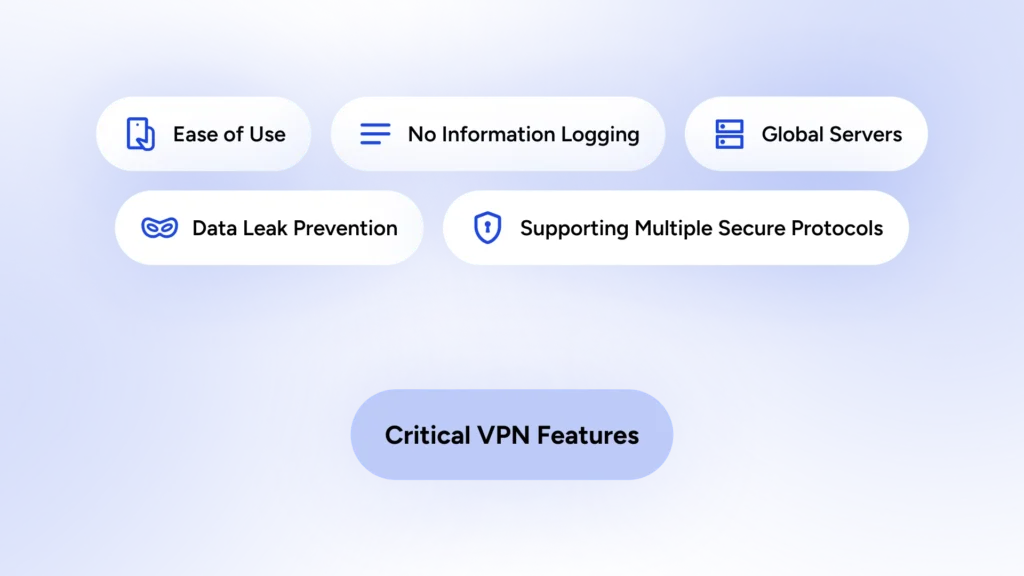
Choosing the best VPN for daily browsing doesn’t have to be overwhelming. Focus on these essential factors to make a smart, informed decision.
- Strong Encryption: Look for AES-256 or ChaCha20, the gold standard that keeps your data scrambled and unreadable.
- No-Logs Policy: Ensures the VPN doesn’t record your activity. The best ones have independent audits to prove it.
- Kill Switch: Automatically cuts your internet if the VPN drops, preventing accidental IP leaks.
- Modern VPN Protocols: Prefer WireGuard for speed or OpenVPN for flexibility and proven security.
- Server Network: More servers mean better speed, location options, and the ability to bypass restrictions.
- Device Compatibility: Should work smoothly on Windows, macOS, Android, iPhone, and ideally, routers.
Pro Tip: Avoid free VPNs because they often make money by selling your data to marketing networks (not the kind of bargain you want). HidzoVPN offers the essentials of online privacy protection with competitive prices and an easy-to-set-up VPN app. Try HidzoVPN Premium free for 7 days.
How to Set Up and Use a VPN: Step-by-Step
Alright, it’s time to stop browsing like an open book. Learning how to set up a VPN is easier than assembling flat-pack furniture (and far less likely to leave you with extra screws and mild regret).
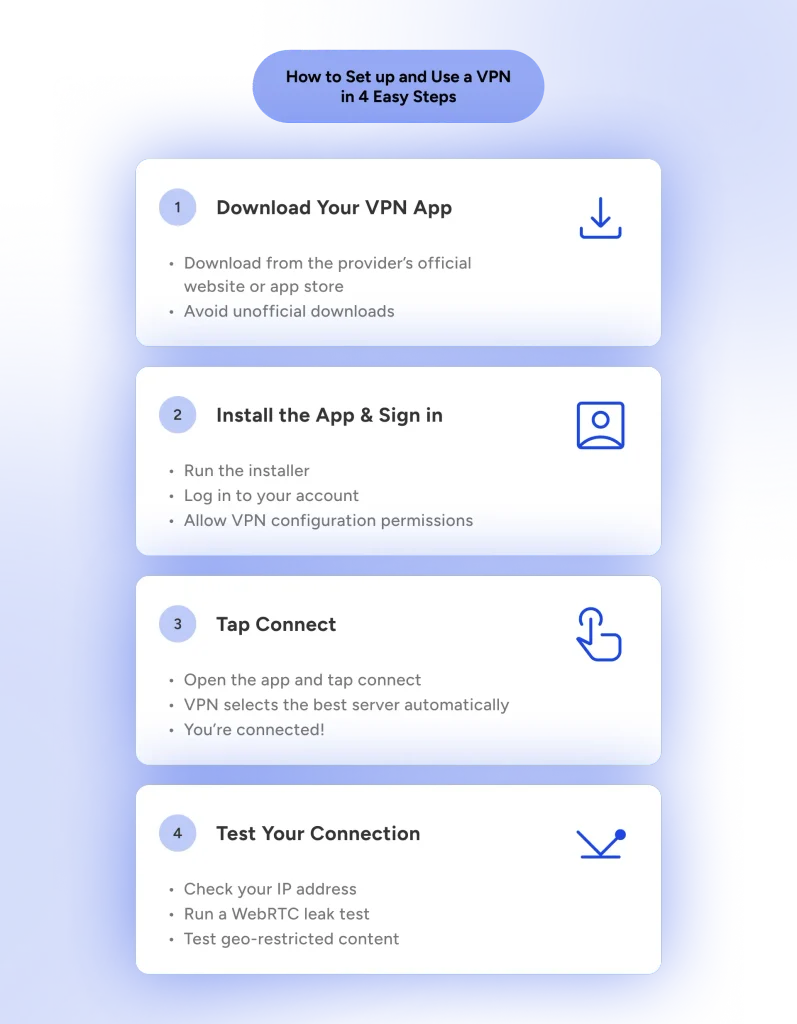
In this core VPN setup guide, we’ll walk through the entire process from zero to securely connected. Whether you’re a VPN virgin or already have some tech experience, these steps are designed to be clear, practical, and sprinkled with a few smiles along the way.
Step 1: Choose and Download Your VPN App
Once you’ve decided on a provider, head to their official website or your device’s app store. Avoid random downloads from shady sites; that’s like accepting candy from a stranger on the internet.
- How to install a VPN on Windows or macOS: Go to the provider’s site, download the native app, and run the installer. It’s usually as simple as clicking “Next” a few times while wondering why software updates always happen at the worst moment.
- How to install a VPN on Android: Open the Google Play Store, search for the app, and tap Install. Grant the necessary permissions (these are normal for VPNs; they need to manage your connection).
- How to use a VPN on iPhone: Visit the App Store and download the official app. Apple makes this refreshingly straightforward.
Pro tip: Always download directly from official sources or app stores to avoid fake apps that do the opposite of protecting you.
Step 2: Install and Log In
After installation, open the app. You’ll usually see a clean login screen. Create an account or sign in with your credentials. Many services offer a quick setup wizard.
During this stage, you may be asked to allow VPN configurations. Say yes. This is the app politely asking for permission to build that secure tunnel we talked about.
Step 3: How to Connect to a VPN (The Magic Moment)
This is where the fun begins. Most good apps have a big, friendly “Connect” button that does the heavy lifting for you.
- Tap or click Connect, and the app will automatically pick the best (usually fastest) server for you. It’s like ordering “surprise me” at a trustworthy restaurant.
- For more control, browse the server list and pick a location. Want to appear in Tokyo while sitting in Berlin? Go for it (just don’t forget what time it actually is).
You’ll know you’re connected when you see a “Connected” status and usually a new IP address displayed. Congratulations! Your internet traffic is now encrypted and routed through the VPN!
Step 4: Device-Specific Setup Tips
Windows & macOS:
Most native apps are very polished. You can usually add the VPN to your system tray or menu bar for one-click access. Advanced users can import .ovpn or WireGuard configuration files for manual setup.
How to use a VPN on Android:
Look for features like “Always-on VPN” and “Block connections without VPN” in your phone’s settings after installing. This acts as a kill switch, preventing leaks if the connection drops.
How to use a VPN on iPhone:
iOS handles VPNs elegantly through the Settings app. After installing, you can enable it system-wide or per-app in some cases. Just be aware that iOS is stricter with background activity, and your VPN may need occasional permission refreshes.
Router Setup (for whole-home protection):
Some VPNs allow you to install directly on compatible routers. This protects every device in your house, including smart TVs and that one guest who always connects without asking. It’s a bit more advanced, so follow your provider’s router-specific instructions carefully.
This short YouTube video is a good first step if you want to install a VPN on your router.
Step 5: Test Your Connection
Never skip this! After connecting:
- Visit a site like ipleak.net or whatismyipaddress.com to confirm your IP has changed.
- Run a DNS leak test and a WebRTC leak test.
- Try accessing geo-restricted content to ensure everything works.
Manual Configuration (For the Technically Curious)
If the app isn’t your style, most providers offer configuration files. Download the WireGuard or OpenVPN config for your chosen server, import it into the respective client, and connect manually. It’s like driving a manual car instead of automatic — more control, slightly more effort, and oddly satisfying.
Troubleshooting Common Issues (Practical Help)
Even the best VPN setup guide can’t prevent every hiccup. Learning how to set up a VPN means also knowing what to do when things go sideways.
1. Slow Connection Speeds
- Connect to a closer server.
- Switch to WireGuard.
- Use split tunneling.
- Restart the app.
2. Connection Drops or Won’t Connect
- Toggle the kill switch.
- Change servers or protocol.
- Restart your device.
3. IP or DNS Leaks
- Enable full leak protection.
- Test at ipleak.net.
- Disable IPv6 if needed.
4. Can’t Access Certain Websites
Switch servers or use obfuscated servers.
Quick Diagnostic Checklist: Restart app → Switch server → Change protocol → Update app → Test for leaks.
Optimal VPN Setup for Full Online Privacy
It’s time to move beyond the basics and turn your VPN from a simple shield into a privacy Swiss Army knife. These essential features and advanced tips are what remove the training wheels and let you do some proper digital stunts.
Must-Have Features You Should Always Enable
- Kill Switch: This is your VPN’s emergency brake. If your connection drops for any reason, the kill switch immediately cuts off your internet so your real IP doesn’t leak out.
- Leak Protection (DNS, IPv6, WebRTC): Good VPNs prevent your device from accidentally sending requests outside the secure tunnel. Enable DNS leak protection so your ISP doesn’t see what websites you’re visiting.
- Auto-Connect: Set your VPN to connect automatically when you join untrusted networks. This is particularly useful for travelers.
Powerful Features That Make a Big Difference
- Split Tunneling: This clever feature lets you decide which apps or websites go through the VPN and which use your normal connection. Learn more: What is split tunneling?
- Obfuscated Servers: These servers disguise VPN traffic to look like regular internet traffic. Think of them as wearing a very convincing disguise to a costume party.
- Multi-Hop (Double VPN): Your traffic bounces through two different VPN servers before reaching the internet. Learn more: What is a double VPN?
Remember, VPN’s are excellent digital shields for your data online, but they’re not a security panacea. You still need to combine it with 2FA apps, password managers, and antivirus software for maximum protection.
Choosing the Right Protocol (For Curious and Technical Users)
VPN protocols are the engines that power the VPN apps. You should prioritize modern VPN protocols that offer the highest speed without compromising security. They include:
- WireGuard: Modern, fast, and efficient. Like the reliable sports car of protocols.
- OpenVPN: Highly configurable and very secure.
- IKEv2: Excellent at reconnecting quickly on mobile.
Pro Tip: Start with WireGuard for the best speed-security balance.
Modern VPN protocols are safe, alright, but each excels for certain use cases compared to others. Best VPN protocols and their use cases help you choose the protocol that best suits your needs.
Optimization Tips for Better Performance
- Choose nearby servers for speed.
- On mobile, monitor battery usage.
- Use split tunneling wisely.
- Keep your VPN app updated.
Conclusion and Next Steps
You now know how to choose and how to install a VPN, which means you can take care of yourself online. You just need to apply the optimal settings, like auto-connect and kill switch, so your privacy doesn’t leak when you forget to tap Connect (which you’ll do).
Remember, a good VPN, like HidzoVPN, is easy to set up, offers all the essentials of online privacy protection and internet freedom without overcharging you for features you don’t need.
FAQs
Go to the Google Play Store, search for the VPN app, and install it. Search for the app name and install it. You can also download from the VPN provider’s website. Avoid shady third-party app stores or app download websites.
Download the app from the App Store, install it, and log in. Search for the app name and install it. You can also download from the VPN provider’s website. Avoid shady third-party app stores or app download websites.
A small speed reduction is normal because your traffic is being encrypted and routed through another server. However, with modern protocols like WireGuard and a nearby server, the difference is usually barely noticeable.
Generally, no. Many free VPNs make money by selling user data or showing advertisements. For anything important, it’s much safer to use a reputable paid VPN with a clear no-logs policy.
For the best privacy and security, yes, especially when using public Wi-Fi. Enabling auto-connect and the kill switch allows the VPN to work quietly in the background without interrupting your daily activities.
Try switching to a different server, changing the protocol (WireGuard often helps), or restarting the app. Also, check your device’s battery optimization settings on mobile, as they can sometimes interfere with the VPN.
After connecting, visit a site like ipleak.net or whatismyipaddress.com. Your displayed IP address should match the VPN server’s location, and there should be no DNS or WebRTC leaks.
Article by
-
 Sam Clarke
Sam is a cybersecurity and online privacy writer dedicated to making complex network protection accessible, practical, and engaging.





Share your thoughts
Add a comment