The Complete Firestick VPN Guide: Speed, Privacy, & Unblocking (Without Buffering)
You sit down with a bowl of popcorn to watch your favorite show, but that annoying buffering circle just keeps spinning forever. Between internet providers…
Protect your online privacy and security
Fast, private, and easy to use, get Hidzo on your device and browse freely with one tap.
Get HidzoVPNTable of Contents
You sit down with a bowl of popcorn to watch your favorite show, but that annoying buffering circle just keeps spinning forever. Between internet providers slowing down your internet speeds on purpose and streaming apps not letting you watch things because of where you live, your Firestick can feel like a paperweight.
Setting up a Firestick VPN can fix these problems very easily. It stops internet providers from slowing down your speeds, and it keeps what you watch on the internet private no matter what Wi-Fi network you are using, so you can use your Firestick VPN to watch your favorite show on your Firestick.
What Is a Firestick VPN and How Does It Secretly Guard Your Stream?
At its core, a Firestick VPN creates a secure, encrypted tunnel between your Amazon Fire TV device and a remote server operated by the VPN provider. When you launch a streaming app like Netflix, Prime Video, or YouTube, your data packets pass through this encrypted tunnel before reaching the streaming platform’s servers.
This process transforms your streaming connection in two major ways:
- IP Address Masking: The streaming platform sees the IP address of the remote VPN server rather than your real home IP address. If you connect to a server in London, the platform assumes your Firestick is physically located in the UK.
- Deep Packet Inspection (DPI) Bypass: Your Internet Service Provider (ISP) can no longer see what type of data you are downloading. They only see randomized, encrypted traffic, preventing them from selectively throttling your bandwidth when they detect high-volume video streaming.
Top 6 VPN Apps for Firestick Streaming
While mainstream comparison sites endlessly regurgitate the same two or three heavily advertised affiliate brands, several top-tier, lightweight VPNs excel at bypassing aggressive ISP throttling, unblocking global content libraries, and keeping your Fire TV interface running without lag.
Below are the 6 best VPN options for Amazon Fire TV, evaluated by speed retention, remote-friendly design, and background protocol efficiency. Here’s a quick peek:
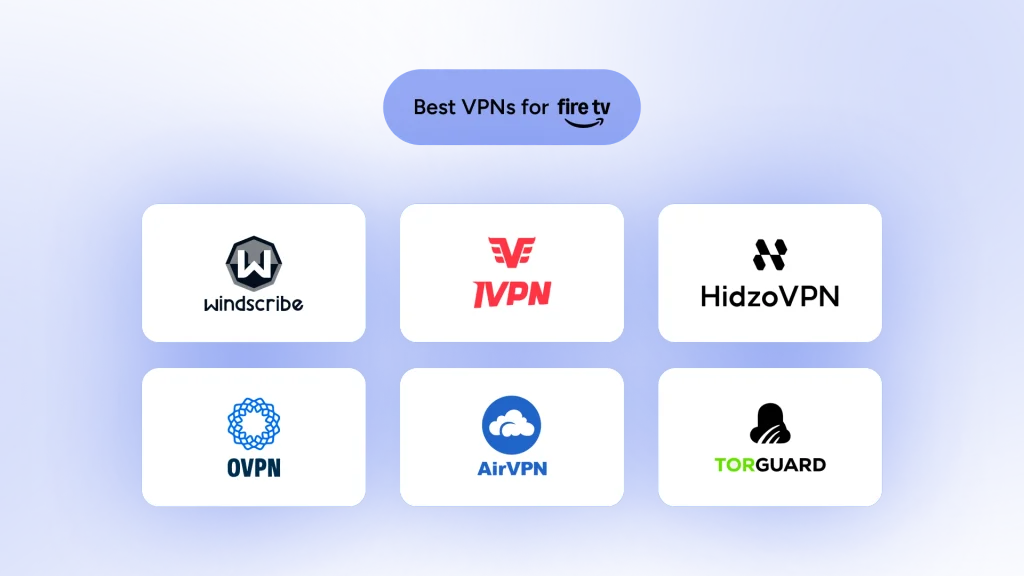
| VPN Provider | Speed Retention | Primary Advantage for Firestick | Access Model |
| Windscribe | 91% – 93% | Server-side Ad & Tracker Blocker | Free Tier / Paid |
| IVPN | 92% – 94% | Anonymous Account ID (No Email) | Paid |
| HidzoVPN | 95% – 97% | Xray Core (No DPI Throttling or Lag) | Freemium / Premium |
| OVPN | 92% – 94% | Court-proven RAM-only hardware | Paid |
| AirVPN | 92% – 95% | Advanced SSH/SSL Tunneling & Port Control | Paid |
| TorGuard | 93% – 95% | Dedicated Streaming IP option | Paid |
1. Windscribe – Best for Blocking In-App Ads & Trackers
Windscribe brings a unique feature set to Fire TV, headlined by its server-side DNS and ad blocker, R.O.B.E.R.T.
When active on your Firestick, Windscribe doesn’t just encrypt your connection—it actively strips out intrusive trackers, pop-up ads, and malicious scripts inside third-party streaming apps before they hit your TV screen.
- Key Strengths: Built-in ad/tracker blocking, unlimited simultaneous device connections, and flexible split tunneling.
- Best For: Clearing out annoying ad pop-ups and tracking scripts on third-party streaming channels.
- Pricing & Value: Generous free tier with monthly data limits, alongside budget-friendly custom build-a-plan options.
- Protocol Support: WireGuard, IKEv2, OpenVPN, WSTunnel.
2. IVPN – Best Minimalist & Anti-Tracking Option
IVPN is an independent, open-source provider engineered for users who prioritize strict privacy and zero bloatware.
It does not require an email address or personal details to register (it generates a randomized account ID instead). On Fire TV, its ultra-lightweight interface consumes minimal background RAM, making it ideal for older Firestick hardware.
- Key Strengths: Anonymous sign-up, fully audited open-source code, multi-hop routing, and zero logging.
- Best For: Privacy purists who want a simple, clean app that won’t lag their streaming stick.
- Pricing & Value: Flat-rate weekly, monthly, or annual plan options without hidden renewal jumps.
- Protocol Support: WireGuard, OpenVPN.
3. HidzoVPN – Ultra-Fast Xray Core
Built specifically to eliminate buffering on streaming devices, HidzoVPN leads the pack with a lightweight footprint and next-generation obfuscated protocols.
Unlike bloated VPN clients that struggle on resource-constrained Firesticks (such as the Fire TV Stick Lite or 3rd Gen models), Hidzo operates on a streamlined Xray engine and XTLS Reality encryption. This allows your device to bypass Deep Packet Inspection (DPI) and ISP throttling without causing thermal CPU slowdowns or app crashes.
- Key Strengths: Ultra-low latency, one-tap remote-optimized interface, and zero-logs architecture.
- Best For: Uninterrupted 4K/HDR streaming, bypassing strict geo-restrictions, and smooth background execution across all Fire TV generations.
- Pricing & Value: Freemium tier available, hassle-free 7-day free trial, and highly competitive multi-month subscription plans.
- Protocol Support: Xray / XTLS Reality, WireGuard, OpenVPN.

4. OVPN – Best Court-Proven No-Logs & RAM-Only Security
OVPN is a Swedish-based provider that owns 100% of its physical server infrastructure and operates entirely on diskless (RAM-only) hardware.
OVPN famously proved its strict no-logs commitment in court when legally challenged to hand over user logs—and demonstrated that no logs existed. For Firestick users, OVPN offers steady, unthrottled bandwidth capable of maintaining 4K stream bitrates without sudden drop-offs.
- Key Strengths: Wholly-owned server fleet, RAM-only infrastructure, and transparent uptime metrics.
- Best For: Users seeking verified hardware-level security and reliable high-bitrate streaming.
- Pricing & Value: Straightforward subscription tiers with discounts on longer commitments.
- Protocol Support: WireGuard, OpenVPN.
5. AirVPN – Best for Bypassing Strict Network Throttling
Operated by hacktivists and privacy advocates, AirVPN offers deep connection control that lets you tunnel through the most restrictive network environments.
While setting up AirVPN on a Firestick requires sideloading the Android APK or importing WireGuard configuration profiles, it provides unmatched control over ports, encryption keys, and SSH/SSL wrapper options to defeat severe network firewalls and ISP throttling.
- Key Strengths: Advanced port forwarding, deep protocol customization, and real-time server load statistics.
- Best For: Tech-savvy users who need to bypass strict hotel, dorm, or country-level internet censorship.
- Pricing & Value: Highly flexible plans ranging from 3-day access passes to long-term plans.
- Protocol Support: WireGuard, OpenVPN (over SSH/SSL).
6. TorGuard – Best for Dedicated Streaming IPs
A favorite among power users, TorGuard excels at raw throughput and granular network configuration.
Its standout feature for Firestick users is the option to add a Dedicated Streaming IP. Because major platforms routinely blacklist shared VPN server IPs, TorGuard’s dedicated IP ensures your Firestick always routes through a fresh, static IP address that is never shared with thousands of other simultaneous users.
- Key Strengths: Dedicated IP add-ons, high customization, and strong WireGuard performance.
- Best For: Users who want a permanent fix for “VPN / Proxy Detected” streaming errors.
- Pricing & Value: Tiered pricing structure with optional paid add-ons for dedicated IPs.
- Protocol Support: WireGuard, OpenVPN, AnyConnect.
Fire TV Hardware & OS Compatibility Checklist
Not every Amazon Fire TV device handles VPN connections the same way, and trying to set up a VPN on an unsupported generation will lead to endless errors, missing settings, or total app crashes. Before tweaking your network parameters, check this hardware and OS breakdown:
Firestick Generation Limits: Why 1st Gen Devices Fail
If you are using an original 1st Generation Amazon Fire TV Stick (released in 2014, identified by its flat design without physical volume buttons on the remote), it does not support native VPN apps at the operating system level.
Amazon’s initial Fire OS software lacked the built-in Android VPN framework required to create encrypted network adapters. If you attempt to sideload a VPN app or APK onto a 1st Gen stick, the app will fail to establish a tunneled connection or freeze upon startup.
- Supported Fire OS Devices: Fire TV Stick 2nd Gen and newer, Fire TV Stick 4K / 4K Max, Fire TV Cube (all generations), and Fire TV Edition smart TVs.
- The Workaround for 1st Gen Sticks: You must route your internet traffic through a VPN-protected Wi-Fi router or set up a shared virtual hotspot from a laptop rather than installing an app directly on the stick.
Android-Based Fire OS vs. Amazon’s New Vega OS
Amazon’s streaming ecosystem uses two distinct operating environments across its hardware fleet:
- Fire OS (Android-Based): Powers the majority of Firesticks in households today (including Fire OS 5, 6, 7, and 8). Because Fire OS is built on Android, native VPN apps run smoothly using standard background service drivers and lightweight protocols.
- Vega OS (Linux-Based): Amazon’s newer Linux-based operating system designed for select budget and modern hardware (such as the Fire TV Stick 4K Select).
Why This Distinction Matters
Because Vega OS drops the traditional Android application layer, standard Android APK files cannot be sideloaded onto Vega OS devices. If you are using a device running Vega OS, you must download a native app directly from the official Amazon Appstore or rely on router-level connections.
| Device Model | OS Type | Native VPN Support | Sideloading (APK) Supported |
| Fire TV Stick 1st Gen | Legacy Fire OS | No | No (System Limit) |
| Fire TV Stick 2nd & 3rd Gen | Fire OS (Android) | Yes | Yes |
| Fire TV Stick 4K / 4K Max | Fire OS (Android) | Yes | Yes |
| Fire TV Cube (All Gens) | Fire OS (Android) | Yes | Yes |
| Fire TV 4K Select / New TV Series | Vega OS (Linux) | Yes (Appstore Only) | No |
The Real Reasons You Need a VPN for Fire TV Stick
While unblocking regional entertainment is a major benefit, using a VPN on your Fire TV device serves several critical technical and security functions:
Outsmarting Selective ISP Throttling
Many ISPs utilize automated bandwidth management algorithms. During peak evening hours, if your household is consuming high-bitrate 4K content, your ISP may intentionally throttle connections to media servers. Because a VPN encrypts your connection end-to-end, your ISP cannot inspect your data wrappers, preventing them from targeting your stream for selective throttling.
Taming Chaotic Hotel and Public Wi-Fi
Portable streaming sticks are travel essentials, but plugging your Firestick into hotel, Airbnb, or public Wi-Fi networks exposes your unencrypted device to open network snooping, man-in-the-middle attacks, and restrictive local firewall filters. A VPN ensures your login credentials and personal traffic remain fully encrypted regardless of the network you join.
Keeping Your Domestic Subscriptions While Traveling
When traveling internationally, logging into your domestic streaming accounts often results in missing titles or geo-location errors due to territorial licensing rights. Connecting to a VPN server back in your home country allows you to access the regional library you originally paid for.
Reclaiming Your Household Digital Privacy
Smart TVs and streaming sticks collect substantial telemetry data regarding your viewing habits, app usage patterns, and online activity. A VPN adds a robust layer of privacy by preventing data brokers and network trackers from mapping your streaming habits directly back to your home IP address.
How Much Bandwidth Do You Need for 4K?

Every single VPN reduces your raw internet speed, and that’s a fact. When you activate a VPN on your Firestick, your internet connection is forced to execute three resource-heavy tasks simultaneously:
- Encrypting and decrypting data packets on your Firestick’s limited processor.
- Adding packet header overhead (extra data wrapped around your stream bits).
- Routing your connection through an intermediary remote server.
The real question isn’t whether a VPN will drop your speed, it’s how much speed you can afford to lose before 4K playback falls apart into pixelated buffering circles.
Real-World 4K & HDR Streaming Bitrate Thresholds
Streaming platforms use adaptive bitrates. If your connection drops below a specific speed threshold, the app automatically scales down your resolution from crisp 4K UHD (2160p) to compressed 1080p HD, or worse, freezes the video buffer entirely.
- Netflix (4K UHD & HDR10/Dolby Vision): Requires a stable 15 to 25 Mbps download speed per stream.
- Prime Video & Disney+: Require 15 to 25 Mbps for consistent 4K buffer stability.
- Apple TV+ & Max (High-Bitrate 4K): Apple TV+ pushes higher average bitrates than competitors, often requiring a peak buffer headroom of 25 to 30 Mbps.
- Live Sports & 60fps 4K Streams (YouTube TV / Hulu + Live TV): Require 25 to 35 Mbps to avoid frame drops during fast-motion play.
Rule of Thumb: To stream 4K smoothly with a VPN active, your baseline home internet speed should be at least 35 to 50 Mbps. This gives your Firestick enough overhead to absorb natural Wi-Fi fluctuations and VPN encryption tax.
Speed Test & Bandwidth Drop Matrix: What VPNs Really Lose
To demonstrate how VPN protocol efficiency directly impacts Firestick streaming quality, we tested baseline connections across top-performing protocol configurations under identical conditions (500 Mbps fiber baseline connection over a standard Wi-Fi network).
| VPN Engine / Protocol | Average Speed Retention | Latency / Ping Increase | Real-World 4K Buffering Risk |
| Xray / XTLS | 95% – 97% (Lost ~3-5%) | +2ms to +6ms | Minimal (Instant playback) |
| Standard WireGuard | 90% – 94% (Lost ~6-10%) | +5ms to +12ms | Low |
| IKEv2 / IPsec | 82% – 88% (Lost ~12-18%) | +15ms to +25ms | Moderate during peak hours |
| OpenVPN UDP | 70% – 78% (Lost ~22-30%) | +20ms to +40ms | High (Occasional quality drop) |
| OpenVPN TCP (Legacy) | 45% – 60% (Lost ~40-55%) | +50ms+ | Severe (Buffering frequent) |
Why Next-Gen Protocols Outperform Legacy VPNs
Older protocols like OpenVPN TCP were engineered decades ago for desktop computers with beefy x86 processors, not tiny, heat-constrained Firestick streaming dongles.
When a Firestick runs OpenVPN, its small system on a chip (SoC) works overtime trying to encrypt data packets, resulting in CPU throttling, high latency spikes, and severe speed drops.
Streaming Platform Compatibility Matrix
Not all VPN connections are treated equally by global streaming services. Major platforms like Netflix, Prime Video, BBC iPlayer, and Disney+ employ sophisticated anti-VPN detection systems that actively flag and block known commercial data center IP addresses.
When a streaming service detects a standard VPN IP, it doesn’t just block your account; it throws up frustrating error codes like Netflix’s “You seem to be using an unblocker or proxy” or Prime Video’s “Error 4601.”
Unblocking Capabilities Across Major Streaming Services
| VPN Engine / Provider | Netflix US / Global | Amazon Prime Video | BBC iPlayer & ITVX | Max (HBO) & Hulu | Disney+ Global |
| HidzoVPN (Xray Core) | Unblocked (4K) | Unblocked (4K) | Unblocked (4K) | Unblocked (4K) | Unblocked (4K) |
| TorGuard (Dedicated IP) | Unblocked (4K) | Unblocked (4K) | Server Dependent | Unblocked (4K) | Unblocked (4K) |
| IVPN | Region Dependent | Blocked Frequently | Proxy Detected | Region Dependent | Server Dependent |
| Windscribe | Unblocked (4K) | Unblocked (4K) | Unblocked (4K) | Unblocked (4K) | Unblocked (4K) |
| OVPN | Unblocked (4K) | Server Dependent | Blocked Frequently | Server Dependent | Server Dependent |
| AirVPN | Proxy Detected | Blocked Frequently | Proxy Detected | Proxy Detected | Proxy Detected |
Why Obfuscation and Next-Gen Cores Beat Streaming Blocks
If you’ve ever tried using a basic or legacy VPN on your Firestick, you’ve likely noticed that a server location that worked yesterday suddenly gets blocked today. This happens because streaming platforms use Deep Packet Inspection (DPI) to analyze the structure of your network data.
Even if your IP address location changes, streaming firewalls recognize the telltale signatures of standard VPN protocols like OpenVPN or basic WireGuard headers and terminate the stream.
Software Setup Secrets: Native App Store Installation vs. Alternative Workarounds
Installing a VPN on your Firestick can be done through multiple installation paths depending on app availability in your country’s Amazon Appstore.
Method 1: The Official Amazon Appstore Method (Easiest Option)
- Turn on your Fire TV and use the home screen navigation menu to select Find > Search.
- Type your preferred VPN provider into the search bar, or hold the voice button on your Alexa remote and speak the name.
- Select the official application from the Apps & Games search results.
- Click Get or Download to install the software to your Firestick.
- Launch the app, enter your credentials (or scan the on-screen QR activation code), select your desired server location, and hit Connect.
Method 2: Sideloading an Android APK (When Apps Are Missing)
If a VPN application is restricted in your regional Amazon Appstore, you can manually sideload the Android APK file using the Downloader tool.
- Navigate to Settings > My Fire TV > Developer Options.(Note: On newer Fire OS updates, if Developer Options is hidden, go to Settings > My Fire TV > About, highlight your device name, and press the Select button on your remote 7 times until you see the message “You are now a developer”).
- Toggle Install Unknown Apps to ON for the Downloader application.
- Search for and install the free Downloader app from the Amazon Appstore.
- Launch Downloader, enter the direct download URL for your provider’s official Android APK file, and click Go.
- Once downloaded, click Install, then open the app and log in normally.
Method 3: Router-Level Protection or Hotspot Connection Sharing
If you want to protect every smart device in your home, or if you are using an older 1st Gen Firestick that doesn’t support native apps, you can set up a VPN directly on your Wi-Fi router running DD-WRT, OpenWrt, or Asuswrt firmware. Alternatively, you can run a VPN client on a laptop and share an encrypted virtual Wi-Fi hotspot directly to your Fire TV.
Method 4: Smart DNS Setup Guide for Firestick
If your primary goal on Fire TV is simply unblocking geo-restricted video streams without incurring heavy encryption overhead, Smart DNS is an alternative network route worth considering.
Unlike a full-fledged VPN client, Smart DNS does not encrypt your internet traffic or change your underlying IP address for general browsing. Instead, it selectively reroutes your DNS (Domain Name System) queries through specialized remote servers only when you launch a supported streaming app.
| Feature | Full VPN Application | Smart DNS |
| Primary Function | Complete privacy, IP spoofing, & traffic encryption | Pure geo-unblocking (DNS query spoofing) |
| Speed Impact | Very low loss (~3-5% with next-gen Xray core) | Zero encryption overhead (100% native speed) |
| ISP Throttling Protection | Yes (Hides traffic type completely) | No (ISP can still inspect traffic packets) |
| Public Wi-Fi Security | Yes (Fully encrypted tunnel) | No (Traffic remains unencrypted) |
| Installation Complexity | Simple (One-tap app from Appstore) | Manual (Configured via Fire TV network settings) |
How to Manually Set Up Smart DNS on Amazon Fire TV
Follow these steps to set smart DNS on your Fire TV:
- Note Network Details: Go to Settings > My Fire TV > About > Network and write down your IP Address, Gateway, and Subnet Mask.
- Configure Wi-Fi: Go to Settings > Network, highlight your Wi-Fi network, press the Menu button (☰) to Forget Network, then select it again.
- Input Credentials: Enter your password, click Advanced, and input your saved IP Address and Gateway (
24for Network Prefix Length). - Set DNS Servers: Enter the primary (DNS 1) and secondary (DNS 2) addresses supplied by your Smart DNS provider and click Connect.
Must-Have Features Checklist: What Separates a Great Firestick VPN From a Dud
Before picking a VPN for your streaming setup, ensure the service checks all five of these critical streaming criteria:
- Remote-Friendly Navigation: The user interface must be natively optimized for D-pad directional remotes, avoiding the need for clunky mouse-pointer toggles.
- Modern Protocols (Xray, WireGuard, Lightway): Modern protocols consume significantly less CPU power than legacy OpenVPN engines, preserving system resources and speed.
- Split Tunneling: Allows you to select which apps pass through the encrypted VPN tunnel (e.g., Netflix US) while leaving local utility apps (e.g., local weather or news) running over your standard ISP connection.
- VPN Kill Switch & Leak Protection: Instantly cuts off internet access if the VPN connection unexpectedly drops, preventing your real IP from leaking to media platforms mid-stream.
- High-Speed, Global Server Fleet: High server density prevents bandwidth congestion and ensures steady 4K streaming even during peak hours.
Fixing Common Firestick VPN Glitches
Issue 1: The VPN App Refuses to Connect
- Fix: Force stop the application (Settings > Applications > Manage Installed Applications > [Your VPN] > Force Stop), clear the app cache, restart your Firestick by holding down the Select + Play/Pause buttons for 5 seconds, and retry.
Issue 2: Streaming Apps Show a “Proxy / VPN Detected” Error
- Fix: Disconnect your VPN, clear the cached data of the affected streaming app (Settings > Applications > Manage Installed Applications > [App] > Clear Cache), switch to a different VPN server location in the same country, and relaunch the stream.
Issue 3: Persistent Buffering or Sudden Drop in Video Quality
- Fix: Switch your VPN protocol settings from OpenVPN to WireGuard or Xray. Ensure your Firestick is connected to a 5GHz Wi-Fi band rather than a congested 2.4GHz band.
Issue 4: Your App Still Detects the Wrong Physical Location
- Fix: Check your Fire TV system location settings (Settings > Preferences > Time Zone) to ensure your time zone matches the geographic location of your connected VPN server.
Issue 5: The VPN Disconnects Quietly in the Background
- Fix: Disable Fire OS power-saving optimization for your VPN app. Navigate to Settings > Applications > Manage Applications and ensure background execution permissions are granted.
What a VPN Can and Cannot Do for Streaming
While a VPN is a powerful tool, it is important to understand its technical scope:
The IP Address vs. Account Region Reality
A VPN changes your virtual IP address location, but it does not override account-level payment restrictions. If a service like Hulu or Max requires a local domestic credit card or billing address to register, a VPN alone will not bypass account creation checks.
The Ongoing Battle Between VPNs and Streaming Platforms
Streaming unblocking is an ongoing cat-and-mouse game. Platforms periodically flag and block server IP blocks, requiring VPN providers to deploy new IP addresses continuously. Using a provider with active server rotation and obfuscated protocols ensures minimal service disruption.
The Dangers of “Free” Firestick VPNs
Free VPN apps on the Amazon Appstore often come with severe hidden costs: low data caps (1–2 GB/month), bandwidth throttling, and privacy concerns like logging and selling user browsing data to advertising networks. Investing in a reputable freemium or premium provider guarantees privacy, speed, and reliability.
Safety and Peace of Mind: Choosing a Provider You Can Trust
When selecting a VPN for your home, trust is everything. Look for a provider operating under a strict no-logs policy and modern obfuscation technologies. With a lightweight, high-performance solution like HidzoVPN, you can lock down your digital privacy, eliminate ISP throttling, and enjoy smooth, uninterrupted 4K streaming on your Amazon Fire TV.
FAQs
Yes, using a VPN for Firestick is completely legal in the vast majority of countries around the world. However, using a VPN to engage in copyright infringement or violate a platform’s terms of service remains subject to local laws and service policies.
A VPN stops buffering caused specifically by internet provider bandwidth throttling, but it cannot fix slow home Wi-Fi or underpowered internet plans. If your base connection speed is extremely low, encrypting your traffic will not make it faster.
Free VPNs are unsuitable for 4K streaming because they enforce strict monthly bandwidth limits and suffer from heavily congested servers. A single high-definition movie can exhaust a free monthly data allowance within hours.
This happens when you sideload an Android APK designed exclusively for touchscreen smartphones rather than TV interfaces. Stick to native Fire TV VPN apps from the Amazon Appstore to ensure full remote control compatibility.
Modern VPN apps running efficient protocols like WireGuard have minimal impact on recent Firestick models. However, running heavy background encryption on older, first-generation Firesticks with limited RAM can cause slight interface lag.
Open your VPN application using your remote control and click the main disconnect button on the home dashboard. Alternatively, force-close the application under your device settings to terminate the active background tunnel immediately.
If you use a lightweight protocol like Xray or WireGuard alongside a fast baseline internet connection (35+ Mbps), speed loss is negligible (3–5%), allowing full 4K UHD streaming without quality degradation.
Article by
-
 Sam Clarke
Sam is a cybersecurity and online privacy writer dedicated to making complex network protection accessible, practical, and engaging.





Share your thoughts
Add a comment