How to Access Blocked Websites Without VPN: 6 Working Methods
You’re trying to open a site at school, at work, or on public Wi-Fi, and instead of the page you want, you get a block…

Protect your online privacy and security
Fast, private, and easy to use, get Hidzo on your device and browse freely with one tap.
Get HidzoVPNTable of Contents
You’re trying to open a site at school, at work, or on public Wi-Fi, and instead of the page you want, you get a block screen. Downloading a VPN isn’t always an option, whether it’s a locked-down work laptop, a shared computer at the library, or a school Chromebook that won’t let you install anything. The good news is that a VPN isn’t the only tool that gets you past a block; it’s just the most heavily marketed one.
This guide walks through six methods people actually use to open blocked websites without installing software, along with why each one works, where it falls short, and which one fits your specific situation. Some take thirty seconds. Others require a bit more patience. None of them need an app.
Why the Fix Depends on How You’re Blocked
Before jumping into fixes, it helps to know what’s actually stopping you, because “blocked” isn’t one single thing.
A network can block a site in a few different ways.
- It might poison your DNS lookup, so your device never learns the site’s real address.
- It might blacklist the site’s IP address directly, which is harder to work around.
- It might inspect your traffic in real time, spot the site’s name in the connection request, and cut it off mid-handshake.
Schools and offices usually rely on the first method because it’s cheap and easy to manage. ISPs and government-level censorship tend to lean on the second and third, which is why a trick that works on a school Wi-Fi network often does nothing against a country-wide block.
Knowing which type you’re up against saves a lot of trial and error, so keep it in mind as you read through the methods below.
Method 1: Change Your DNS Server
Most blocks at school or work happen at the DNS level. When you type a website’s name, your device asks a DNS server to translate that name into an IP address. If the network’s default DNS server has that site on a blacklist, it just refuses to answer, and your browser shows an error as if the site doesn’t exist.
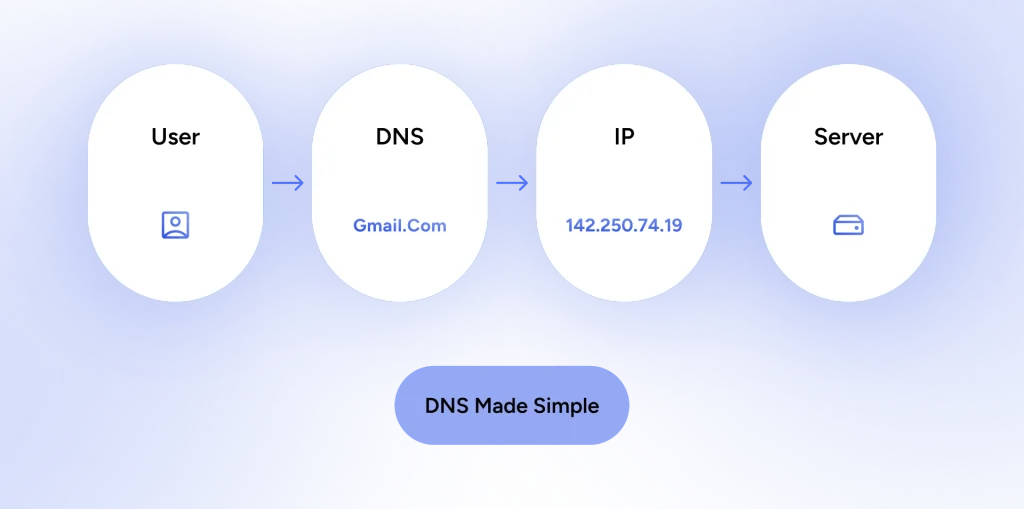
Switching to a public DNS server, such as Cloudflare’s 1.1.1.1 or Google’s 8.8.8.8, routes that lookup somewhere else entirely, and one that isn’t following your school or workplace’s filtering rules.
On Windows, go to Network Settings, open your adapter’s properties, and manually set the DNS to 1.1.1.1 and 1.0.0.1. For Mac, it’s under Network Preferences, then Advanced, then the DNS tab. On phones, you’ll find it inside your Wi-Fi network’s settings under a “DNS” or “private DNS” option.
This is genuinely one of the fastest ways to unblock websites for free, and it takes about two minutes. The catch: it only works against DNS-based blocks. If your network also blacklists the site’s IP address, changing DNS alone won’t help.
Method 2: Switch to DNS-over-HTTPS in Your Browser
Sometimes, even after you change your DNS server, the actual lookup request usually travels in plain, unencrypted text. A network administrator watching traffic can still see which domains you’re requesting and filter them anyway, DNS server change or not.
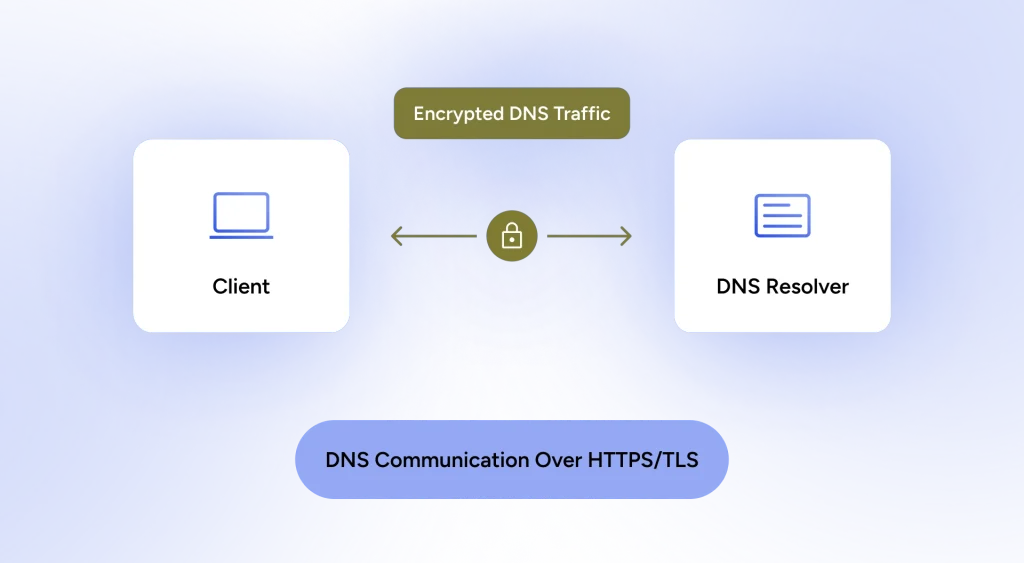
DNS-over-HTTPS (DoH) fixes this by encrypting the DNS request itself, wrapping it inside regular HTTPS traffic so it looks like ordinary encrypted web browsing rather than a DNS query. That makes it a genuinely effective way to unblock websites on Chrome without VPN software, since Chrome, Firefox, and Edge all support it natively.
In Chrome:
Go to Settings → Privacy and Security → Security → turn on “Use secure DNS” → pick a provider such as Cloudflare or Google from the dropdown.
In Firefox:
Go to Settings → Privacy & Security → DNS over HTTPS → set to Custom → Choose a provider
This method pairs well with Method 1 and closes a gap that plain DNS switching leaves wide open.
Method 3: Edit Your Hosts File and Connect via Raw IP
If DNS is genuinely broken on a network (not just filtered, but returning no answer for a domain at all) you can skip the DNS lookup entirely by telling your device the site’s IP address directly. Here’s how it goes:
- Look up the site’s IP using a tool like nslookup.io from a device or network that isn’t blocked.
- Open your hosts file: on Windows it’s at C:\Windows\System32\drivers\etc\hosts, and on Mac or Linux it’s at /etc/hosts, both editable with administrator access.
- Add a line with the IP address followed by the domain name, save the file, and the site will resolve locally without ever asking the network’s DNS server.
This is a solid way to open restricted websites without VPN software when DNS is your only obstacle, but it has real limits. Big platforms rotate their IP addresses constantly behind content delivery networks, so the IP you find today might not work next week. It also does nothing against IP-level or content-based blocks, since your device still connects using its real network path.
Method 4: Use a Web Proxy
A web proxy sits between your browser and the site you’re visiting. You type the blocked URL into the proxy’s own site, and the proxy fetches the page on your behalf, showing it to you inside its interface. Your network sees you connecting to the proxy’s domain, not the blocked one, so it never gets flagged.
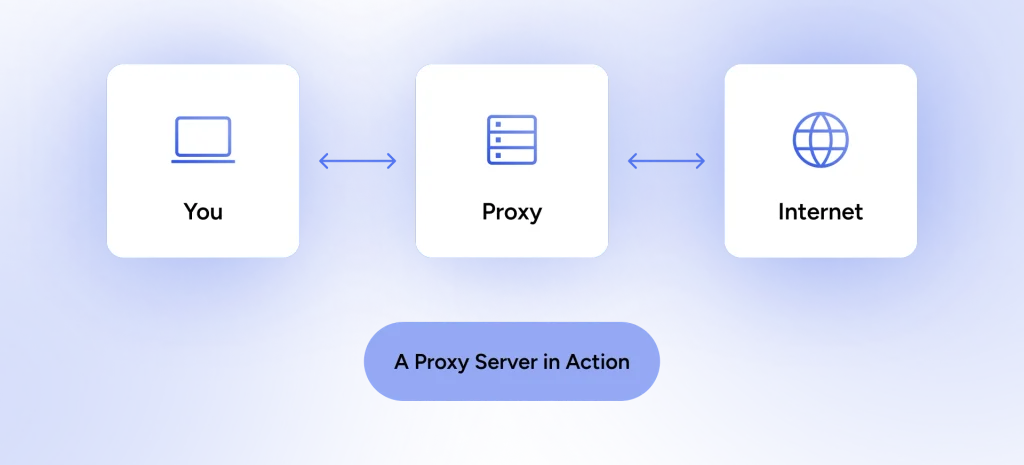
This is the most accessible option for anyone who wants to unblock sites without downloading anything or installing a single extension. Sites like this are popular for a reason: no install, no configuration, works from any browser including school Chromebooks that lock down installation permissions.
Looking for reliable proxies?
Check out PC Mag’s list of The Best Proxy Services
The Risks Involved in Using Web Proxies
That accessibility comes with a real cost, though, and it’s one worth taking seriously. Free web proxies routinely log the sites you visit, and some inject their own ads or trackers into the pages you load.
The risk goes further than nosy logging, too. In March 2026, the FBI published a public service announcement warning that residential proxy networks, the kind that route traffic through everyday consumer devices, have become a favored tool for cybercriminals looking to disguise malicious activity behind ordinary home IP addresses. That doesn’t mean every free proxy is compromised, but it’s a good reason to never log into anything sensitive, like email or banking, through one.
If you do use a free proxy, treat it like a public computer: browse, don’t authenticate. For anything involving a password, switch methods. This is also where the line between anonymous and private browsing gets blurry, and it’s worth understanding the real difference between the two before trusting any third-party relay with your traffic.
This is exactly where a proper VPN app earns its keep. Unlike a free proxy, a reputable VPN encrypts your entire connection end to end rather than just relaying it in plain sight of whoever runs the proxy server, which matters a lot once you’re logging into accounts rather than just reading articles.
Method 5: Use Tor Browser
Tor Browser routes your traffic through a chain of volunteer-run relays, encrypting it at each hop so no single relay knows both who you are and what site you’re visiting. It’s one of the most effective tools for how to access blocked websites with Tor when you’re dealing with a genuinely aggressive block, including government-level censorship, since it doesn’t depend on any single server that a censor can simply blacklist.
Download it directly from the Tor Project’s official site, install it like any browser, and open the URL you need. No separate configuration required; it works out of the box.
The tradeoffs are real. Routing through multiple relays makes browsing noticeably slower than normal, which can be frustrating for anything beyond reading text. Some networks specifically detect and block Tor’s entry nodes, so it isn’t guaranteed to work on a locked-down school or corporate connection. It’s a strong tool, but reserve it for situations where lighter methods have already failed, and if you’re curious how its layered encryption compares to what a VPN uses, this breakdown of VPN protocols covers the differences.
On a related note:
VPN vs. Tor: Which Is Better for Privacy, Security, and Speed?
Method 6: Use a Smart DNS Service
Smart DNS solves a slightly different problem than the other methods here: it’s built for geo-blocked content, like a streaming show or service that’s only available in certain countries, rather than a school or office filter.
It works by rerouting only the specific DNS queries tied to the geo-restricted service through a server in an eligible location, while the rest of your traffic goes through your normal connection untouched. That selective routing is what makes Smart DNS for blocked websites noticeably faster than a full VPN for streaming specifically, since there’s no encryption overhead slowing things down.
The important caveat is that Smart DNS doesn’t encrypt anything. It changes what the streaming service sees, not what your ISP or network administrator sees, so it offers zero privacy benefit and won’t help against a filtered work or school network. Think of it as a specialist tool for one job, unblocking geo-locked streaming, rather than a general-purpose fix.
Quick Comparison
Let’s summarize the methods and clarify which method is best for whom. None of these six methods are mutually exclusive, and stacking a couple of them (DNS change plus DoH, for instance) often gets better results than relying on just one.
| Method | Setup Effort | Encrypted? | Best For |
|---|---|---|---|
| Change DNS server | Very low | No | DNS-based school/work blocks |
| DNS-over-HTTPS | Low | Yes | Chrome/Firefox DNS filtering |
| Hosts file edit | Medium | No | Broken/blocked DNS specifically |
| Web proxy | Very low | Rarely | Quick, low-stakes browsing |
| Tor Browser | Low | Yes | Heavy censorship, no install limits |
| Smart DNS | Low | No | Geo-blocked streaming only |
The Bottom Line
You don’t need to install anything to get past most everyday blocks. A DNS change and DNS-over-HTTPS will clear the vast majority of school and work filters in under five minutes combined. Tor and the hosts file trick cover the tougher cases, Smart DNS handles geo-blocked streaming specifically, and a mobile hotspot is always there as a zero-effort backup. Match the method to the actual block in front of you, and you’ll spend a lot less time troubleshooting and a lot more time on the page you were trying to reach in the first place.
FAQs
In most countries, yes. Using DNS changes, proxies, or Tor to reach publicly available websites isn’t illegal on its own, though bypassing your employer’s or school’s acceptable use policy can still violate their rules, separate from any actual law.
Changing your DNS server, enabling DNS-over-HTTPS, editing your hosts file, or switching to mobile data all work without touching a proxy at all, and each targets a slightly different type of block.
Many networks now detect known proxy domains and blacklist them directly, the same way they blacklist the original site. Proxies also don’t help against content-based or IP-level blocking, since the network can still see and filter the destination traffic in some setups.
No. It only works against DNS-based blocks, which are common at schools and workplaces but not the whole picture. IP-level blocks and deep packet inspection require a different method, like the hosts file trick or Tor.
Yes. DNS-over-HTTPS and web proxies both work entirely inside the browser with zero installation, making them the two most realistic options on a locked-down work machine.
Smart DNS is purpose-built for this. It reroutes just the relevant streaming traffic to an eligible region without the speed cost of full encryption, which regular DNS changes or proxies won’t reliably deliver for geo-locked platforms.
Article by
-
 Sam Clarke
Sam is a cybersecurity and online privacy writer dedicated to making complex network protection accessible, practical, and engaging.





Share your thoughts
Add a comment