How to Increase VPN Speed: Diagnose, Test, and Fix a Slow Connection
A slow VPN is the digital version of a traffic jam on the way to a meeting. Pages crawl, streams buffer, and your game character…

Protect your online privacy and security
Fast, private, and easy to use, get Hidzo on your device and browse freely with one tap.
Get HidzoVPN A slow VPN is the digital version of a traffic jam on the way to a meeting. Pages crawl, streams buffer, and your game character stands still while everyone else moves on. The good news is that most slowdowns have a specific cause, and finding it takes less time than guessing.
This is a process guide to increase VPN speed: diagnose the bottleneck, test it properly, tune what matters, and retest. If you have been wondering how to speed up a VPN connection without endless trial and error, you are in the right place. You will find steps for Android, iPhone, Windows, and macOS, plus a realistic answer to how much speed loss is normal.
Table of Contents
How to Speed Up VPN Speed Step by Step

Before you touch a single setting, it helps to know why a VPN feels slow in the first place, because the cause decides which fix is worth your time. This section helps you match your symptom to a cause, then run the quickest fixes. It is also the right starting point if you want to know how to improve internet speed while using a VPN.
Match Your Symptom to a Cause
Bandwidth is only part of the story. Latency, jitter, and packet loss often explain why a connection with fast downloads still feels sluggish, and a VPN cannot run faster than the connection underneath it. Find your symptom below.
| What you notice | Likely cause | Where to look |
|---|---|---|
| Slow even with the VPN off | Your plan, router, or ISP | The quick fixes below |
| Fast without the VPN, slow with it | Distant or busy server, or a protocol that does not suit your network | The server and settings sections |
| Downloads are fine but games stutter or calls break up | High ping, jitter, or packet loss | The gaming and streaming section |
| Slow on one service while everything else is fine | Possible ISP throttling of that traffic | Try another server and retest |
| Speed drops every evening | Peak-hour congestion | The testing section |
Not sure which row fits you? The testing routine in the next section gives you the numbers to decide.
Run the Quick Fixes
These take minutes, and none of them touch your security. Retest after each one so you know which change helped.
- Restart your router and your device. This clears temporary glitches that love to masquerade as VPN trouble.
- Go wired, or move closer to the router. Ethernet sidesteps wireless interference entirely.
- Pause the bandwidth hogs. Cloud backups and game updates quietly compete with your VPN.
- Switch to a closer server with a lighter load. Distance adds delay and crowded servers add more, so skip the server roulette and use your app’s automatic option if it has one.
- Update the app and your operating system. Updates often carry performance fixes.
Check for Software Conflicts Without Lowering Your Guard
Security suites, other VPNs, and proxy tools can all compete for the same network traffic. Close anything that duplicates your VPN’s job rather than switching your antivirus or firewall off, which leaves you exposed. If your security software scans the VPN’s traffic, add the VPN app to its exclusion or allowlist, so both tools keep working without tripping over each other.
If speed is still poor after the steps in this guide, contact support with your test results. Numbers get you a faster answer than “it feels slow.”
How to Test Your VPN Speed Before Making Changes
Switching the VPN on and off and eyeballing one number each time is like weighing yourself before and after lunch and calling it a diet study. To test your VPN speed properly, you need a repeatable routine. That way, every change you make later has a result you can measure, instead of putting the cart before the horse.
Keep Every Variable the Same
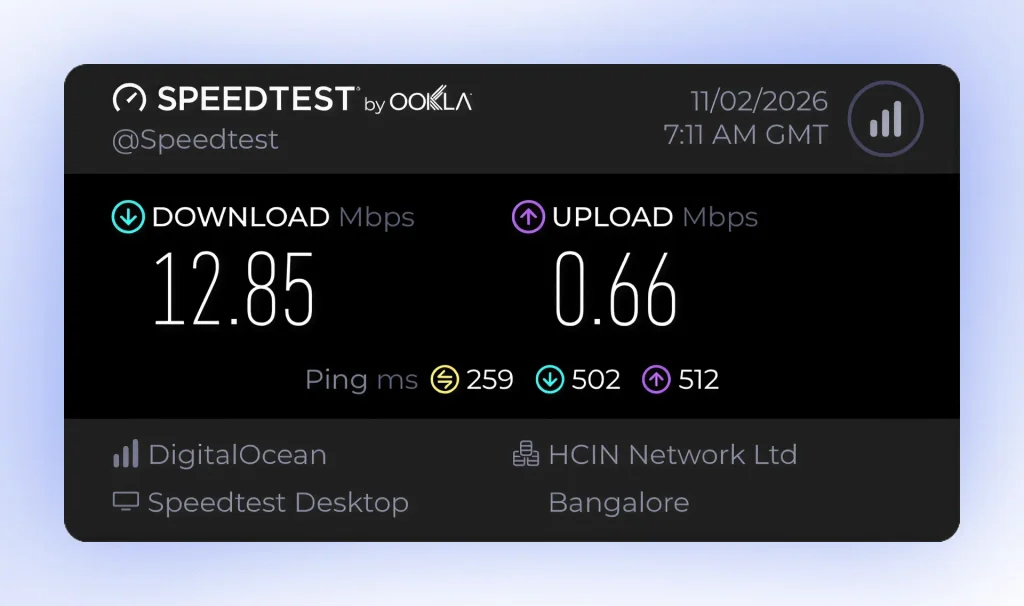
Use the same device, the same network, and the same test server for every run. A Speedtest server in a different city can change your numbers all by itself, so pick one and stick with it. Pause other downloads too, since a background update can quietly ruin a test.
Run Three Tests Off and Three Tests On
Run at least three tests with the VPN off to set your baseline, then three with the VPN on. Average each set. One test can be a fluke, but three start to look like a pattern. Record these metrics each time.
| Metric | What it tells you |
|---|---|
| Download speed | How fast data arrives, which affects streaming and downloads |
| Upload speed | How fast data leaves, which affects calls, backups, and uploads |
| Ping (latency) | How long a round trip takes, which affects responsiveness |
| Jitter | How much your ping bounces around |
| Packet loss | How much data goes missing along the way |
Not every speed test tool reports jitter and packet loss, so record them whenever yours does. They matter most for gaming and calls.
Retest at Different Times of Day
Repeat the routine in the morning, afternoon, and evening. Networks get busier at peak hours, and some ISPs slow certain traffic then. A result that looks bad only at 8 p.m. points to congestion rather than your settings.
Record Results and Calculate Speed Loss
Copy this table into a notes app or spreadsheet and fill it in after each round.
| Test | Time of day | VPN | Download (Mbps) | Upload (Mbps) | Ping (ms) | Jitter (ms) | Packet loss (%) |
|---|---|---|---|---|---|---|---|
| 1 | Off | ||||||
| 2 | Off | ||||||
| 3 | Off | ||||||
| 4 | On | ||||||
| 5 | On | ||||||
| 6 | On | ||||||
| Baseline average | Off | ||||||
| VPN average | On |
Once you have both averages, work out your speed loss with this formula.
Speed loss (%) = ((Baseline speed – VPN speed) / Baseline speed) x 100
For example, a baseline of 200 Mbps and a VPN result of 160 Mbps gives ((200 – 160) / 200) x 100, which is a 20% loss. Use the same formula for upload.
Ping works differently, so compare the actual milliseconds before and after. Save your first set of results, then repeat the routine after each change you make below.
How to Make VPN Faster on Android, iPhone, and Windows
Once you have a baseline, you can start tuning. The steps below use HidzoVPN as the worked example, so grab the VPN app first if you want to follow along. The same ideas carry over to most other apps even when menu names differ. If you want to make your VPN faster without confusion, change one thing at a time and retest after each change.
Android
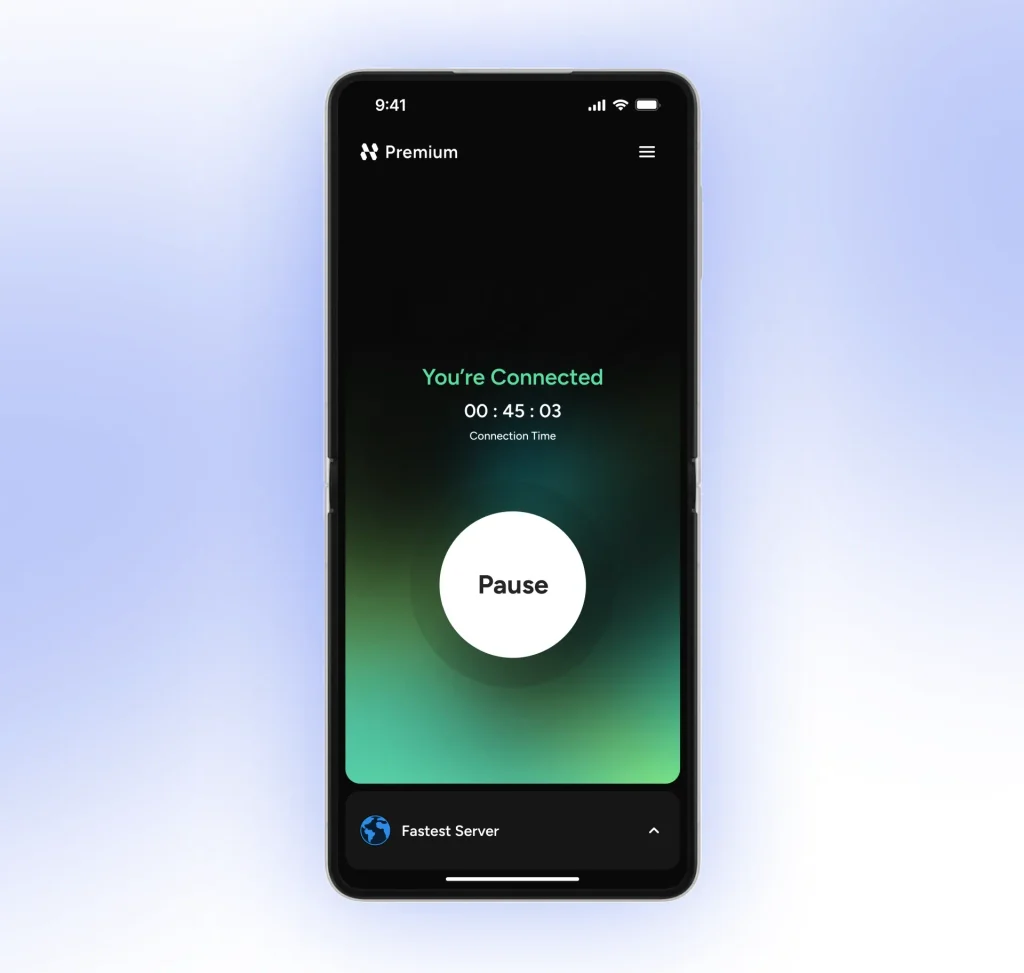
Open the app and switch on Fastest Server mode, which picks a nearby, responsive server for you. If you prefer to choose by hand, change your VPN server location to the closest option and test again.
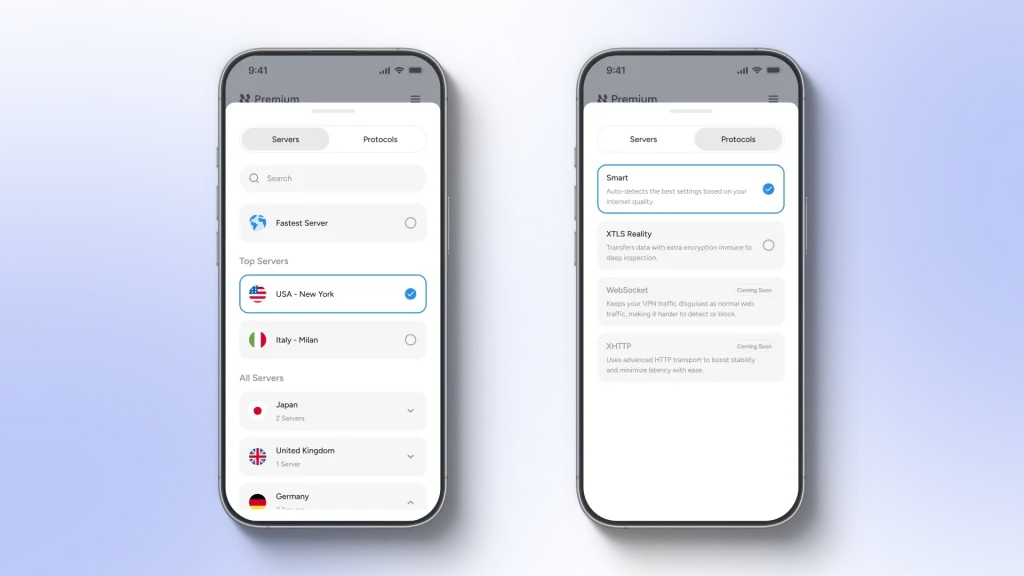
Next, check the protocol setting. Switch one option, run your three-test routine, and keep the winner.
On mobile data, speeds swing with signal strength, so test from the same spot each time. Comparing mobile data with Wi-Fi can also show you whether the weak link is your home network.
iPhone
The flow is similar on iOS. Open the app and turn on Fastest Server mode, then run your tests. Low Power Mode can limit background network activity, so switch it off while you test.
Windows and macOS
Desktop apps give you the cleanest testing conditions, since you can plug in Ethernet and close heavy programs. Connect with Fastest Server mode, then open the protocol settings.
On a laptop, check that battery saver or a power-saving plan is not capping your Wi-Fi adapter, since those profiles can slow the network.
Settings to Change for VPN Speed Optimization
Settings can help, but only the right ones. Smart VPN speed optimization is less about hunting for secret toggles and more about knowing which few switches matter and which popular tips to skip.
Match the Protocol to Your Network
A protocol is the set of rules your VPN uses to move data, and it affects both speed and reliability. WireGuard is widely praised for its lean design, yet no protocol wins everywhere. One that flies on home fiber can struggle on a restrictive hotel or office network.
HidzoVPN uses Xray-based protocols rather than WireGuard, so the options in the app look different from a WireGuard-first app. Whatever your app offers, change one option at a time and run the three-test routine after each switch.
Split Tunneling: A Bandwidth Saver, Not a Speed Boost
Split tunneling does not make the tunnel itself faster. It sends the apps or sites you choose outside the VPN, which leaves more tunnel capacity and server load for everything else. That helps when a big download does not need protection.
Keep in mind that anything you exclude travels unencrypted and unprotected. Keep banking, work, and anything private inside the tunnel.
Leave Encryption Alone
You will sometimes see advice to drop from AES-256 to AES-128 for extra speed. Most modern VPN apps do not even offer a cipher choice, and phones and computers with built-in AES acceleration handle strong encryption with a negligible speed difference. You would trade real protection for a gain you will not notice, so just don’t mess with the encryption settings if it’s available.
Does Paying for a VPN Automatically Make It Faster?
A paid service can help when the provider has more server capacity and better connections, but the label does not speed anything up. Speed comes down to routing efficiency, peering (how well the provider connects to your ISP and the sites you visit), your ISP’s own routing, how busy the server is, and the protocol in use.
A service that caps bandwidth or packs users onto a few servers can feel slow, and a well-run one can feel almost invisible. So judge any VPN, HidzoVPN included, by your own test results.
How to Reduce VPN Lag for Gaming and Streaming
Gaming and streaming stress a VPN in different ways, so one fix does not suit both. Streaming cares about steady throughput, while games care about timing.
Gaming: Fix Ping, Jitter, and Packet Loss
If your downloads are fast but your game stutters, bandwidth is not the problem. Ping is the delay, jitter is how much that delay wobbles, and packet loss is data that never arrives. Cloudflare’s network quality scoring gives top marks to under 1% packet loss and under 10 ms of jitter, which makes a sensible target for competitive play.
A good VPN for gaming setup usually pairs a nearby server with a lightweight protocol and a quiet network, which pulls ping down and keeps jitter steady. Remember that a VPN adds an extra hop, so it rarely beats your direct ping unless your ISP’s route is poor.
Streaming: Keep the Stream Steady
Buffering usually comes from an unstable connection or a crowded server rather than a lack of raw speed, since HD streaming needs far less bandwidth than most home plans provide. Pick a nearby server and pause other devices that are pulling data. If the stream stutters at the same hour every night, your timed tests from earlier will confirm congestion.
How Much Speed Loss Is Normal with a VPN?
A VPN always adds some overhead, so the useful question is whether your own loss sits in the normal range. The results table from earlier gives you the answer.
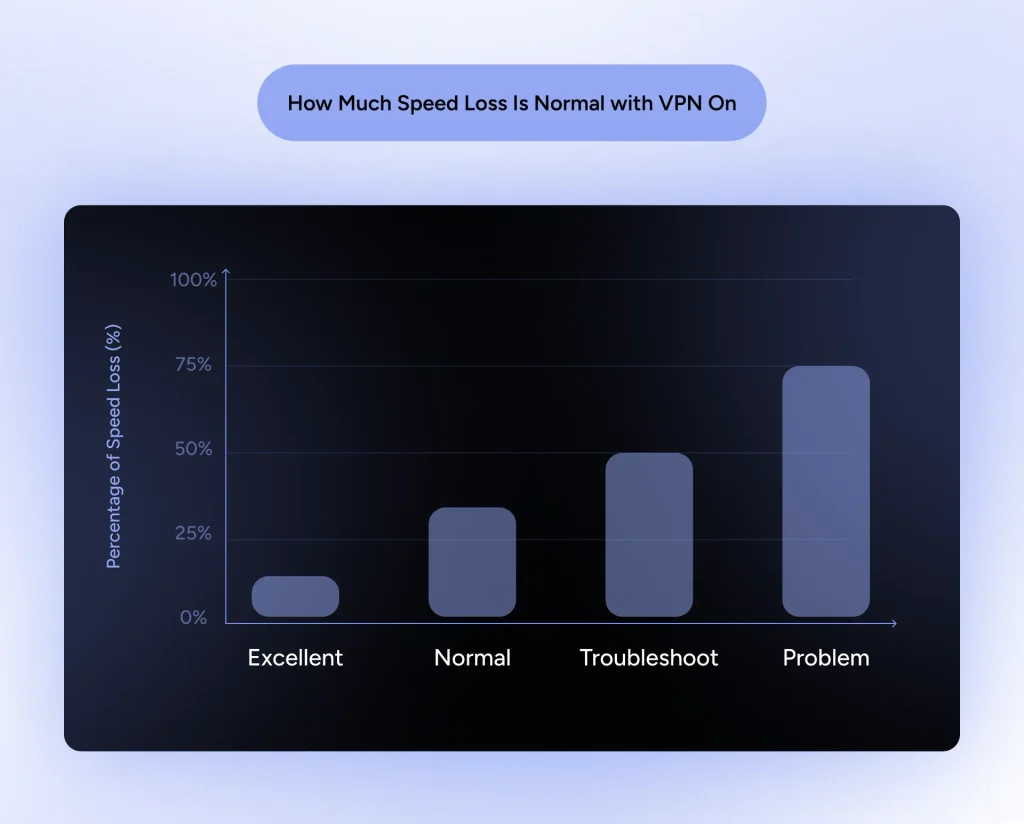
Independent review labs that test many services report average download losses of roughly 20 to 35 percent, with the best performers staying under about 20 percent and the weakest losing half or more. Treat those as rough rules of thumb, since testers use different servers, locations, and connections. As a simple guide for your own results:
| Download speed loss | How to read it |
|---|---|
| Under 20% | Excellent, and you will rarely notice it |
| 20 to 40% | Normal for many setups and usually fine for everyday use |
| 40 to 60% | Worth troubleshooting with the sections above |
| Above 60% | Almost always points to a clear problem |
Speed loss also matters less on a fast plan. Dropping from 500 Mbps to 400 Mbps will not hurt streaming or video calls, but the same percentage on a slow plan can bite. Ping and jitter usually rise a little too, since your data travels farther, and that is fine as long as the numbers stay steady.
Perfect speed is not on the menu, because a VPN slows down your internet at least a little by design. The goal of increasing VPN connection speeds is to keep that loss small and steady, not to erase it.
FAQs
Test with the VPN off first. If your baseline is already slow, the cause sits with your plan, router, or ISP, and no VPN server will fix it. If the baseline is healthy and only the VPN results drop, work through the server and settings sections.
Connect to a nearby, less busy server, use a wired or strong connection, pause bandwidth-heavy apps, and keep the app updated. Change one setting at a time and retest so you know what actually worked.
A VPN cannot push you past your base speed. The exception is ISP throttling. If your provider slows specific traffic such as streaming or gaming, a VPN can stop it from recognizing that traffic, and the slowdown may disappear. A better route to a destination can occasionally help too, but both cases are the exception.
Compare it with your own baseline, because the extra hop adds some delay. For gaming, Cloudflare’s scoring awards progressively higher marks as idle latency drops below 50 ms, 20 ms, and 10 ms, so lower is better and a steady number beats a bouncing one.
It is not worth the risk. Check for software conflicts and add the VPN app to your security tool’s exclusion list instead, so both stay active while you test.
Article by
-
 Sam Clarke
Sam is a cybersecurity and online privacy writer dedicated to making complex network protection accessible, practical, and engaging.





Share your thoughts
Add a comment