Why Google Knows My Location With VPN: 9 Reasons and How to Fix It
You pick a server in New York, feel like a secret agent, and then Google serves “pizza near me” results from your actual street. Isn’t…
Protect your online privacy and security
Fast, private, and easy to use, get Hidzo on your device and browse freely with one tap.
Get HidzoVPN You pick a server in New York, feel like a secret agent, and then Google serves “pizza near me” results from your actual street. Isn’t that disappointing? But you’re not the only one, and it does not mean your VPN is broken.
A VPN swaps your IP address, so most websites really cannot tell where you are, but Google also reads your GPS, nearby Wi-Fi, browser settings, and account. If you have ever muttered “Google knows my location with VPN on, so what is the point?”, the answer is that a VPN can hide your location from sites that rely on your IP, and the nine reasons below cover the clues it never touches.
Table of Contents
Why Does Google Know My Location With VPN?
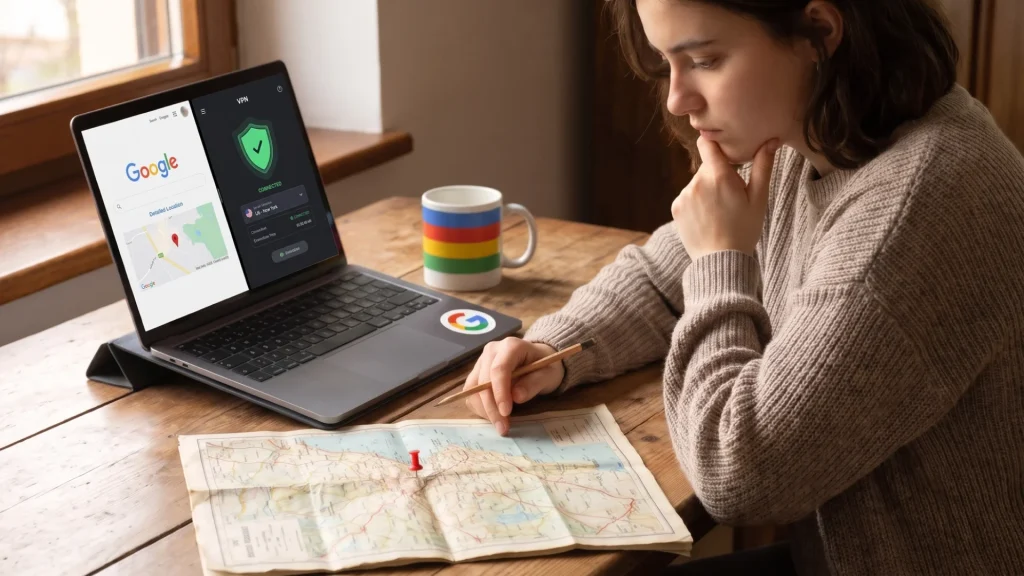
A VPN’s only job is to transfer your data in an encrypted tunnel and mask your real IP address with that of the VPN server. But your IP is only one clue a device gives off, and Google happens to own the best collection of the others. It even admits that IP addresses follow geography loosely, so any site can estimate your general area from one.
When the VPN is on, that clue points to your VPN server city. The rest of the clues describe your device, not your connection, so the tunnel has no reason to change them.
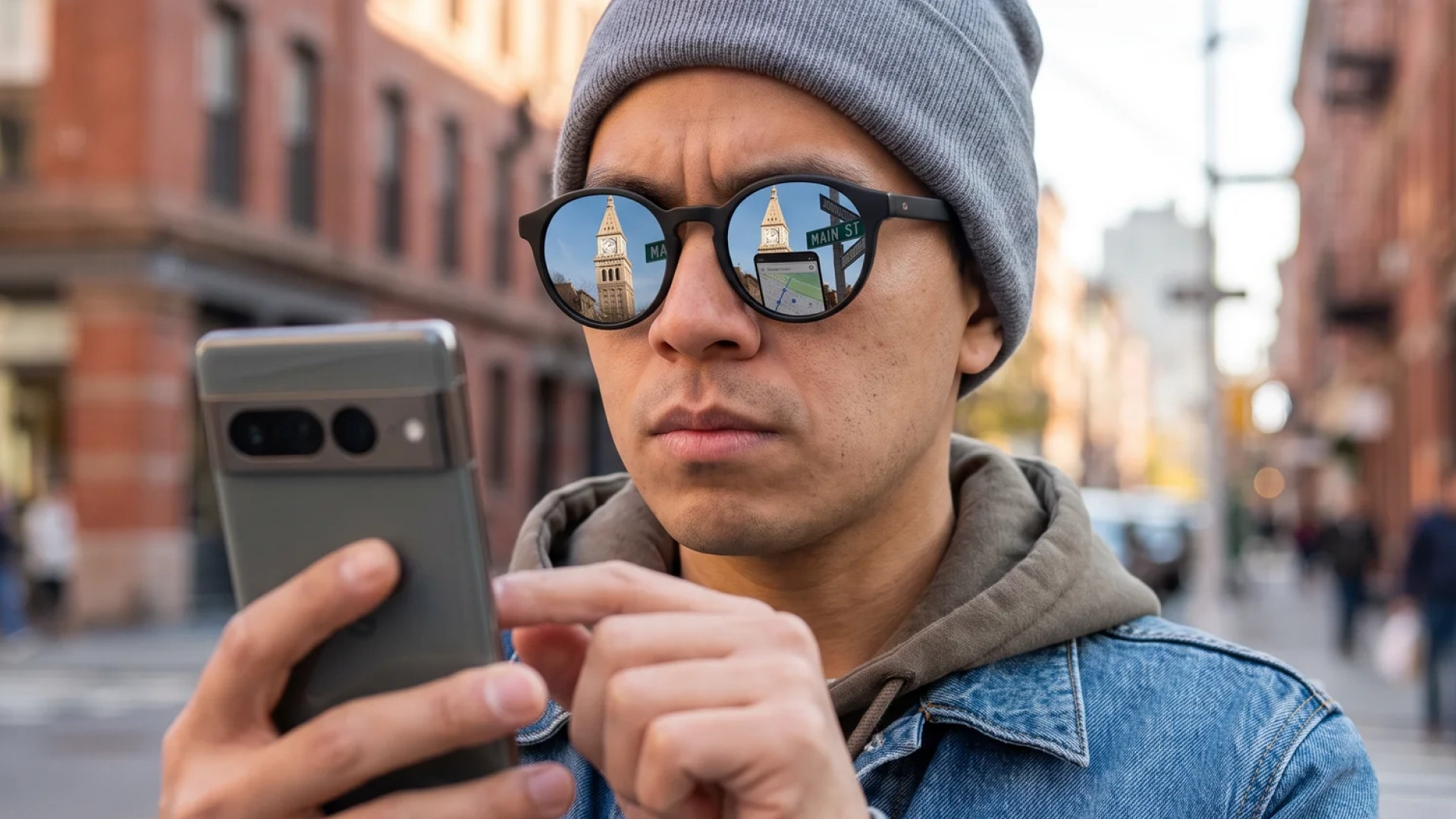
Let’s paint a picture here. You connect to New York and open Google Search, and the results say, New York. Then you open Maps on your phone, and the blue dot sits on your sofa. Same VPN, two answers, because Search read your IP while Maps read your GPS.
9 Reasons Google Detects Your Location Beyond Your IP Address
The first five reasons have nothing to do with leaks. They are signals your VPN was never built to cover, mostly falling under the wider habit of online tracking, where small clues add up to a surprisingly sharp picture. The remaining four involve technical leaks or database errors.
1. GPS and Device Location
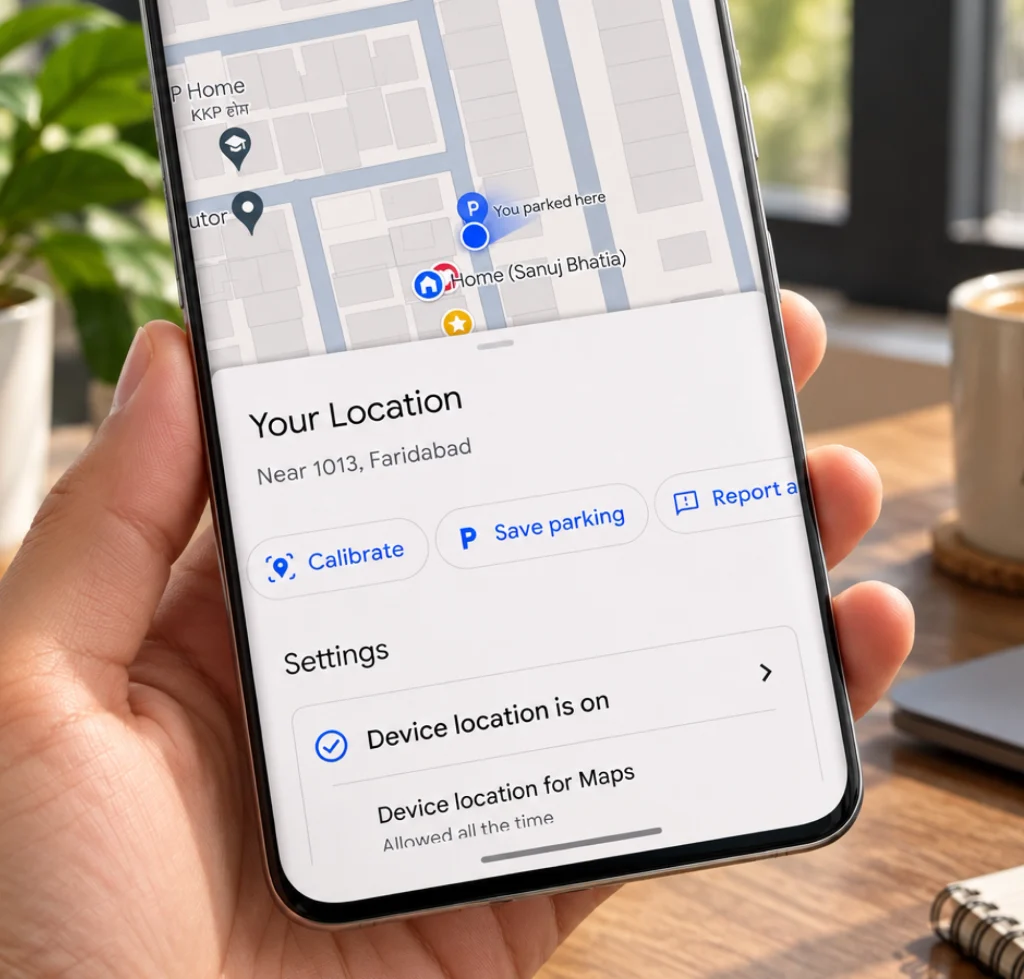
This is the most direct signal. Your phone, tablet, or laptop can provide precise coordinates via built-in GPS. This is exactly why the Maps blue dot lands on your actual street, completely bypassing your VPN connection.
2. Wi-Fi, Cell Towers, and Bluetooth
Wi-Fi is the sneaky one. Your device matches nearby network names against a massive location database. A phone can name your block from nearby router names and cell towers alone, even with GPS switched off, which is why your phone easily recognizes when you are near your favorite cafe.
3. Browser Location Permissions (HTML5 Geolocation)
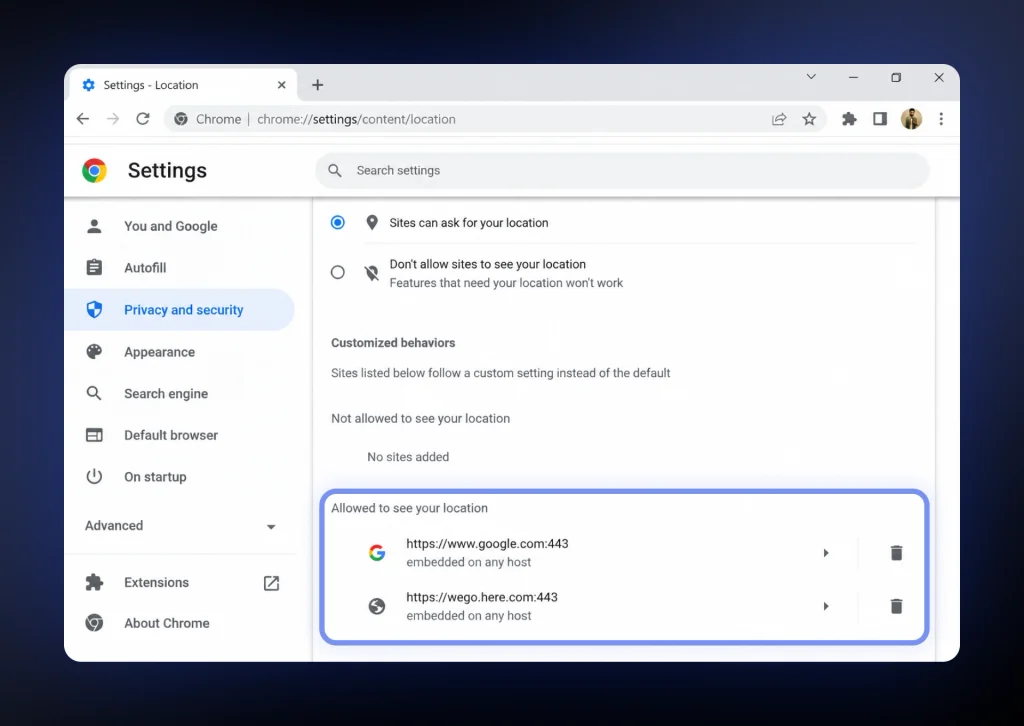
This happens when you tap “Allow” on a site’s location pop-up. Browsers use the HTML5 Geolocation API to pull your exact coordinates and hand them to the website. If you approved maps.google.com last month and forgot, Google will still use that permission to pinpoint you.
4. Google Account and Past Activity
Google looks at your saved Home or Work addresses, Timeline, earlier searches, and recent location cookies. If you are signed in, your saved Home address will easily beat the VPN city. Searching “weather” on a travel laptop and getting your hometown forecast is the classic example.
5. Language, Time Zone, and Regional Settings
This reason is the most shocking because it might slip past even the most careful, privacy-conscious users. Google reads your browser language header, system clock, date, and currency formats. In one popular Reddit thread, a user with a US server in a fresh private window still got a Portuguese page because of their browser’s language header and system time zone. Sites read both without ever looking at your IP.
6. Split Tunneling and Dropped Connections
Here is where the tunnel itself has a hole in it. If Chrome or the Google app sits on the exclusion list in split tunneling, those apps use your normal connection and reveal your real IP. The same happens when your VPN quietly disconnects after a Wi-Fi switch. A router-level VPN can also leave your phone on mobile data, outside the tunnel, while the laptop stays covered.
7. WebRTC Leaks
WebRTC is the browser feature behind video calls, and in some browsers and setups, it can expose your real public IP to a website. Reddit users name it constantly, and it explains why a leak test on one site can look clean while another site sees through you.
8. DNS and IPv6 Leaks
A DNS leak sends your lookups outside the tunnel, which hands a clue to whoever runs the resolver. IPv6 works the same way when your network uses it, and your VPN only handles IPv4, since some traffic then skips the tunnel entirely.
9. Stale IP Geolocation Databases
Sometimes the VPN is fine, but the data is stale. IP geolocation databases disagree, and they lag behind when a provider moves or reassigns address ranges. Your IP checker might say Germany while Google’s footer says a neighboring country, and neither tool is lying. The server’s IP is simply mislocated in Google’s database.
Google Showing Real Location With VPN: How to Read the Clue
Google actually tells you how it guessed. Scroll to the bottom of any Search results page and look at the small line under your location. It usually says one of three things:
- “From your internet address” means Google used your IP. If it names your real city while the VPN is on, suspect a leak or a mislocated server.
- “Based on your places (Home)” or “(Work)” means a saved address in your account won.
- “Based on your past activity” means your search history shaped the guess.
Say the footer reads “From your internet address” and shows New York. Your VPN is doing its job. If it reads “Based on your places (Home)” while you are connected to Tokyo, the VPN is fine, and your account is the snitch.
Note: Google can also reuse your device location from your last visit, stored in a cookie that expires after six hours. So if you connect to a new server right after searching, the old place can linger, which looks like a stubborn VPN when it is really leftovers.
Read more:
How does Google use location information?
Google Maps Showing Real Location With VPN
On a phone, Maps combines GPS, Wi-Fi, and cell towers. None of those travel through your VPN as an IP address, so the blue dot stays honest no matter which server you pick. This is why Maps is the hardest Google product to fool.
On a desktop, it works differently. If you allow location in your browser, it sends nearby Wi-Fi networks and your IP to a location service for an estimate. If you block that permission and your computer has no GPS, Maps falls back to the IP and shows your VPN city.
Some Android VPN apps offer GPS spoofing, which swaps the GPS reading for one near the server. It helps, but it does not change Wi-Fi or cell tower location, so apps that read those can still place you correctly. A few users also report their laptop’s Maps picking up a phone’s position through the same Google Account, so check which devices are signed in.
How to Make Google Use Your VPN Location (Step by Step)
Everything above gets fixed here, so work through the steps in order and retest at the end.
1. Connect to your VPN server first, then fully close and reopen your browser so old sessions drop.
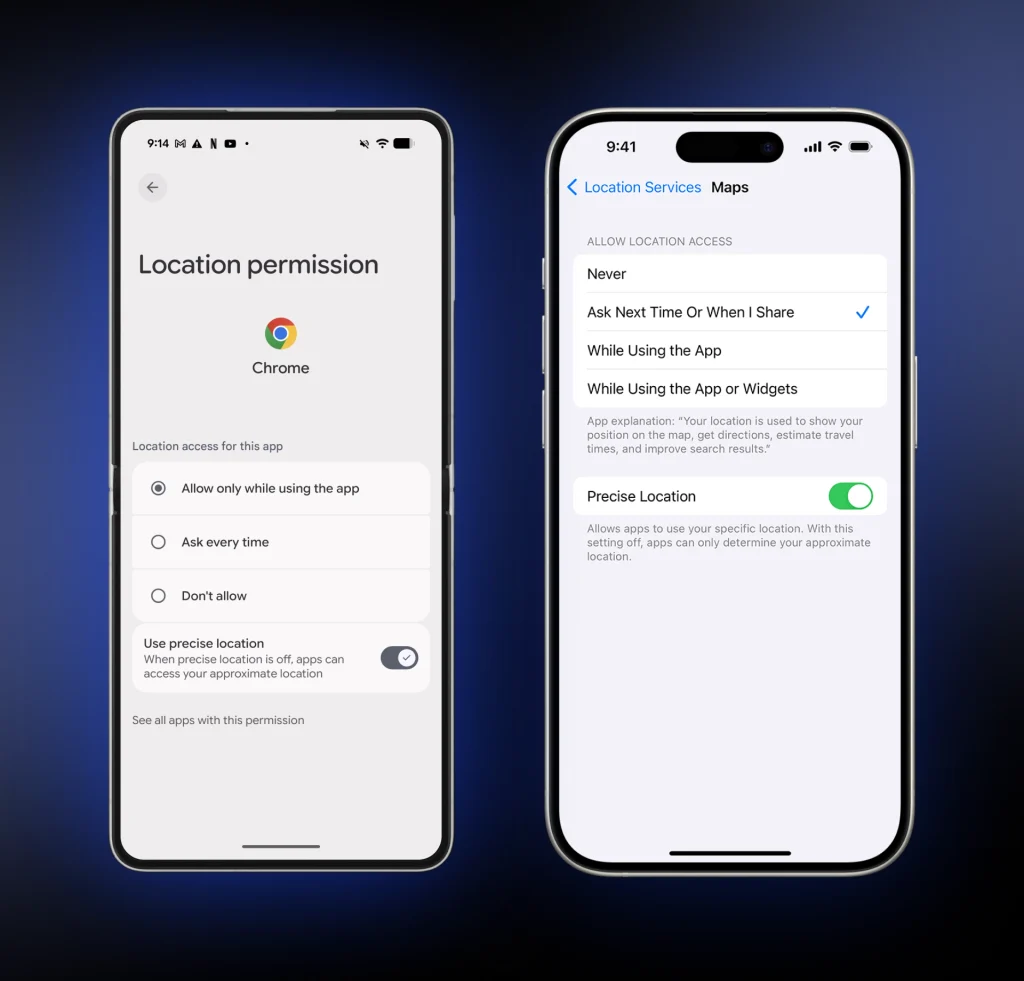
2. Switch off precise location for Maps and Chrome on your phone, and set location to Block for google.com on desktop.
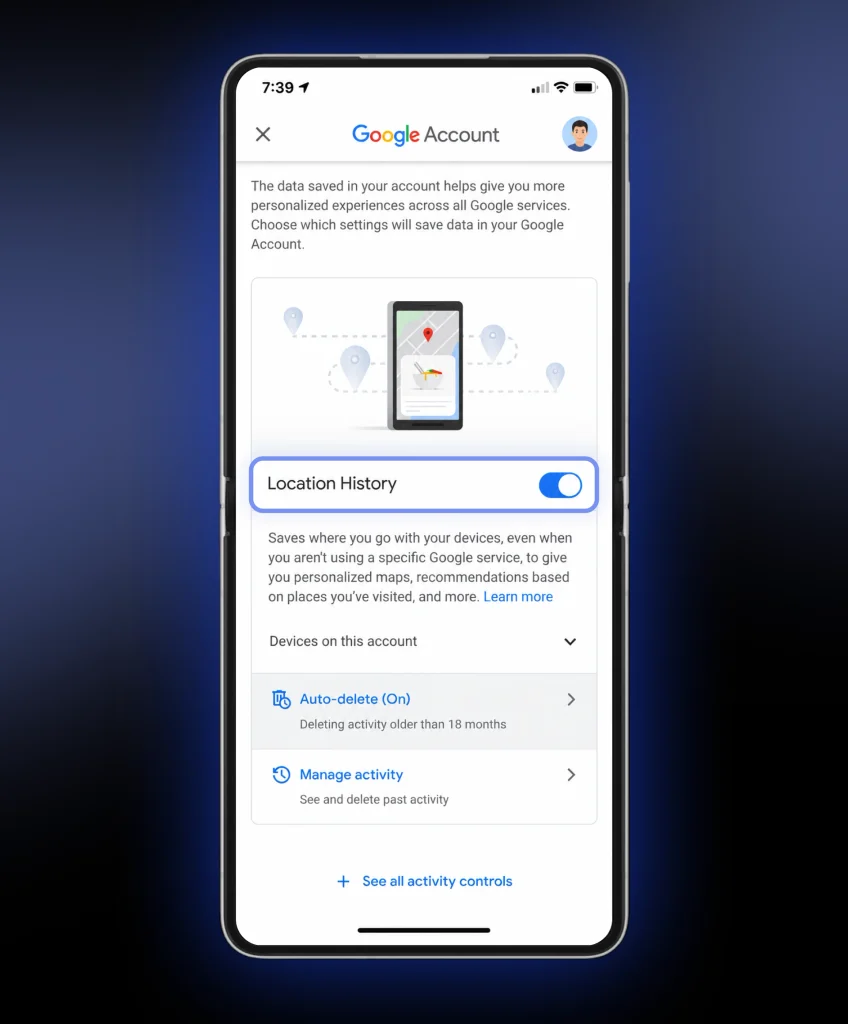
3. In your Google Account, pause Timeline (Location History) and Web & App Activity.
4. Remove saved Home and Work addresses, or sign out while you test.
5. Clear Google cookies, which also wipes the six-hour location cookie.
6. Match your browser language and time zone to the server country if a regional page keeps appearing.
7. Run a WebRTC and DNS leak test (using free sites like ipleak.net or browserleaks.com). If something leaks, update your VPN app, turn off IPv6 if the VPN does not support it, and disable WebRTC where your browser allows it.
8. Finish by searching “weather” and reading the footer again. If it now reads “From your internet address” and shows your server city, you are done.
What to Do About Database Mismatches
If an IP tool shows your VPN location but Google picks the wrong city entirely, you have a database mismatch (Reason 9). The fix is boring and effective: reconnect to a different server in the same country, since a fresh range often gets a better label. If you want help picking one, this guide on the best VPN server location explains how to match a server to your goal.
What a VPN Still Does When Google Knows Where You Are
Google knowing your Maps position does not make a VPN pointless. The tunnel still hides your IP from every other site, encrypts your traffic on public Wi-Fi, and keeps your internet provider from seeing what you open. Google is one company, and a VPN protects you from the rest of the internet too.
Good VPNs also give you tools for exactly this mess. HidzoVPN includes split tunneling, so you decide which apps use the tunnel, and a kill switch that cuts traffic if the connection drops. If you want those controls, the HidzoVPN VPN app is a quick install on phone and desktop.
Quick Checklist Before You Blame Your VPN
Google knowing your location is rarely a VPN failure. It is usually a signal the VPN never covered, or a small leak you can close in minutes.
- Read the footer clue on Search.
- Turn off precise location and browser permissions.
- Check your account’s saved addresses.
- Run a leak test.
- Try a different server in the same country.
FAQs
No. A VPN hides your IP, but GPS, Wi-Fi, account data, and browser settings can still point to you. You can cut most of it off by following the steps above.
No. Incognito stops local history from saving, but your IP, language header, time zone, and any allowed location permission still reach Google.
Often it can guess. Many sites keep lists of IP ranges known to belong to VPNs, and providers rotate addresses to stay ahead, so it is an ongoing game of cat and mouse.
It helps, but it is not enough on its own. Maps can still estimate your position from Wi-Fi and cell towers, and a browser permission you allowed earlier can do the same.
No. Your store region follows your account country and payment profile, not your VPN server. Changing it takes account changes on Google’s side.
On Android, some VPN apps offer it and it can move your GPS reading near the server. It does not change Wi-Fi or cell tower location, so some apps still place you correctly.
Fingerprinting can help recognize a browser across sites, but there is no solid proof it is how Google estimates where you are. The signals in this guide explain most real cases.
Yes. That means the VPN is working on IP-based results, which is exactly what it is built to do.
Article by
-
 Sam Clarke
Sam is a cybersecurity and online privacy writer dedicated to making complex network protection accessible, practical, and engaging.




Share your thoughts
Add a comment