Does a VPN Hide Your Location? 10+1 Location Privacy Fixes
A Virtual Private Network (VPN) is basically a high-end witness protection program for your internet connection, and it can hide your “digital address” (your IP…
Protect your online privacy and security
Fast, private, and easy to use, get Hidzo on your device and browse freely with one tap.
Get HidzoVPNTable of Contents
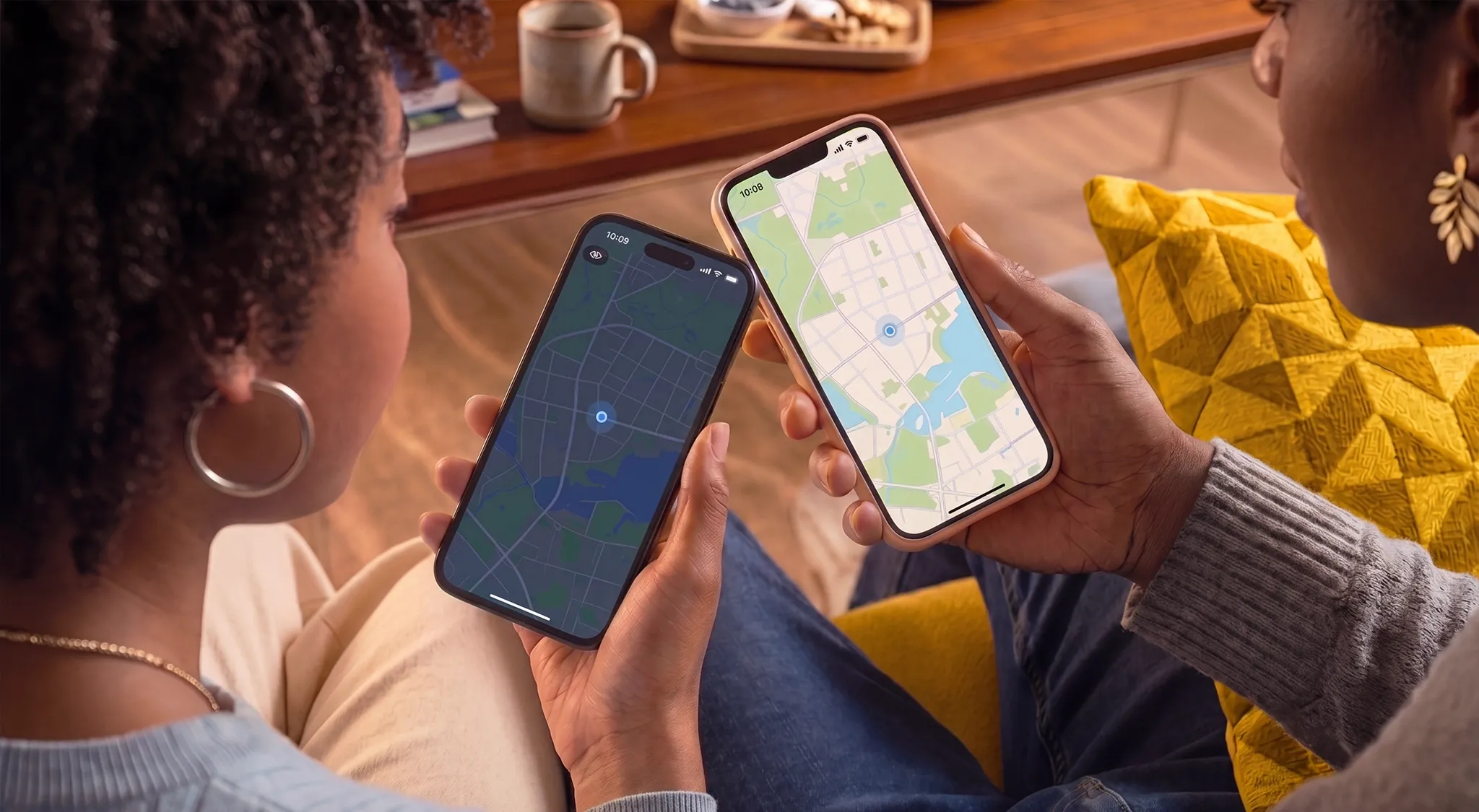
A Virtual Private Network (VPN) is basically a high-end witness protection program for your internet connection, and it can hide your “digital address” (your IP address) and make it look like you’re sipping espresso in Rome when you’re actually in your pajamas in Ohio. It is the best tool for slipping past geo-blocks and keeping your ISP from breathing down your neck.
So, yes, a VPN can hide your location, but don’t be fooled into thinking you’ve become a digital ghost just by hitting “Connect.” While a VPN swaps your IP address, your phone is basically a chatterbox that can still whisper your location through things like GPS, cookies, or even your Google account, and ultimately give away your real location. This guide gives you actionable tips that make you a ghost on the World Wide Web.
How to Effectively Hide Your Online Location
Staying hidden online is a bit like playing a high-stakes game of “The Floor is Lava.” One wrong step (like clicking “Allow” on a location pop-up), and the internet knows you’re actually sitting lying on your sofa when you told your boss you’re going on a family emergency trip.
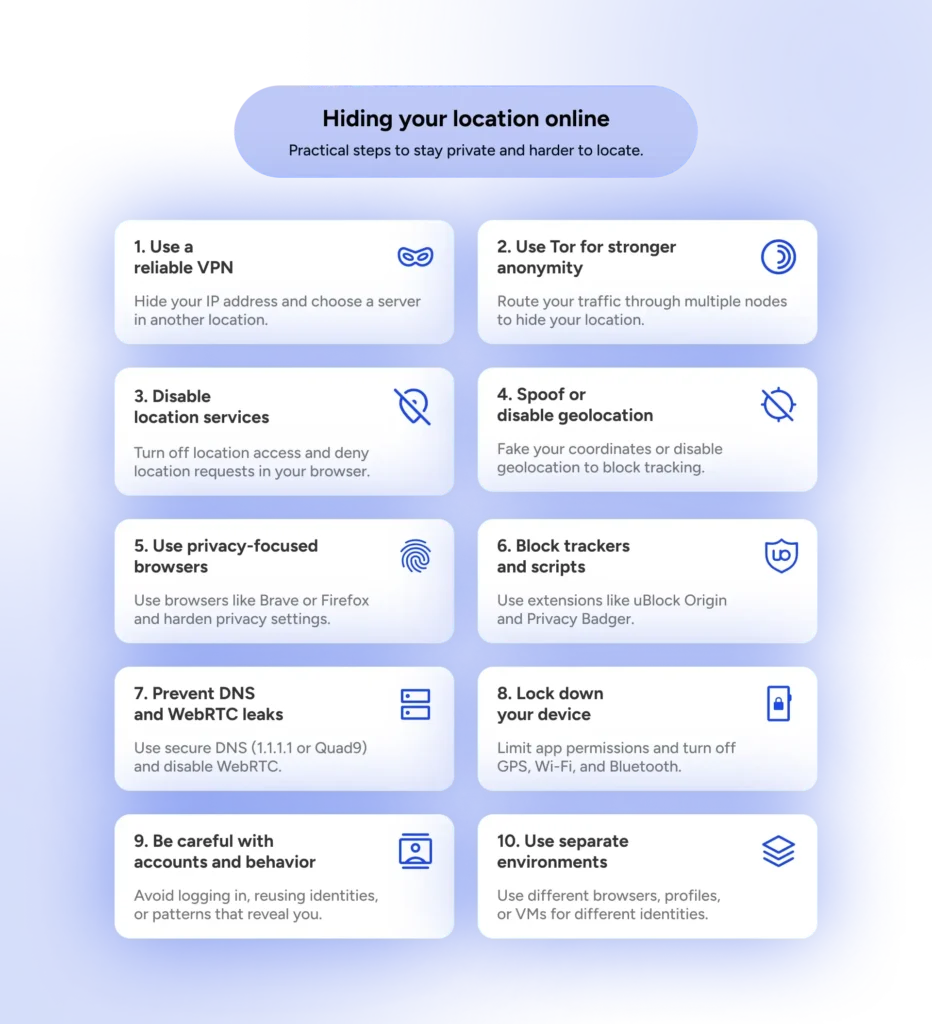
Don’t worry, though. You don’t need to be a hacker to fix this. Here is your Privacy Checklist to make sure your location stays as secret as a cat’s favorite hiding spot.
1. Use a Reliable VPN with a “Kill Switch”
This is non-negotiable. If your internet connection flickers for even a millisecond, your device might revert to its real IP address. A Kill Switch acts like an emergency brake; the moment the VPN drops, it cuts your internet entirely, so no secrets leak out.
- The Action: Download a reliable no-log VPN, select a server in a different country, and hit connect. This instantly swaps your “home address” for a virtual one.
2. Double Down with Tor for Anonymity
Some ultra-smart websites can detect a standard VPN and try to look past it. If you are doing something that requires 100% anonymity, you need a system that bounces your signal like a pinball across the globe.
The Action: Use the Tor Browser (The Onion Router) for your most private searches. It wraps your data in three layers of encryption and sends it through three different volunteer “nodes.”
3. Prevent DNS and WebRTC Leaks
Even with a VPN, your browser might “leak” your real IP address through a back door called WebRTC or by asking your local ISP to translate website names (DNS). It’s like wearing a mask but having your voice recognized.
- The Action: In your browser settings, disable WebRTC and switch your DNS provider to a secure one like 1.1.1.1 (Cloudflare) or 9.9.9.9 (Quad9).
- Firefox users: Type
about:configin your search bar, findmedia.peerconnection.enabled, and double-click it to set it to False. - Chrome/Edge users: Since Google makes it harder to turn this off, your best bet is a “WebRTC Leak Prevent” extension or simply using a VPN that handles this automatically at the connection level.
- Firefox users: Type
4. Disable Location Services & GPS
Your smartphone has a GPS chip that talks directly to satellites, completely ignoring your VPN. If an app has “Location Permission,” it knows where you are standing within three feet, regardless of your IP address.
- The Action: Go to Settings > Privacy > Location Services and toggle it OFF. For desktop users, go to your browser settings and set “Location Access” to “Blocked” for all sites.
5. Spoof Your Coordinates
Some apps refuse to work if they can’t see your location. If you turn off GPS, they break; if you turn it on, they find you. The solution is to feed them a “digital lie.”
- The Action: On Android, use a “Fake GPS” app (found in the Play Store) and enable “Mock Locations” in your Developer Options. This forces your phone to believe it is at the coordinates you choose.
6. Switch to Privacy-Focused Browsers
Mainstream browsers (like Chrome) are built by companies that make money by knowing who you are. They often have built-in “telemetry” that sends your data back to the mothership.
- The Action: Switch to Brave for a fast, “shielded” experience, or LibreWolf (a hardened version of Firefox) that has all the tracking features removed by default.
7. Block Trackers and Scripts
Websites use “scripts” (tiny pieces of code) to fingerprint your device. They look at your battery level, screen size, and fonts to create a unique ID for you that doesn’t change even if you move.
- The Action: Install the uBlock Origin extension. It’s the “Gold Standard” for blocking the sneaky scripts and ads that try to identify your device’s physical location.
8. Hard-Seal Your Device (Bluetooth & Wi-Fi)
Retailers and city “smart” bins can track your movement by pinging your Bluetooth or Wi-Fi. Even if you aren’t connected to a network, your device is constantly “shouting” its unique MAC address to see what’s nearby.
- The Action: When you are out in public and want to stay hidden, turn off Wi-Fi and Bluetooth in your phone’s actual settings menu (not just the shortcut toggle).
9. Watch Your Behavior and Accounts
The Situation: If you connect to a VPN in New York but then log into your personal Gmail or Facebook account, the “mask” is useless. Big Tech connects your account history to your current session instantly.
The Action: Use a “Burner” identity. Use a different email (like ProtonMail) and avoid logging into any accounts that are tied to your real name or phone number while the VPN is active.
10. Use Separate Environments (The “Spy” Method)
“Data Contamination” happens when you check your bank account in one tab and browse privately in another. Cookies can jump across tabs and link your two identities together. If you visited a site yesterday without a VPN, that site likely dropped a cookie on your browser saying, “Hey, this user is in Madrid.” If you visit again today with a VPN, the site sees the cookie and knows you’re the same person.
- Action 1: Use “Browser Profiles” or two different browsers entirely. Use Chrome for your “Real Life” (banking, work) and Firefox + HidzoVPN for your “Private Life.”
- Action 2: Before you turn on your VPN to “change locations,” clear your browser cache and cookies. It’s like giving your browser a fresh case of amnesia.
- Action 3: Always open a fresh Incognito window after you’ve connected to your VPN app.
The Golden Rule: Privacy isn’t a single button; it’s a habit. By combining the “one-tap” protection of HidzoVPN with these simple browser tweaks, you’re effectively putting up a “Do Not Disturb” sign on your digital life.
11. Use HidzoVPN for Easy Privacy
HidzoVPN is a privacy-first VPN app with a simple design that makes online privacy and security as accessible and easy as tapping “Connect.” The app’s Fastest Server feature automatically connects you to the nearest location using a protocol that matches your baseline internet quality.

HidzoVPN Premium users get to choose their preferred server location and benefit from the Kill Switch feature for non-stop privacy protection. The good news is that the pricing is extremely competitive, and you get a free 7-day trial at the beginning to test the premium features for yourself.
How a VPN Hides Your Location (The Technical Basics)
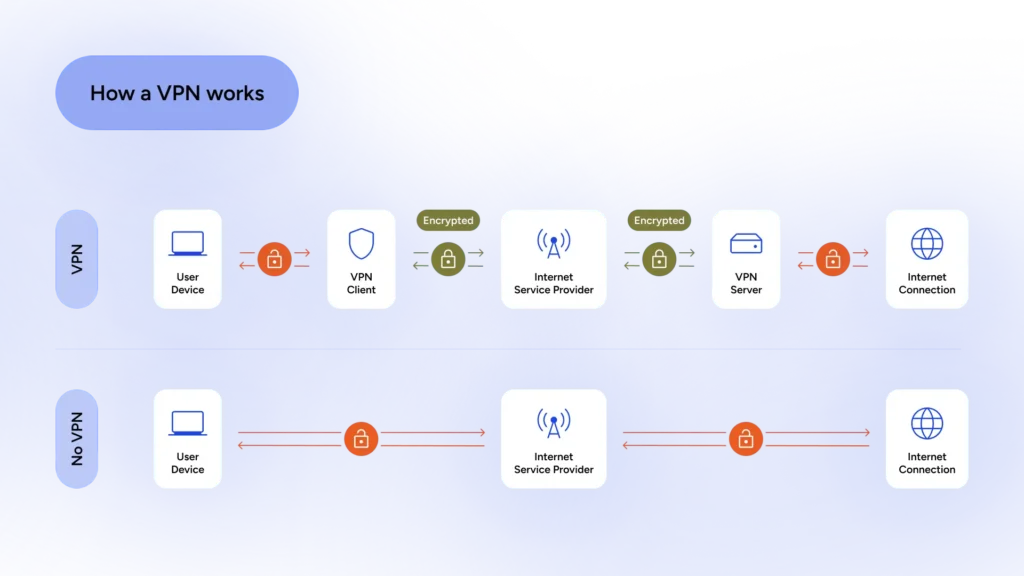
Let’s look at the magic trick a VPN performs every time you turn it on in simple terms.
- IP Masking (The Fake ID): Every device has an IP address, which is like a home address for your computer. Without a VPN, every website you visit sees this address. A VPN acts like a “Fake ID” for your data. When you connect to a server, the VPN hides your real IP and replaces it with one of its own. Suddenly, to the rest of the world, you are wherever the VPN server is.
- The Encrypted Tunnel: Imagine your data is a celebrity traveling in a limousine with tinted windows. The Encrypted Tunnel is the limo. People can see the car moving (your ISP knows you’re online), but they have no idea who is inside or where exactly you’re headed.
- ISP Blindness: Your Internet Service Provider (ISP) is like a nosy neighbor who watches everything you do. A VPN puts up a giant “No Trespassing” sign. They can see you’re using a VPN, but they can’t see the specific sites you’re visiting or your physical location data attached to those clicks.
Read “How Does a VPN Protect Privacy? (Without Getting Technical) for more details.
When a VPN is NOT Enough
There are a few “low-tech” ways the world can still figure out where you’re hiding. Sometimes, your devices are just too helpful for their own good. Here are the four sneaky ways your location can leak even when your VPN is running at full blast.
1. Public Wi-Fi Triangulation (The “Digital Map” Trick)
Did you know that Google and Apple have mapped almost every Wi-Fi router on Earth? Even if you aren’t connected to a Wi-Fi network, your phone “listens” to the signals around it.
By seeing which Wi-Fi signals are near you (like “Starbucks_Guest” and “Joe’s Pizza”), your device can calculate exactly where you are within a few meters. It’s like being in a dark room and trying to stay hidden, but your phone is constantly whispering, “Hey, I can hear Joe’s TV and the Starbucks coffee grinder!”
2. Bluetooth Beacons (The “Invisible Breadcrumbs”)
This one sounds like science fiction, but it’s very real. Many retail stores and malls have tiny “Bluetooth Beacons” hidden in the aisles. If your Bluetooth is on, your phone might “handshake” with these beacons as you walk past.
Since these beacons have a fixed physical location, the store knows you’re standing in the “Organic Kale” section, regardless of what your VPN says. You might be telling the internet you’re in Iceland, but the supermarket knows you’ve been staring at the chocolate bars in Aisle 4 for ten minutes.
3. Cell Tower Triangulation
Your phone carrier always knows your general location. Why? Because your phone has to stay connected to cell towers to receive calls and texts. By measuring the distance between your phone and three different towers, the carrier can “triangulate” your position.
A VPN encrypts your data, but it can’t hide the physical radio signal your phone sends to the tower.
4. The MAC Address (The “License Plate”)
Every piece of hardware has a unique ID called a MAC address. While a VPN hides your IP, some advanced tracking systems (especially on public networks) can see your MAC address. The problem is that you can’t get rid of this license plate, but you can use a random MAC address if your device supports this.
Why Your Location Still Leaks
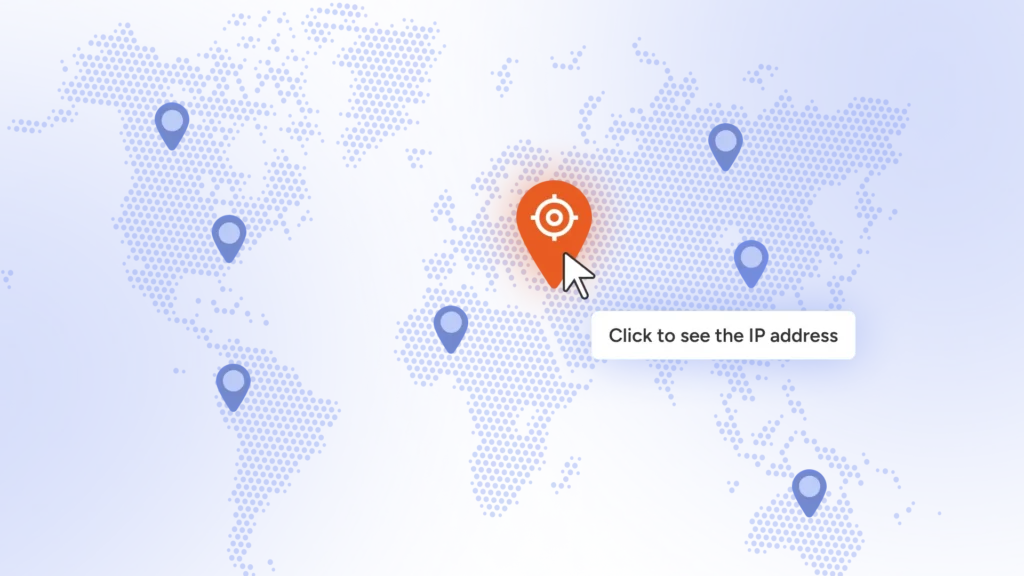
Now we’re getting into the “detective work.” If you’ve ever turned on your VPN, set your location to Switzerland, and then opened a weather app only for it to say, “It’s currently raining in Chicago,” you’ve experienced a location leak. Here’s a list of snitches that give away your location:
- GPS: Your phone has a built-in GPS chip that talks directly to satellites in space. A VPN can hide your IP address, but it can’t stop those satellites from finding your physical hardware.
- Browser Fingerprinting: Websites are getting creepily smart. They don’t just look at your IP; they look at your “fingerprint.” This includes your screen resolution, your battery percentage, what fonts you have installed, and even your time zone.
- HTML5 Geolocation: You know that little box that pops up and asks, “This website wants to know your location”? If you click “Allow,” you’ve just bypassed your VPN entirely.
- The “Account” Trap: If you are logged into your Google, Facebook, or Apple account, you are basically followed by a digital shadow. Even if your VPN says you’re in Tokyo, Google knows you were in London five minutes ago because your account history says so.
Final Verdict: Can a VPN Hide Location?
Yes, but only if you help it out. The internet doesn’t have to be a place where you’re constantly watched. With the right habits and a trusty VPN in your pocket, you can reclaim your digital borders. So, go ahead; set your location to Switzerland, clear those cookies, and enjoy the peace of mind that comes with knowing your business is your business.
FAQs
Yes, a VPN routes your traffic through a server in another location, making it appear as if you’re in that server’s location.
No. A VPN hides your IP location, but apps may still access your GPS/location data via device sensors if you permit it.
Yes. The site sees the VPN server’s IP, not your real IP (assuming no leaks).
Some do, but many have weaker security, slower speeds, data limits, or log you. Free VPNs often rely on logging or ads, and they’re often a threat to users’ online privacy.
It can hide your network location from websites, but apps with permissions (GPS, device location) can still access location data unless you disable those permissions.
It can reduce location-based targeting by masking your IP, but advertisers may still infer location from cookies, device data, or other identifiers.
It makes you appear in the VPN server’s region, which may let you access geo-restricted catalogs. Some services block known VPN IPs.
A VPN can conceal your real IP from content sites, but it doesn’t guarantee anonymity or immunity from legal requests if logs exist or if you reveal information elsewhere.
Yes, WebRTC can leak IP addresses in some browsers. Disable WebRTC or use a VPN/browser setting that blocks it.
Not quite. You appear to be in the VPN server’s location, but the server’s own physical location is separate and may be logged by the provider.
Check your IP on multiple sites before/after connecting, enable DNS leak protection, and test WebRTC behavior.
They can mask your location from external sites, but the corporate network may still log activity. Policies and monitoring vary.
Article by
-
 Sam Clarke
Sam is a cybersecurity and online privacy writer dedicated to making complex network protection accessible, practical, and engaging.




Share your thoughts
Add a comment