Windows 11 VPN Setup: Built-In Client vs. VPN App, Step by Step
Windows 11 comes with a VPN client, but not a VPN. It is a bit like owning a phone with a perfectly good dialer and…

Protect your online privacy and security
Fast, private, and easy to use, get Hidzo on your device and browse freely with one tap.
Get HidzoVPN Windows 11 comes with a VPN client, but not a VPN. It is a bit like owning a phone with a perfectly good dialer and no SIM card. That mismatch explains why one guide says Windows has a built-in VPN, the next says it does not, and you end up with eleven tabs open.
The short answer is simple. If you already have a server address and login details from work, school, or your own server, the built-in client does the job. If you want servers, encryption, and leak protection without the paperwork, a VPN app is the faster road. This guide covers both, plus the fixes for when Windows decides to be dramatic.
Table of Contents
Windows 11 Built-in VPN vs VPN App
The Windows 11 built-in VPN is a client that knows how to talk to a VPN server, but it does not supply one. Think of it as the dialer, not the carrier. You bring the server address, the protocol, and your sign-in details, and Windows builds the tunnel.
It supports several tunnel types, namely automatic, PPTP, L2TP/IPsec (with a certificate or a pre-shared key), SSTP, and IKEv2. Automatic tries each option until one works, which is handy but slow when you already know the answer. PPTP is the one to dodge, because its age and weak encryption make it a poor fit for anything sensitive. If you want to know which protocol deserves your trust, our guide to the best VPN protocols breaks down the trade-offs.
Here is how the two approaches compare at a glance:
| Feature | Built-In Client | VPN App |
|---|---|---|
| Server network | You supply the server | Included |
| Setup effort | Manual, field by field | Install and sign in |
| Protocols | PPTP, L2TP/IPsec, SSTP, IKEv2 | Often includes modern options such as WireGuard |
| Kill switch | Not included | Usually included |
| Leak protection | None built in | Often included |
| Best for | Work, school, self-hosted servers | Privacy, travel, everyday browsing |
The built-in client shines on corporate and campus networks, where IT hands you a server name and a password. For everyday privacy, a dedicated app usually saves you hours of fiddling.
What Do You Need to Set Up a VPN on Windows 11?
Before you dive into how to set up VPN on Windows 11 manually, gather a few details. Missing even one of them is the number one reason a first attempt fails.
- The server name or address (for example, vpn.example.com)
- The VPN type your provider uses
- Your sign-in method: username and password, certificate, or one-time password
- A pre-shared key or certificate, if your VPN type needs one
- Admin rights on the PC, in case Windows asks for permission
Picture a university that tells students to use L2TP/IPsec with a pre-shared key. You would need the server address, the key, and your student login. Without the key, the connection stalls at the negotiation stage, and Windows will not tell you why in plain English.
Windows VPN Protocol Support
The Windows 11 built-in client only supports native protocols like IKEv2, SSTP, and L2TP. If your provider or self-hosted server uses WireGuard or OpenVPN config files (.conf or .ovpn), you cannot add them directly through Windows Settings. You will need to download the official standalone WireGuard for Windows or OpenVPN GUI app to import those profiles.
How to Manually Set Up a VPN on Windows 11?
Let’s walk through how to set up the built-in VPN on Windows 11, using that made-up university server as the example. If you have ever wondered how to add VPN in Windows 11 without installing anything, this is the route.
1. Press Windows + I to open Settings.
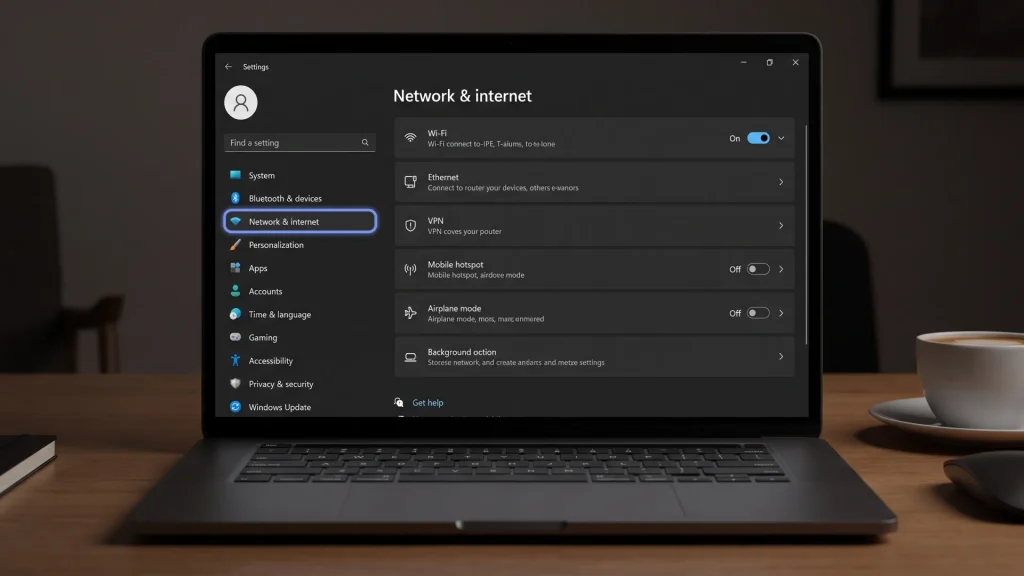
2. Select Network & Internet, then VPN.
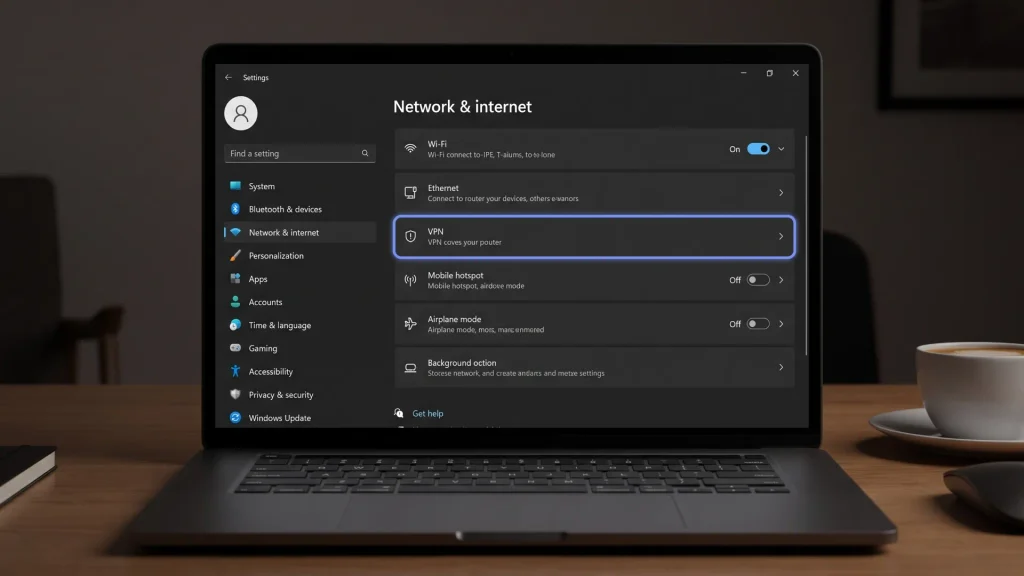
3. Click Add VPN.
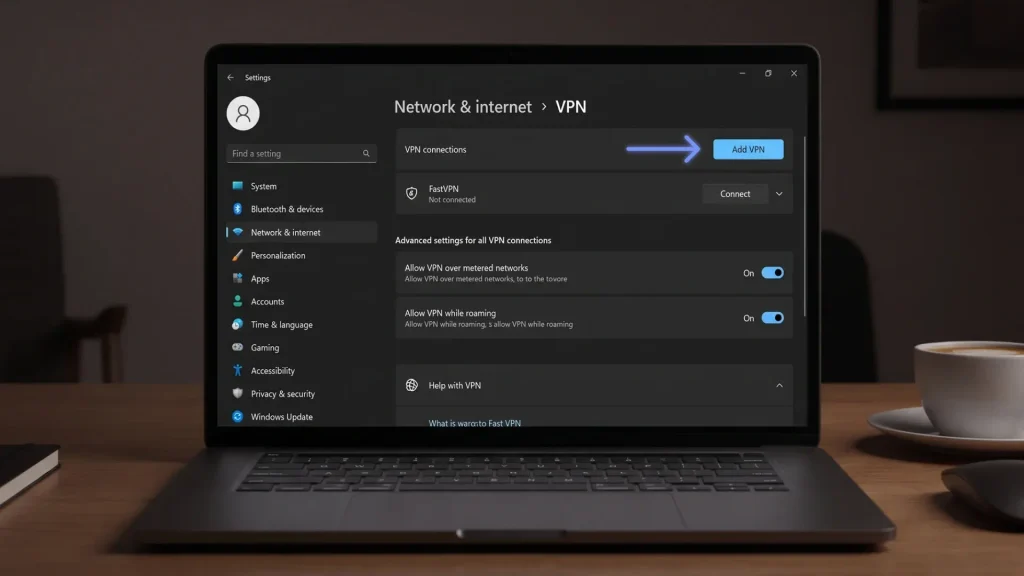
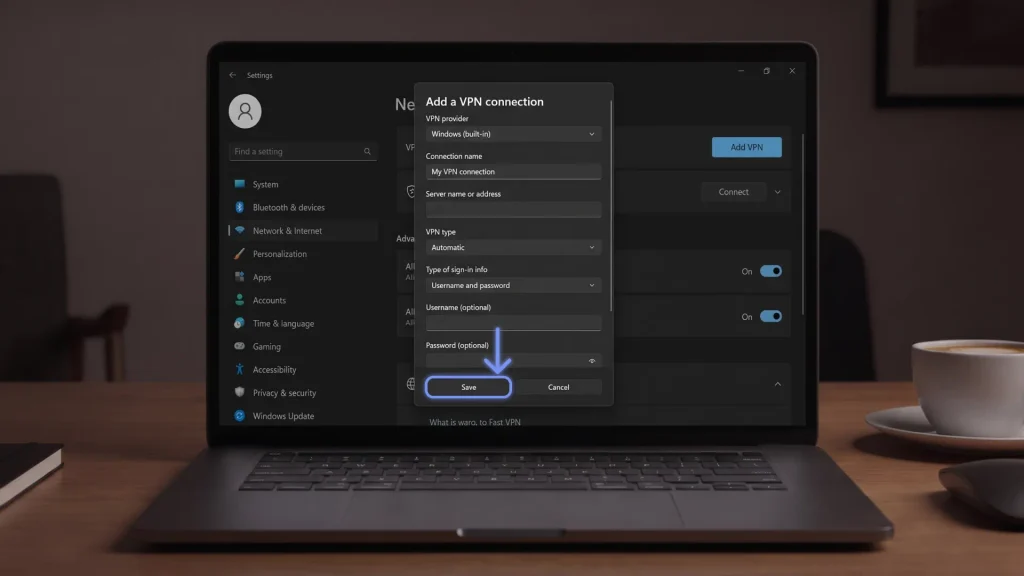
4. Set the VPN provider to Windows (built-in).
5. Type any name you like in Connection name, such as “Campus VPN”.
6. Enter the address in Server name or address.
7. Choose your VPN type, such as L2TP/IPsec with pre-shared key, and enter the key when the field appears.
8. Pick your Type of sign-in info, add your username and password, and tick Remember my sign-in info if you trust the device.
9. Click Save.
Microsoft documents the same flow on its page about how to connect to a VPN in Windows, and Windows Central has a clear walkthrough on how to manually configure VPN on Windows 11 if you want more details.
Once the profile exists, here is how to connect VPN on Windows 11 from two places:
- In Settings, open the VPN page, select your profile, and click Connect.
- For a quicker route, press Windows + A to open Quick Settings, click VPN, and pick the connection.
How to Change VPN Settings in Windows 11?
Whether using the built-in Windows client or a dedicated app, adjusting your configuration is straightforward:
- For Built-In VPN Connections: Go to Settings > Network & internet > VPN. Click the dropdown arrow next to your connection, select Advanced options, and click Edit next to Server properties or Connection properties to update your server address, sign-in protocol, or credentials.
- For VPN Apps: Open your VPN app, navigate to the Settings/Gear icon, and adjust parameters such as protocol selection (WireGuard, OpenVPN, IKEv2), startup rules, and split-tunneling preferences.
Advanced Manual Options for Power Users
The Settings page is friendly, but it hides some of the more interesting controls. If you manage several PCs, how to configure VPN on Windows 11 with a script is worth knowing, because it makes your setup repeatable and typo-proof.
Open PowerShell and run something like this:
Add-VpnConnection -Name "Campus VPN" -ServerAddress "vpn.example.edu" -TunnelType IKEv2 -AuthenticationMethod MSChapv2 -EncryptionLevel Required -RememberCredentialSwap the tunnel type and authentication method to match what your provider requires, since IKEv2 setups differ between networks. Run Get-VpnConnection afterward to confirm Windows saved the profile.
There is also the adapter route. Open the classic Network Connections window, right-click your VPN adapter, and choose Properties. The Security tab lets you set encryption and authentication rules in more detail than the Settings app does.
Then there is traffic routing. By default, Windows sends all your traffic through the tunnel (a full tunnel). To send only work traffic through it, open the adapter’s IPv4 properties, click Advanced, and untick “Use default gateway on remote network”. This is the built-in cousin of split tunneling, and it is handy when you want company files over the VPN but your music stream straight from the open internet.
How to Auto-Connect a Built-In VPN on Windows 11 Startup?
Unlike third-party apps that include a simple “Connect on boot” toggle, the built-in Windows 11 client will not establish a connection automatically when you turn on your PC. You can bypass this limitation by adding a lightweight startup command that launches your saved profile the moment you log in.
- Open the Startup Folder: Press Windows + R, type
shell:startup, and press Enter to open the system startup folder. - Create a New Shortcut: Right-click an empty space inside the folder and choose New > Shortcut.
- Enter the Rasdial Command: In the location field, type
rasdial "Your Connection Name" username password, replacing the placeholders with your actual VPN profile name and login credentials. - Name and Save the Shortcut: Click Next, title the shortcut “Auto-Connect VPN”, and click Finish.
- Verify the Setup: Restart your computer or sign out and back in to confirm Windows triggers the tunnel automatically upon login.
Attention:
If you’re using a shared PC, note that the rasdial method stores your VPN username and password as plain text in the shortcut.
How to Disconnect or Remove a VPN in Windows 11?
When you finish browsing or no longer need a network profile, follow these steps:
Disconnecting a VPN
- Quick Settings: Press Windows + A, click the VPN tile, select your active connection, and click Disconnect.
- Settings App: Go to Settings > Network & internet > VPN, expand your active profile, and click Disconnect.
Removing a VPN Profile
To permanently delete a manual VPN profile from your system:
- Open Settings (Windows + I).
- Navigate to Network & internet > VPN.
- Expand the VPN profile you want to delete.
- Click Remove and confirm.
How to Set Up a VPN on Windows 11 Using a VPN App?
Now for the app route, which skips every field above. Here is how to install VPN on Windows 11 the app way:
- Download the installer from the provider’s official site.
- Run it and approve the Windows permission prompt.
- Sign in with your account.
- Pick a server location and click Connect.
That is the whole ritual. Learning how to use VPN on Windows 11 through an app takes about a minute, and it works because the provider already handles the server, the protocol, and the encryption.
A few settings deserve a look right after your first connection. Check which protocol the app uses, since a modern one usually gives better speed and stability. Turn on auto-connect so the VPN starts with Windows, and enable the VPN kill switch, which cuts your internet if the tunnel drops. HidzoVPN offers these features in its Windows VPN app, if you want to try them without wrestling with manual fields.
Easily Install and Connect HidzoVPN on Windows 11
If you prefer avoiding manual configuration, setting up HidzoVPN on Windows 11 takes under two minutes:
- Download HidzoVPN’s VPN app for Windows.
- Run the executable file and follow the quick setup wizard.
- Launch HidzoVPN and sign in with your account credentials.
- Click Connect to automatically connect to the optimal server, or choose a specific location from the server list.
HidzoVPN automatically configures optimal encryption protocols, leak protection, and an integrated kill switch without requiring any manual network changes.
How to Check Your VPN Is Working
A green “Connected” label is encouraging, but it does not prove your traffic goes where you think. Two quick checks take less than a minute.
First, confirm your public IP address changes after you connect. Search for “what is my IP” before and after, and the two results should differ.
Second, check for a DNS leak, which happens when your device keeps asking your internet provider for website lookups even though your traffic uses the tunnel. While connected, open Command Prompt and run ipconfig /all. Look at the DNS servers listed for the VPN adapter. If they point to your home router or ISP instead of your VPN’s resolver, something is leaking.
For example, a student on campus Wi-Fi might see the university’s DNS servers while the VPN is on. That tells you the lookups still leave the tunnel, so the profile needs a DNS fix or a different app.
How to Share Your VPN Connection in Windows 11?
If you want to protect devices that do not natively support VPN apps (e.g., a smart TV, gaming console, or streaming stick), you can turn your Windows 11 PC into an encrypted Wi-Fi hotspot. Windows will route traffic from any connected device straight through your active VPN tunnel, securing your whole setup without requiring manual network configuration on every device.
- Turn on Mobile Hotspot: Open Settings (Windows + I), go to Network & internet > Mobile hotspot, and toggle the switch to On.
- Open Network Connections: Press Windows + R, type
ncpa.cpl, and press Enter to bring up the classic adapter menu. - Access VPN Adapter Properties: Find your active VPN adapter (usually labeled with your provider’s name or network protocol), right-click it, and select Properties.
- Enable Connection Sharing: Switch to the Sharing tab and check the box next to Allow other network users to connect through this computer’s Internet connection.
- Select the Hotspot Network: Choose your Mobile Hotspot adapter from the Home networking connection dropdown menu, then click OK to save.
VPN Not Connecting on Windows 11? Common Fixes
Even a clean Windows 11 VPN setup can hit a wall. Work through these fixes in order, from most likely to least likely.
1. Check the error code and the protocol. Error 789 usually points to L2TP/IPsec trouble. Microsoft once confirmed that a Windows update broke built-in L2TP connections, and admins reported error 789 on Reddit. If your provider supports IKEv2 or SSTP, switch to it.
2. Look at the Routing and Remote Access service. A user on Microsoft’s Q&A forum fixed a failing L2TP/IPsec connection by re-enabling this service, which had been disabled. Open services.msc, find it, set it to start, and try again.
3. Remove conflicting software. Other VPN clients install virtual adapters that can interfere with Windows networking, and firewalls or antivirus tools sometimes block the tunnel. Uninstall VPN apps you no longer use and test with the firewall paused for a moment.
4. Reset the network stack. Run these in an admin terminal, then restart:
netsh winsock reset
netsh int ip reset
ipconfig /flushdns
5. Check NAT traversal for L2TP. If your server sits behind a NAT device, L2TP/IPsec often needs a registry tweak (the AssumeUDPEncapsulationContextOnSendRule value set to 2). Only edit the registry if you are comfortable doing it, and back it up first.
Kill switches can add another twist. A kill switch that activates during boot can block Windows’ own connectivity check, so your Wi-Fi looks offline until you reconnect the VPN manually. If that sounds familiar, open your app’s settings and adjust the kill switch or startup behavior. For a longer checklist, our guide on a VPN not connecting covers causes that apply to apps as well.
Which Method Should You Choose?
Pick the built-in client when someone else hands you the server details. That covers work VPNs, campus networks, and servers you run yourself. It is free, requires no extra software, and does exactly what it says.
Pick a VPN app when you want privacy on public Wi-Fi, a choice of locations, a kill switch, and leak protection without touching a single protocol dropdown. Many people end up using both: the built-in profile for work, and an app for everything else.
Quick checklist before you close this tab:
- Do you have a server address and credentials? Use the built-in client.
- Do you want one-click connections and many locations? Use an app.
- Did you connect? Verify your IP and DNS.
- Is something failing? Start with the protocol, then the services, then the network reset.
FAQs
Windows 11 has a built-in VPN client, not a VPN service. It connects to a server you already have, but it does not provide servers or leak protection by itself.
Open Settings, go to Network & Internet, then VPN, and click Add VPN. Choose Windows (built-in), fill in your server details, and save.
Use whatever your provider specifies. If you have a choice, IKEv2 or SSTP beats PPTP, and Automatic works when you are unsure.
Quick Settings only shows the VPN option once you have set up a profile. Add one in Settings, then press Windows + A to find the toggle.
You can keep several profiles, but running two tunnels at the same time usually causes conflicts. Stick with one active connection at a time.
It hides your IP only as far as your server handles your traffic. Without a full tunnel or a private server, it does not give you the broader protection a VPN app offers.
Go to Settings, then Network & Internet, then VPN. Select the connection and click Remove.
Article by
-
 Sam Clarke
Sam is a cybersecurity and online privacy writer dedicated to making complex network protection accessible, practical, and engaging.





Share your thoughts
Add a comment