VPN Not Working on Windows 11? Fix It With This Easy Step-By-Step Guide
You click Connect, the little shield turns green, and then nothing loads. Or worse, the app spins on “Connecting” until you give up and open…

Protect your online privacy and security
Fast, private, and easy to use, get Hidzo on your device and browse freely with one tap.
Get HidzoVPN You click Connect, the little shield turns green, and then nothing loads. Or worse, the app spins on “Connecting” until you give up and open a new tab to search “VPN not working Windows 11.” The good is that this is rarely a sign that your PC is broken, and most cases come down to a handful of fixable causes.
The short version is to test your plain internet first, restart the VPN, and switch the server or protocol. If that fails, work through drivers, firewall rules, DNS, and Wi-Fi settings in order. Below are 12 fixes, arranged from easiest to most involved.
Table of Contents
Why Is My VPN Not Working on Windows 11?
Windows 11 VPN connection issues usually start in one of five places:
- Your network might be blocking the tunnel.
- The VPN app or its drivers might be outdated.
- A firewall or antivirus might be getting in the way.
- DNS or proxy settings might be confused.
- A recent Windows update might have changed how networking behaves.
The symptom you see tells you where to look first. Use this table to jump straight to the right section.
| Symptom | Most Likely Cause | Where to Look |
|---|---|---|
| Stuck on “Connecting” | Blocked protocol, firewall, or outdated app | Quick Checks, then the main fixes |
| Connected, but pages will not load | DNS, proxy, or IPv6 conflict | The no-internet section |
| VPN missing from the list or adapter gone | Corrupted WAN Miniport or app driver | The main fixes |
| Drops every few minutes | Adapter power saving or an unstable network | The disconnecting section |
| Works on Ethernet, fails on Wi-Fi | Wi-Fi driver, router, or network filtering | The Wi-Fi section |
| Broke right after an update | A Windows update regression | The update fix |
Quick Checks Before Troubleshooting Your VPN
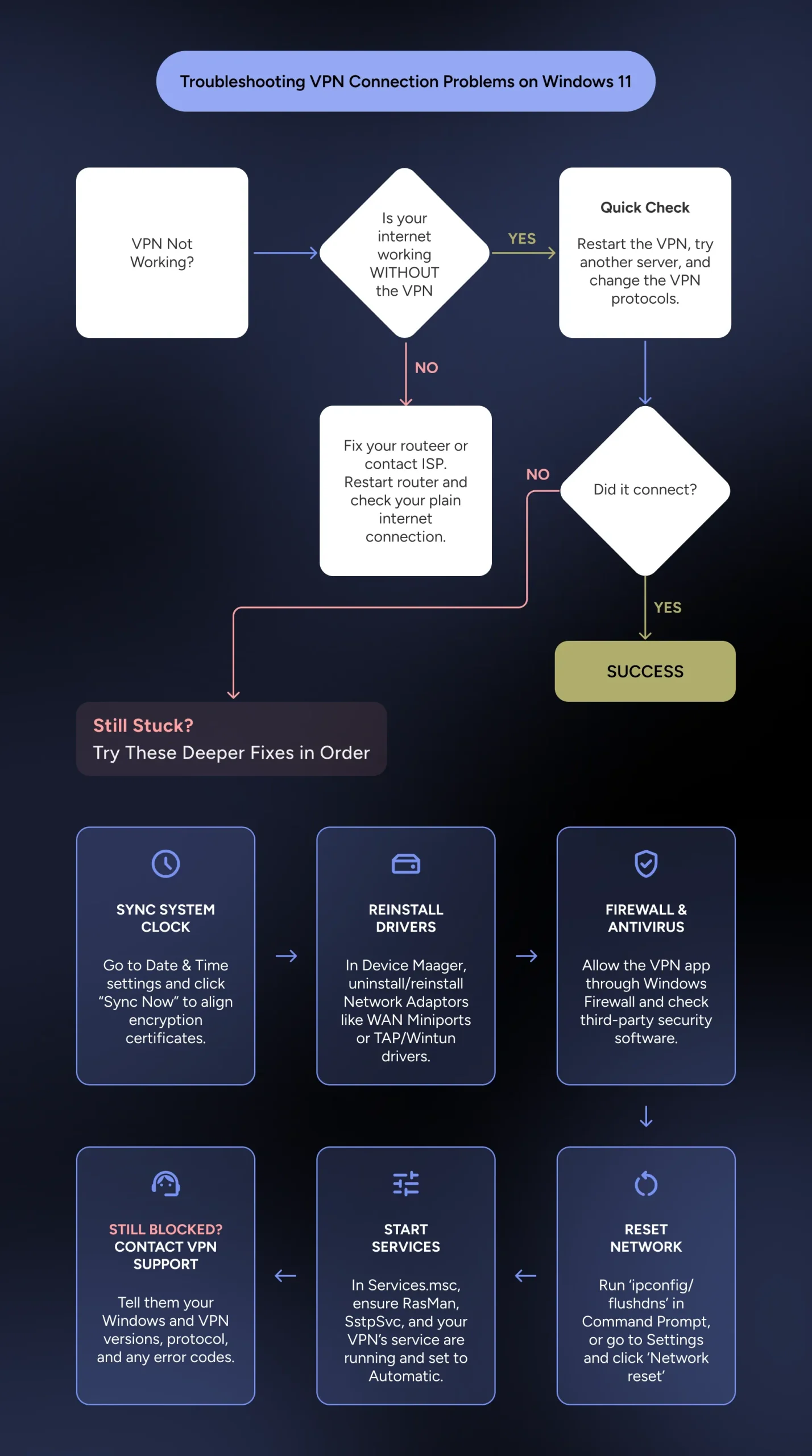
Before touching any settings, spend two minutes on the three checks below. They solve more problems than you might expect, and they save you from fixing something that was never broken.
Confirm Your Internet Works Without the VPN
Disconnect the VPN and open a few websites. If Windows shows “No internet” or pages fail to load, the VPN is innocent, and your router or ISP is the real culprit. Restart the router, wait a minute, and test again.
Restart the App and Switch Servers
Close the VPN app completely, including its icon in the system tray, then reopen it and connect to a different server. Servers get overloaded in the evening, so a quieter location often fixes a stubborn connection. If you want to know which location suits which task, the guide on choosing the best VPN server location covers it in detail.
Change the VPN Protocol
Some networks block certain protocols, so a tunnel that dies on one can work instantly on another. If your app uses WireGuard, try IKEv2 or OpenVPN, and the other way around. Picking the right VPN protocol takes a minute and often ends the problem on the spot. HidzoVPN, for one, lets you switch protocols inside the app.
Sync Your System Clock
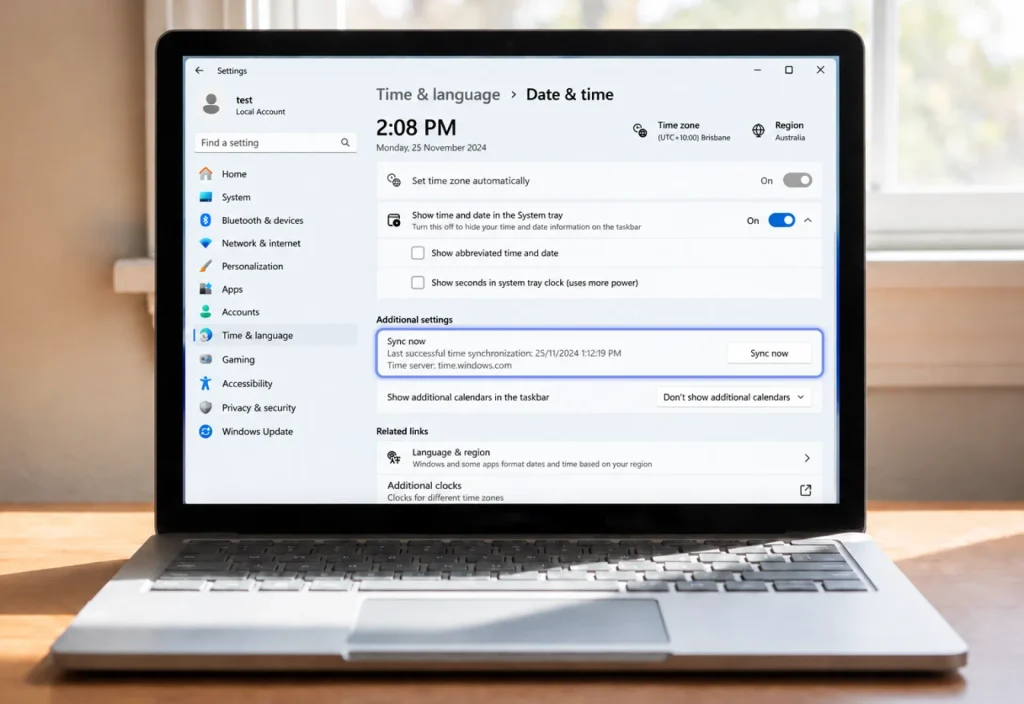
VPN protocols rely on time-sensitive security certificates to encrypt your connection. If your computer’s clock is off by even a couple of minutes, the authentication handshake fails and the connection silently times out.
Go to Settings → Time & language → Date & time and click Sync now. If Set time automatically is turned off, toggle it back on before testing the VPN again.
How to Fix a VPN Not Working on Windows 11
If the quick checks did not help, the next set of fixes targets Windows itself. Take them in order, and restart your PC after each one before you test again.
Update Windows and Your VPN App
Outdated software is behind a surprising number of cases where a VPN client is not working on Windows 11. Open Settings, go to Windows Update, install anything pending, then check your VPN app for a newer version. A fresh download from the official site also clears out corrupted files that a normal update leaves behind.
Updates can break things too. Microsoft confirmed that the September 2026 Windows 11 security updates can break Always On VPN connections, mostly in business setups that use automatic protocol selection. If your VPN stopped right after an update, check Microsoft’s Windows release health page for known issues before you do anything drastic.
Uninstalling a security update can fix the problem, but it also removes protection against real threats. Treat it as a last resort, and reinstall the update as soon as a fix arrives.
Reinstall the WAN Miniport Adapters
Windows uses built-in virtual adapters called WAN Miniports to handle VPN traffic. When they get corrupted, you might see a missing VPN, a connection that fails instantly, or a VPN adapter not working on Windows 11 at all.
Right-click Start → open Device Manager → expand Network adapters →Uninstall each WAN Miniport entry (IKEv2, IP, IPv6, L2TP, PPPoE, PPTP, and SSTP) → choose Action and Scan for hardware changes.
Windows rebuilds them in seconds, and a reboot finishes the job.
Fix TAP and Wintun Adapters (For Third-Party VPN Apps)
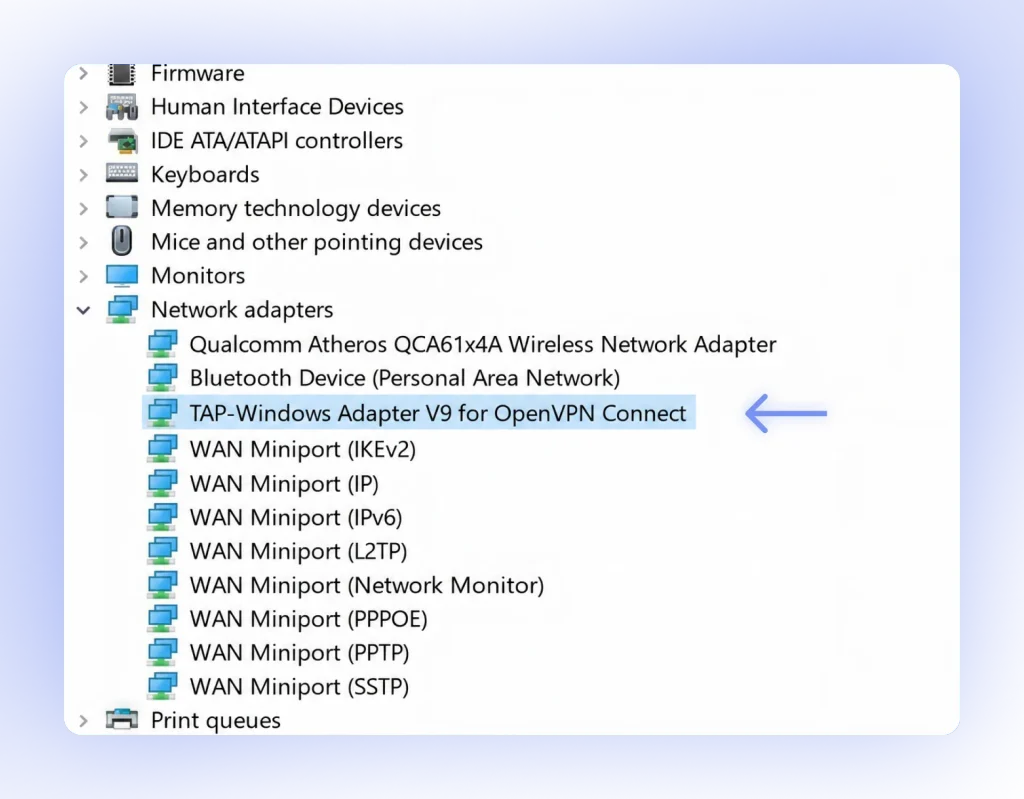
While Windows uses WAN Miniports for its built-in VPN, standalone apps like NordVPN, ExpressVPN, or WireGuard rely on virtual adapters called TAP or Wintun. If these drivers become corrupted or disabled, third-party apps get stuck indefinitely on “Connecting.”
Right-click Start → open Device Manager → expand Network adapters. Look for TAP-Windows Adapter V9, Wintun Userspace Tunnel, or an entry bearing your VPN provider’s name. Right-click the adapter and select Enable device if it is turned off. If it is already enabled, right-click and select Uninstall device. Then, open your VPN app’s settings menu—most providers include a “Fix Driver” or “Reinstall TAP Driver” button that rebuilds it instantly.
Allow the VPN Through Windows Firewall
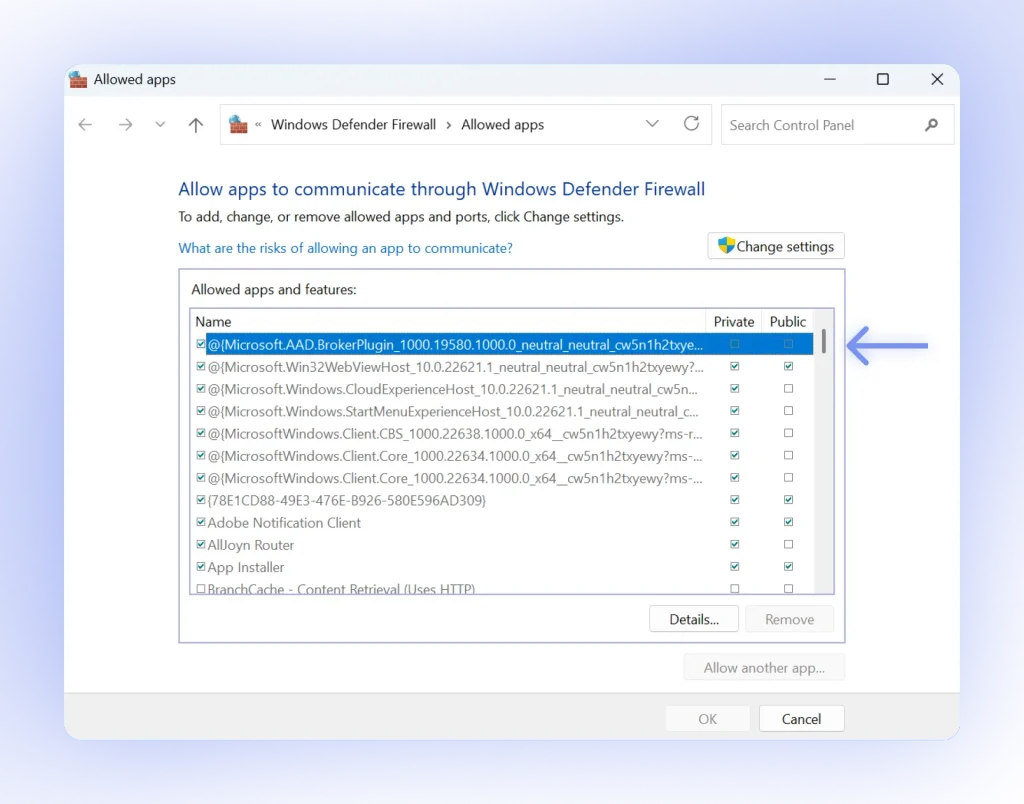
The firewall sometimes treats a new tunnel as suspicious and blocks it quietly. Many guides tell you to switch the firewall off, which is risky and unnecessary. Allow the app instead.
Open Windows Security → go to Firewall and network protection → select Allow an app through firewall → tick both Private and Public next to your VPN app, or add it with Allow another app if it is missing.
Test Your Antivirus and Other Security Software
Third-party antivirus tools and “internet security” suites love to inspect network traffic, and a VPN tunnel can look like an intruder to them. Pause the protection for a couple of minutes and try connecting again.
If it works, do not leave the antivirus off. Add your VPN app to its exclusion list instead, and turn protection back on.
Ensure Core Windows VPN Services Are Running
Windows relies on specific background processes to manage encrypted tunnels. If a recent system update, malware scanner, or cleanup tool stopped them, your VPN will fail regardless of your firewall settings.
Press Win + R, type services.msc, and press Enter. Scroll down and locate these three background services:
- Remote Access Connection Manager (
RasMan) - Secure Socket Tunneling Protocol Service (
SstpSvc) - IKE and AuthIP IPsec Keying Modules (
IKEEXT)
Double-click each service, set its Startup type to Automatic, and click Start if the status shows stopped. While you are here, scroll down to check your VPN app’s dedicated service (such as ExpressVPN Service or NordVPN Service) and make sure it is running as well.
Delete and Recreate the Built-In VPN Profile
When the Windows 11 built-in VPN is not working, the problem is often a tiny typo or a mismatched VPN type.
Check the server name character by character or copy it from your source. A single wrong letter produces the same vague error as a blocked connection, which makes it easy to waste an hour on the wrong fix.
What to Do If the VPN Is Connected but There’s No Internet
This one is the most confusing of all, because the app says everything is fine. In most cases, DNS, a leftover proxy, or a routing conflict is quietly sending your traffic nowhere. If you land here with a VPN connected but no internet on Windows 11, start with DNS.
Flush DNS and Reset the Network Stack
Open Command Prompt as administrator and run these commands one at a time, then restart your PC:
ipconfig /flushdns
netsh winsock reset
netsh int ip reset
If you prefer to avoid the Command Prompt, Windows 11 has a built-in GUI option that does all of this at once. Go to Settings → Network & internet → Advanced network settings → Network reset and select Reset now. Windows will restore all network adapters to their original settings and restart your PC.
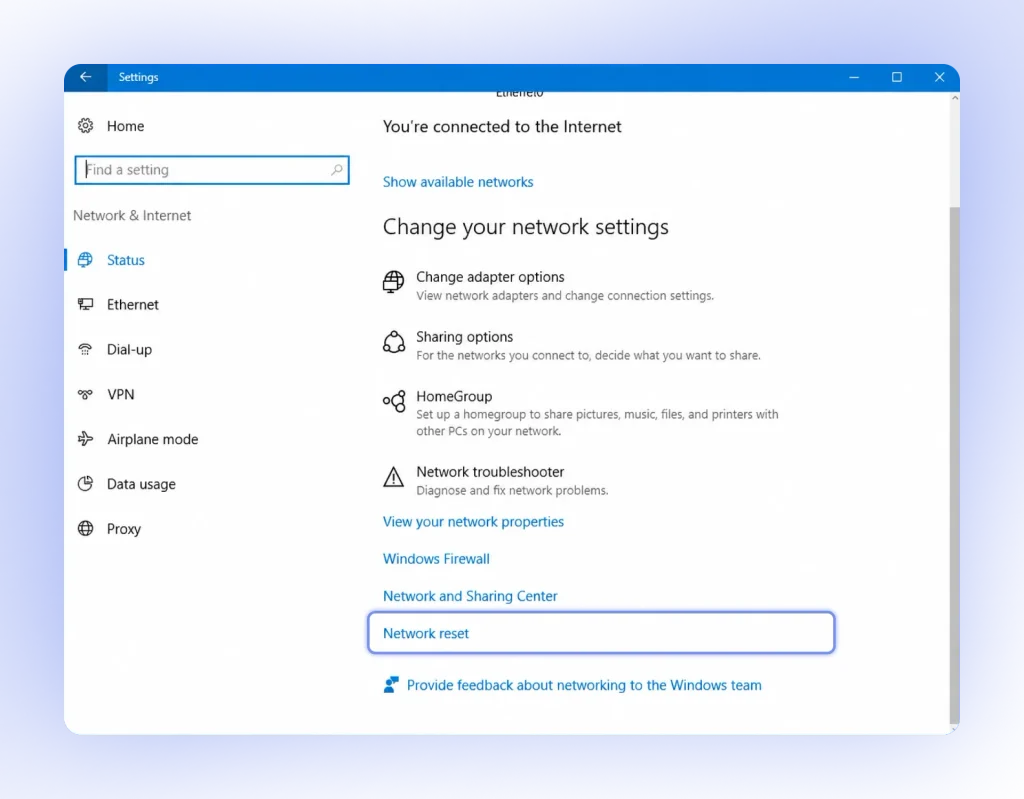
This clears stale name lookups and resets the network components Windows uses to talk to the internet. Bad DNS settings can also cause a DNS leak, so fixing them helps your privacy as well as your connection.
Check Proxy, IPv6, and Split Tunneling
A forgotten proxy can hijack your traffic before it reaches the tunnel.
Go to Settings → Network and internet → Proxy → Toggle off all options
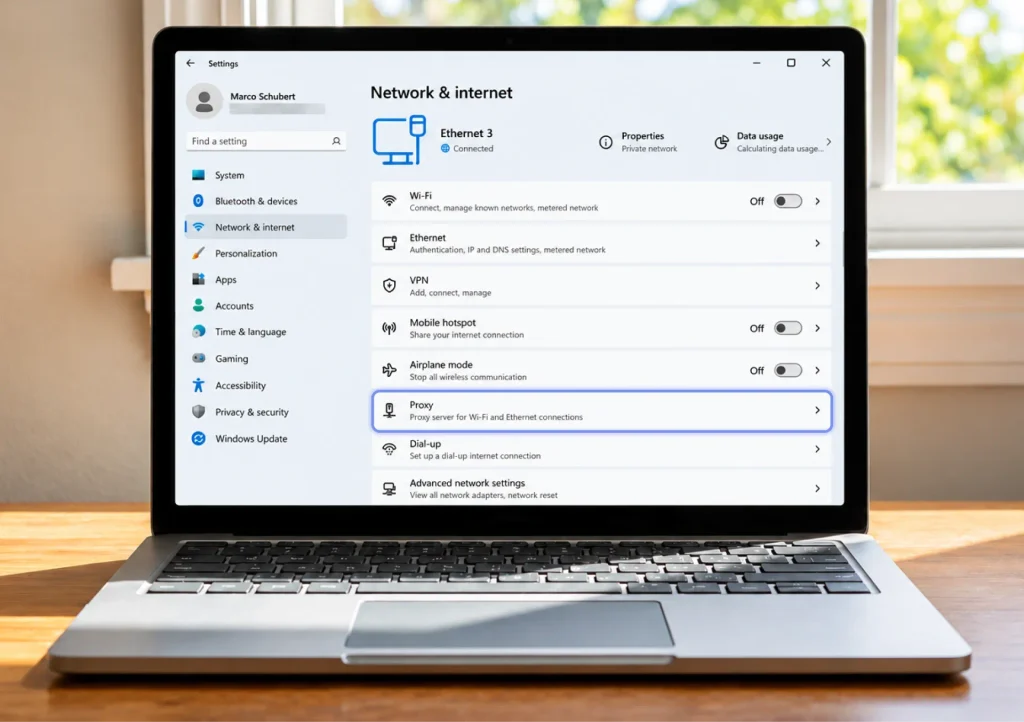
Then open your adapter properties and untick Internet Protocol Version 6 for a test, since some VPNs handle IPv6 poorly.
Also review your split tunneling rules. If the one app you are testing is excluded from the tunnel, or the wrong apps are included, traffic can get stuck. Finally, check whether your VPN’s kill switch is blocking everything after a failed reconnect; turning it off briefly (and back on afterward) will tell you quickly.
How to Fix a VPN That Keeps Disconnecting on Windows 11
A VPN that keeps disconnecting on Windows 11 is usually a power or stability problem, not a software bug. Windows loves saving battery, and it is not shy about cutting off a network adapter to do it.
Open Device Manager → expand Network adapters → double-click your Wi-Fi or Ethernet adapter → Under the Power Management tab, untick “Allow the computer to turn off this device to save power.”
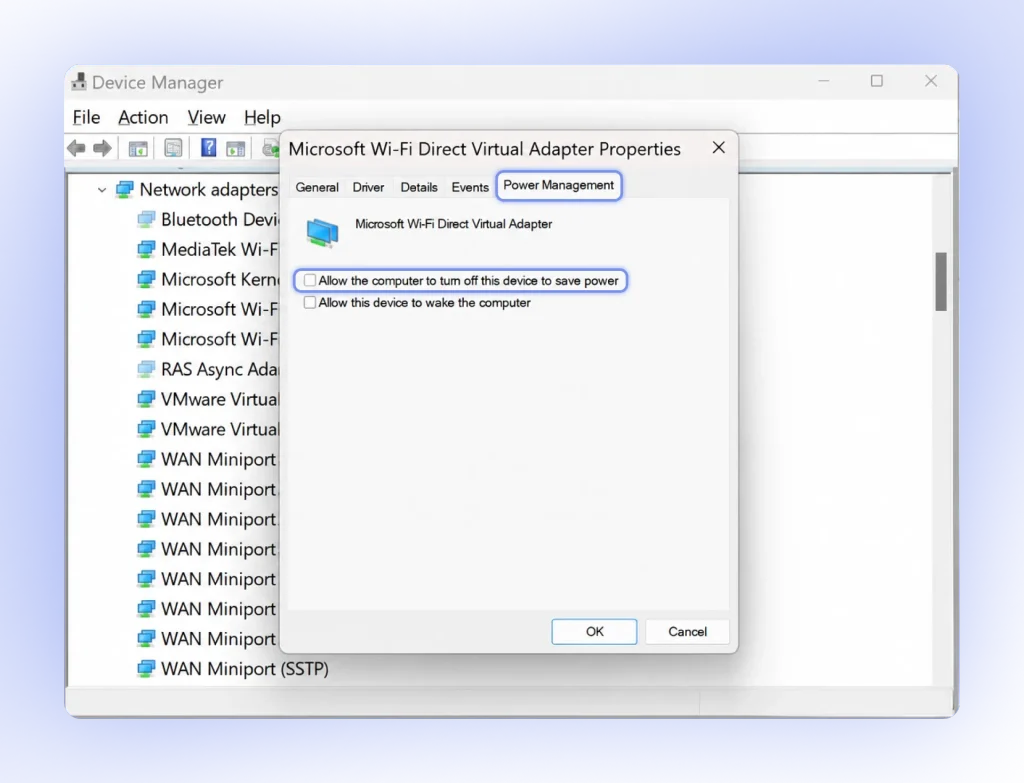
Two other quick wins help here. Close any second VPN or network tool running in the background, since two tunnels fighting over the same adapter is a classic cause of random drops. And if you are on a laptop, set the power plan to Balanced or Best performance while testing.
VPN Not Working on Wi-Fi but Working on Ethernet
If your VPN runs perfectly through a cable but fails on wireless, you have already learned something useful. The VPN app is fine, so the problem sits in your Wi-Fi driver, your router, or the network itself.
Switch to a Private Network Profile and Disable Metered Data
Windows 11 applies stricter firewall filtering to networks classified as Public. If your home Wi-Fi is accidentally set to Public, Windows can quietly block incoming tunnel traffic or isolate your connection.
Go to Settings → Network & internet → Wi-Fi, click your connected network, and select Private network. While on this page, scroll down and ensure Metered connection is toggled Off. When a network is set to metered, Windows restricts background data transfers, which frequently causes VPN tunnels to drop without warning.
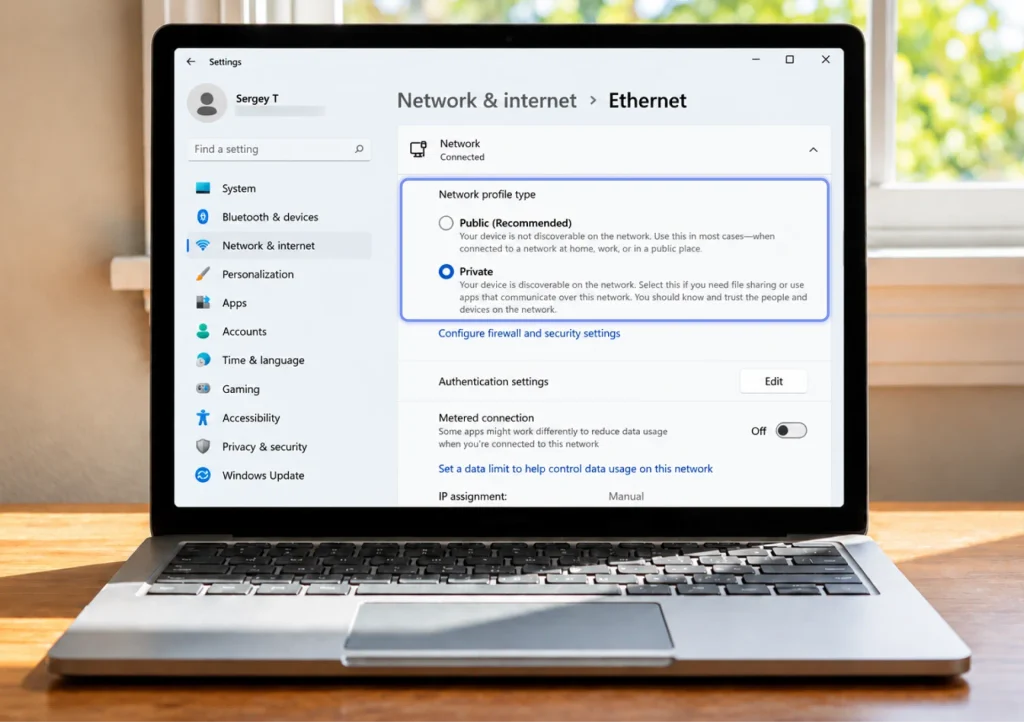
Update the Wi-Fi Driver and Test Another Network
Start with the driver. In Device Manager, right-click your Wi-Fi adapter, choose Update driver, and let Windows search. If it finds nothing, visit your laptop or adapter maker’s site for a newer version, since Windows updates can leave older drivers behind.
Then test a different network, such as your phone’s hotspot. If the VPN works there, your home router or the Wi-Fi you were on is the bottleneck. Restart the router, and check whether it has a “VPN passthrough” or firewall feature switched off. Public networks at airports, cafes, and offices often block the ports VPNs use, so switching protocol (see the quick checks) usually helps there.
When Should You Contact Your VPN Provider?
You have done the work, so it is time for backup when the same error shows up on a different network and after a clean reinstall. It is also worth reaching out when other devices fail to connect, when the app shows an account or subscription error, or when only certain servers refuse to connect.
Before you write to support, collect a few details so they can help faster. Include your Windows version (press Windows key + R, type winver), the app version, the protocol and server you tried, the exact error message, and the time it happened. A clear report usually gets you a real answer on the first reply, rather than a list of steps you have already tried.
Quick Troubleshooting Checklist
Run through this list from top to bottom, and stop as soon as the VPN works.
- Test your internet without the VPN.
- Restart the app and try another server.
- Switch the VPN protocol.
- Update Windows and the VPN app, or reinstall it.
- Rebuild the WAN Miniport adapters.
- Allow the VPN through Windows Firewall, and test your antivirus.
- Recreate the built-in VPN profile if you use one.
- Flush DNS and reset Winsock.
- Check proxy, IPv6, split tunneling, and the kill switch.
- Turn off adapter power saving.
- Update the Wi-Fi driver and test another network.
- Contact your provider with your details ready.
If you reach the bottom of the list, you have ruled out the usual suspects, and your provider’s support team can take it from there.
FAQs
The most common causes are a blocked protocol, an outdated VPN app, a firewall or antivirus conflict, or corrupted WAN Miniport adapters. Switching the protocol and updating the app fixes most cases.
Usually DNS, a leftover proxy, or an IPv6 conflict is to blame. Flushing DNS, turning off the proxy, and testing with IPv6 disabled solves it in most cases.
Windows may be powering down your network adapter to save energy, or another network tool is clashing with the VPN. Disable the power-saving option and close competing apps.
It is better not to. Allow your VPN app through the firewall instead, which gives the same result without leaving your PC exposed.
Updates can change networking components and break older drivers or VPN profiles. Update your VPN app first, check Microsoft’s release health page, and only roll back an update as a last resort.
A missing VPN usually points to a corrupted profile or damaged WAN Miniport adapters. Reinstalling the adapters, or recreating the profile, brings it back.
Your router or the Wi-Fi network might be blocking VPN traffic. Update the Wi-Fi driver, restart the router, and try a different protocol.
Article by
-
 Sam Clarke
Sam is a cybersecurity and online privacy writer dedicated to making complex network protection accessible, practical, and engaging.





Share your thoughts
Add a comment